> ## Documentation Index
> Fetch the complete documentation index at: https://documentation.onesignal.com/llms.txt
> Use this file to discover all available pages before exploring further.
# Android notification categories
> Create Android notification categories (channels) in OneSignal to control sound, importance, and lock screen visibility per notification type.
Use Android notification categories to control sound, vibration, badges, and lock screen visibility for each type of notification. OneSignal calls these **categories**. Android calls them **notification channels**. The dashboard still uses **Channel** and **Group** for the same objects.
For example, create an Urgent category with a custom sound for breaking news, and a quieter category for less time-sensitive updates.
Create and manage categories in the OneSignal dashboard, or define channels in your app with [Android's notification channels guide](https://developer.android.com/develop/ui/views/notifications/channels). Dashboard categories are the typical path. In-app channels are for cases OneSignal does not support, such as localization or bypassing Do Not Disturb.
Android notification categories work for Google Android, Huawei Android, and Amazon Fire OS.
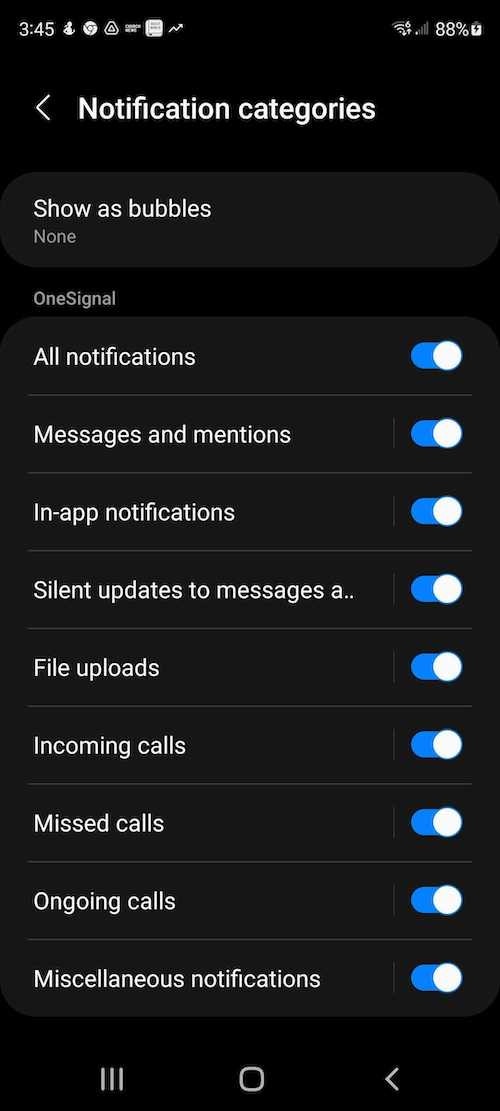 Users can disable a category in **Settings > Notifications > Your app** without revoking notification permission. Notifications sent with a disabled category do not appear on the device.
***
## Default notification categories
OneSignal automatically creates two default categories on Google Android and Amazon Fire OS:
### Miscellaneous
Used when you do not set a category.
* **Importance:** High
* **Sound:** Default
* **Vibration:** Default
* **Badges:** Enabled
* **Lockscreen:** Private
### Restored
Used when your app is force-quit and reopened. If push notifications are in the Notification Center when the app is force-quit, they are removed from the device. Reopening the app recreates (restores) those notifications. The OneSignal SDK assigns them to Restored so multiple restored notifications do not play sounds or pop up.
* **Importance:** Low
* **Sound:** Off
* **Vibration:** Off
* **Badges:** Disabled
* **Lockscreen:** Private
If you always send push notifications with a custom category, Miscellaneous does not appear on user devices. Restored always appears so the SDK can restore notifications after a force-quit.
### Huawei-specific behavior
On Huawei devices, OneSignal does **not** set a default category. If you don't include one, Huawei applies **High** importance by default.
For badge control on Huawei devices, use `huawei_badge_class`, `huawei_badge_set_num`, and `huawei_badge_add_num` in the [Push notification](/reference/push-notification) API. See [Badges](./badges#huawei-badges).
***
## Create Android notification categories in OneSignal
You need a [OneSignal app configured with an Android platform](./android-sdk-setup) before creating categories.
Go to **Settings > Push & In-App > Android Notification Channels** in the OneSignal dashboard.
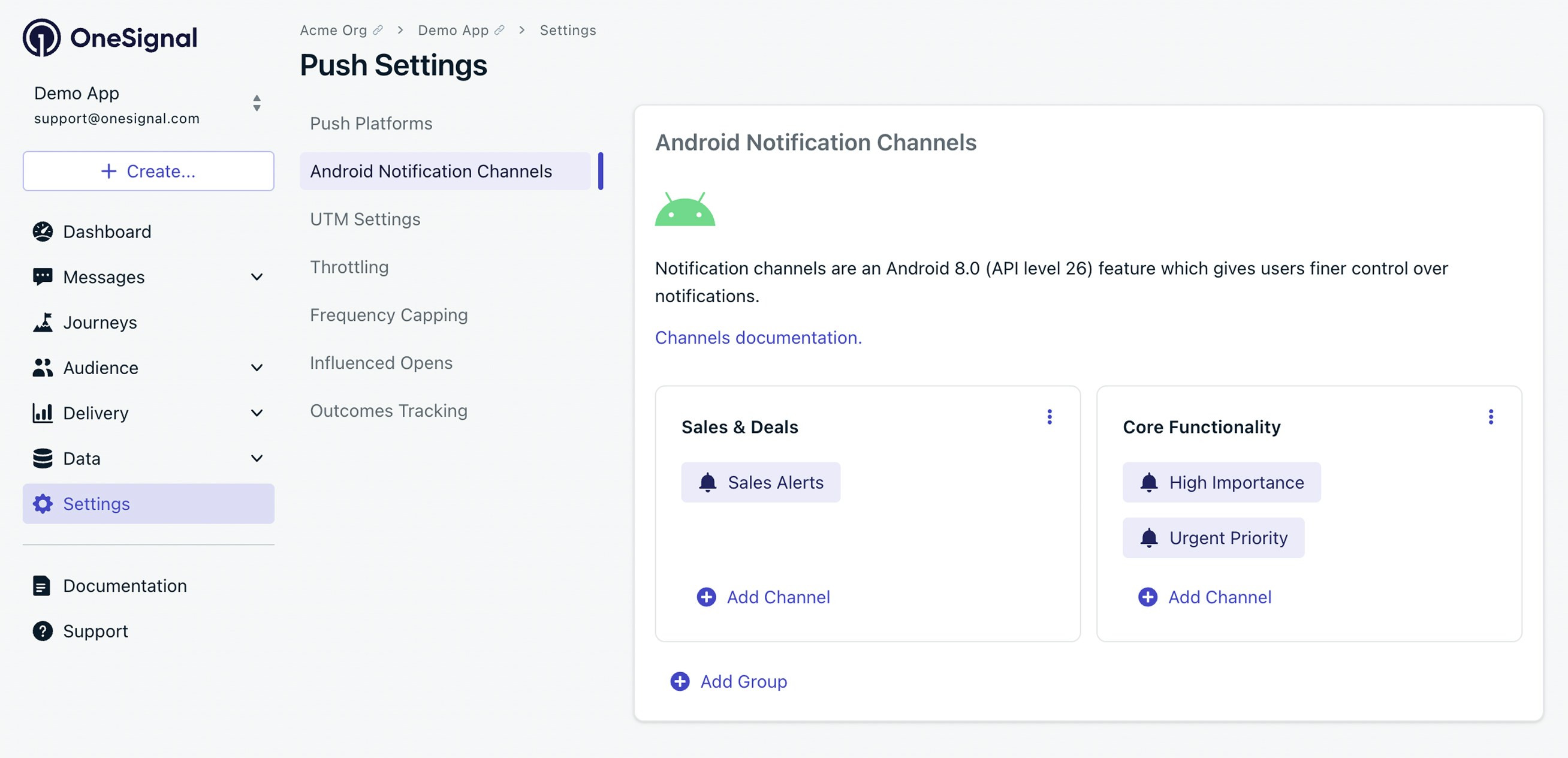
Click **Add Group** to organize categories (for example, `News Updates` or `Social Activity`). Groups appear as channel groups in Android settings.
Click **Add Channel** within the group to create a category. Set the fields below, then save.
Users can disable a category in **Settings > Notifications > Your app** without revoking notification permission. Notifications sent with a disabled category do not appear on the device.
***
## Default notification categories
OneSignal automatically creates two default categories on Google Android and Amazon Fire OS:
### Miscellaneous
Used when you do not set a category.
* **Importance:** High
* **Sound:** Default
* **Vibration:** Default
* **Badges:** Enabled
* **Lockscreen:** Private
### Restored
Used when your app is force-quit and reopened. If push notifications are in the Notification Center when the app is force-quit, they are removed from the device. Reopening the app recreates (restores) those notifications. The OneSignal SDK assigns them to Restored so multiple restored notifications do not play sounds or pop up.
* **Importance:** Low
* **Sound:** Off
* **Vibration:** Off
* **Badges:** Disabled
* **Lockscreen:** Private
If you always send push notifications with a custom category, Miscellaneous does not appear on user devices. Restored always appears so the SDK can restore notifications after a force-quit.
### Huawei-specific behavior
On Huawei devices, OneSignal does **not** set a default category. If you don't include one, Huawei applies **High** importance by default.
For badge control on Huawei devices, use `huawei_badge_class`, `huawei_badge_set_num`, and `huawei_badge_add_num` in the [Push notification](/reference/push-notification) API. See [Badges](./badges#huawei-badges).
***
## Create Android notification categories in OneSignal
You need a [OneSignal app configured with an Android platform](./android-sdk-setup) before creating categories.
Go to **Settings > Push & In-App > Android Notification Channels** in the OneSignal dashboard.
Click **Add Group** to organize categories (for example, `News Updates` or `Social Activity`). Groups appear as channel groups in Android settings.
Click **Add Channel** within the group to create a category. Set the fields below, then save.
 ### Name
User-visible. Keep it clear and descriptive.
### Description
User-visible. Briefly explain the type of notifications this category handles.
### Importance
Controls how visible and interruptive the notification is. OneSignal labels do not match Android's `IMPORTANCE_*` names. **High** in OneSignal is not Android `IMPORTANCE_HIGH`.
| OneSignal | Behavior | Closest Android importance |
| - | - | - |
| **Low** | Silent, no alerts | `IMPORTANCE_MIN` |
| **Medium** | No sound or vibration, minimal visual interruption | `IMPORTANCE_LOW` |
| **High** | Plays sound or vibrates, no heads-up | `IMPORTANCE_DEFAULT` |
| **Urgent** | Plays sound and appears as a heads-up or banner | `IMPORTANCE_HIGH` |
### Sound
* **Off:** No sound
* **Default:** Device default notification tone
* **Custom:** Upload and reference a custom sound with no file extension. Example: `alert_beep` (not `alert_beep.wav`)
Full setup instructions for adding custom sounds to your notifications.
### Vibration
* **Off:** No vibration
* **Default:** Device vibration pattern
* **Custom:** Pattern in milliseconds. Example: `0, 300, 500, 300` means wait 0ms, vibrate 300ms, pause 500ms, vibrate 300ms.
### LED Color
Some Android devices support LED indicators:
* **Off:** No LED
* **Default:** Device default
* **Custom:** ARGB hex value (for example, `FF0000FF` for blue)
### Badges
Shows a badge count on the app icon:
* **Enabled:** Badge is shown
* **Disabled:** No badge displayed
### Lockscreen visibility
* **Public:** Full content shown
* **Private:** Only app name, hides content
* **Secret:** No notification visible on the lock screen
After you save the category, you can select it when sending notifications.
***
## Updating categories
After a device receives a notification with a category, Android locks that category's sound, importance, vibration, and related behavior.
Changes to importance, sound, vibration, or other locked settings do not apply to devices that already received that category. If you send with High importance and later change the same category to Urgent with a new sound, those devices keep High importance and the original sound.
To change behavior, create a new category. To test changes on your own device, clear app data or uninstall and reinstall the app.
You can update these without creating a new category:
* Category name (shown as channel name in Android settings)
* Category group name (shown as channel group name in Android settings)
These names update in Android's notification settings when the next notification is received using that category.
***
## Deleting categories
To remove a deleted category from the user's device:
Delete the category from **Settings > Push & In-App > Android Notification Channels**.
Clear all notifications for the app from the Notification Center.
Have the user put the app in the background for 60 seconds or more, then open it again. The SDK re-syncs and removes the deleted category from Android settings.
***
## Adding categories to notifications
How you reference a category depends on where you created it and how you send the message.
### Sending from the OneSignal dashboard
1. Open your Template or Push Message Composer and go to the Android settings.
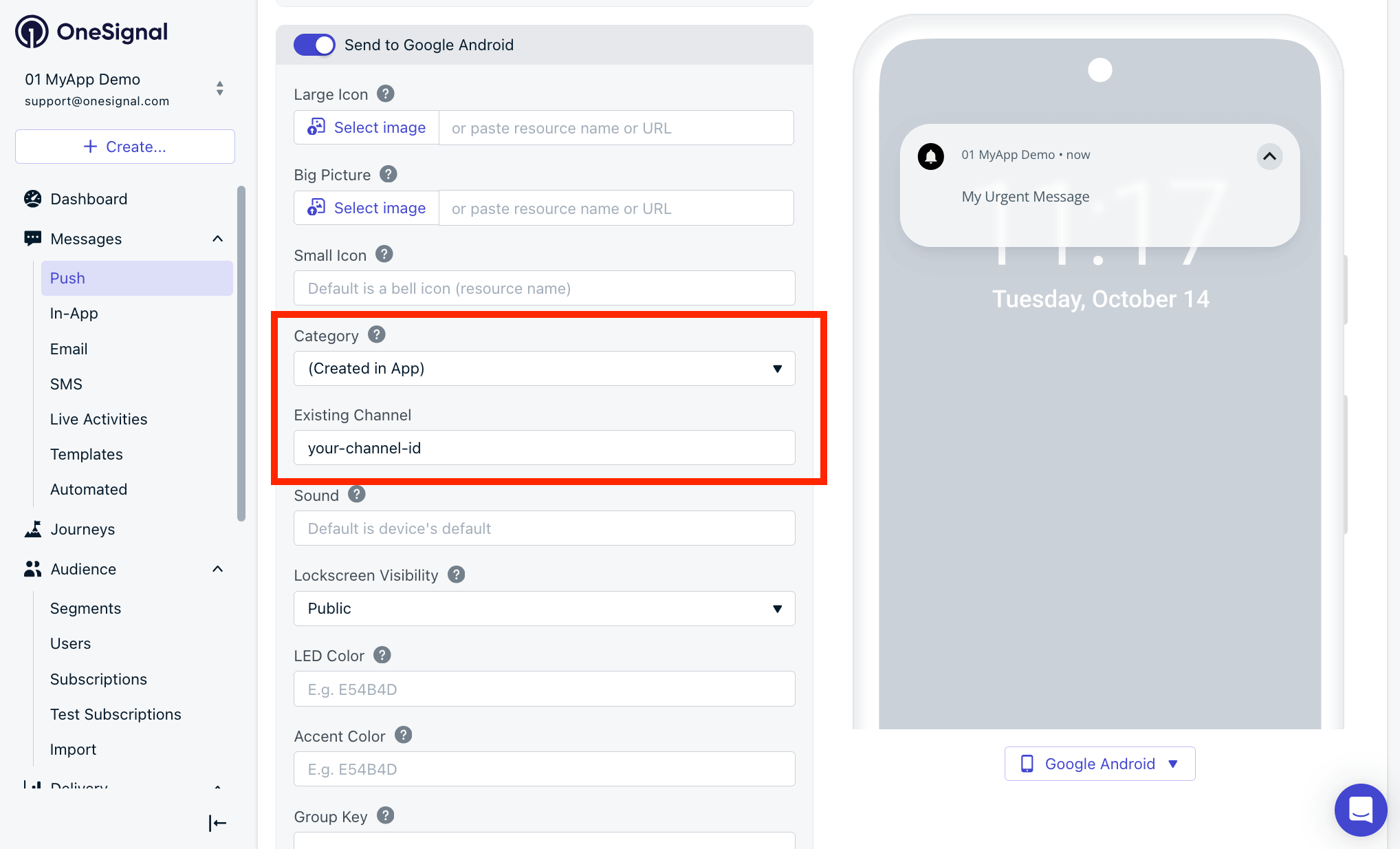
2. Under **Category**, select a dashboard category, or select **(Created in App)** if you created the channel in your app code.
3. If you selected **(Created in App)**, set **Existing Channel** to the channel **ID** from your code. That is the first argument to `NotificationChannel`, not the user-visible name.
### Name
User-visible. Keep it clear and descriptive.
### Description
User-visible. Briefly explain the type of notifications this category handles.
### Importance
Controls how visible and interruptive the notification is. OneSignal labels do not match Android's `IMPORTANCE_*` names. **High** in OneSignal is not Android `IMPORTANCE_HIGH`.
| OneSignal | Behavior | Closest Android importance |
| - | - | - |
| **Low** | Silent, no alerts | `IMPORTANCE_MIN` |
| **Medium** | No sound or vibration, minimal visual interruption | `IMPORTANCE_LOW` |
| **High** | Plays sound or vibrates, no heads-up | `IMPORTANCE_DEFAULT` |
| **Urgent** | Plays sound and appears as a heads-up or banner | `IMPORTANCE_HIGH` |
### Sound
* **Off:** No sound
* **Default:** Device default notification tone
* **Custom:** Upload and reference a custom sound with no file extension. Example: `alert_beep` (not `alert_beep.wav`)
Full setup instructions for adding custom sounds to your notifications.
### Vibration
* **Off:** No vibration
* **Default:** Device vibration pattern
* **Custom:** Pattern in milliseconds. Example: `0, 300, 500, 300` means wait 0ms, vibrate 300ms, pause 500ms, vibrate 300ms.
### LED Color
Some Android devices support LED indicators:
* **Off:** No LED
* **Default:** Device default
* **Custom:** ARGB hex value (for example, `FF0000FF` for blue)
### Badges
Shows a badge count on the app icon:
* **Enabled:** Badge is shown
* **Disabled:** No badge displayed
### Lockscreen visibility
* **Public:** Full content shown
* **Private:** Only app name, hides content
* **Secret:** No notification visible on the lock screen
After you save the category, you can select it when sending notifications.
***
## Updating categories
After a device receives a notification with a category, Android locks that category's sound, importance, vibration, and related behavior.
Changes to importance, sound, vibration, or other locked settings do not apply to devices that already received that category. If you send with High importance and later change the same category to Urgent with a new sound, those devices keep High importance and the original sound.
To change behavior, create a new category. To test changes on your own device, clear app data or uninstall and reinstall the app.
You can update these without creating a new category:
* Category name (shown as channel name in Android settings)
* Category group name (shown as channel group name in Android settings)
These names update in Android's notification settings when the next notification is received using that category.
***
## Deleting categories
To remove a deleted category from the user's device:
Delete the category from **Settings > Push & In-App > Android Notification Channels**.
Clear all notifications for the app from the Notification Center.
Have the user put the app in the background for 60 seconds or more, then open it again. The SDK re-syncs and removes the deleted category from Android settings.
***
## Adding categories to notifications
How you reference a category depends on where you created it and how you send the message.
### Sending from the OneSignal dashboard
1. Open your Template or Push Message Composer and go to the Android settings.
2. Under **Category**, select a dashboard category, or select **(Created in App)** if you created the channel in your app code.
3. If you selected **(Created in App)**, set **Existing Channel** to the channel **ID** from your code. That is the first argument to `NotificationChannel`, not the user-visible name.
 ### Sending with the REST API
Use the [Push notification](/reference/push-notification) API. Pass the dashboard category's Channel ID, or the channel ID string from your app.
| Created in | Google Android and Amazon | Huawei |
| - | - | - |
| OneSignal dashboard | `android_channel_id` | `huawei_channel_id` |
| Your app | `existing_android_channel_id` | `huawei_existing_channel_id` |
Find the dashboard Channel ID on the Android category setup screen. Send that value unprefixed as `android_channel_id`.
### Sending with the REST API
Use the [Push notification](/reference/push-notification) API. Pass the dashboard category's Channel ID, or the channel ID string from your app.
| Created in | Google Android and Amazon | Huawei |
| - | - | - |
| OneSignal dashboard | `android_channel_id` | `huawei_channel_id` |
| Your app | `existing_android_channel_id` | `huawei_existing_channel_id` |
Find the dashboard Channel ID on the Android category setup screen. Send that value unprefixed as `android_channel_id`.
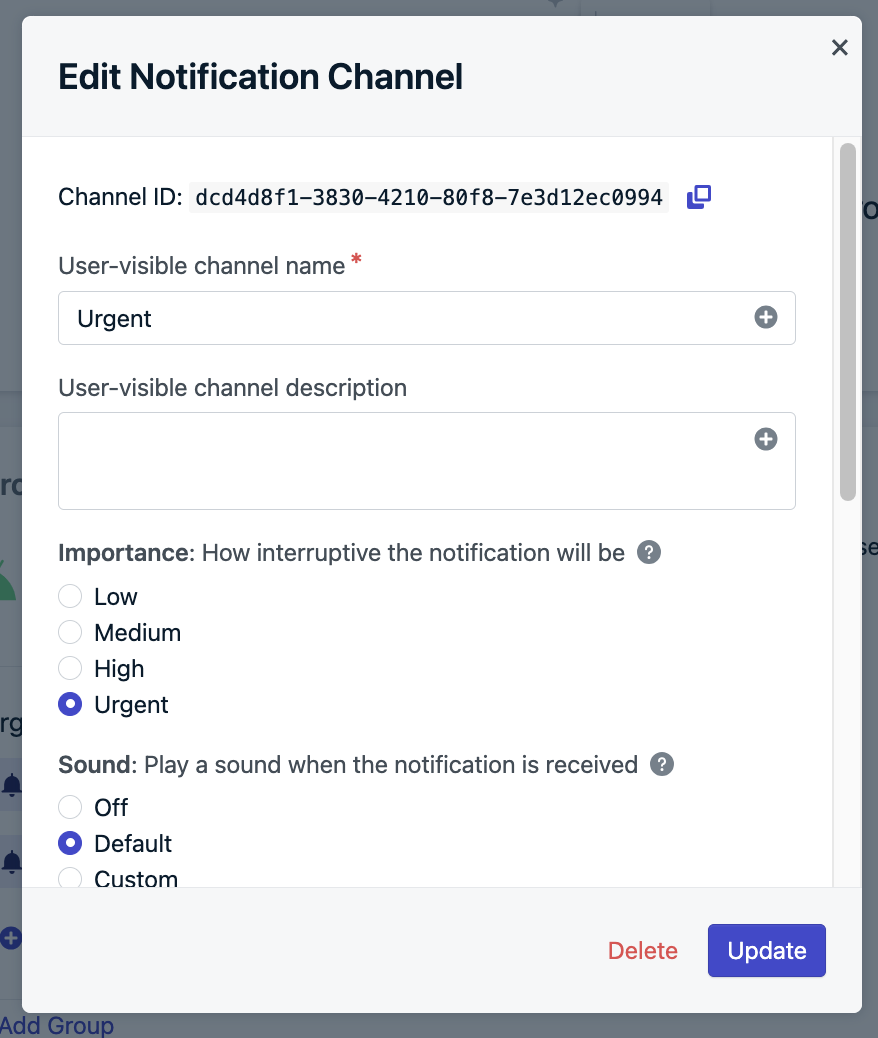 OneSignal prefixes dashboard-managed channel and group IDs with `OS_` in the payload delivered to the device (`chnl.id`). The Android SDK uses that prefixed ID unchanged when creating the channel. Continue sending the unprefixed dashboard Channel ID as `android_channel_id`.
For in-app channels, set `existing_android_channel_id` or `huawei_existing_channel_id` to the channel **ID** from your `NotificationChannel` constructor. Do not pass the user-visible name.
***
## Check whether a category is enabled on the device
Users can disable a single category, or an entire category group, on their device in **Settings > Notifications > Your app**. Notifications sent with a disabled category do not appear, even when your app still has notification permission.
Your app can read this state at runtime using Android's own APIs. Use it to diagnose "I stopped getting notifications" reports inside your app instead of walking users through system settings.
### Find the on-device channel ID
The ID you check on the device is not always the ID you send in the API.
| Category | On-device channel ID |
| - | - |
| Created in the OneSignal dashboard | `OS_` followed by the Channel ID on the category setup screen. A Channel ID of `1a2b3c4d-...` is `OS_1a2b3c4d-...` on the device |
| Dashboard category group | `OS_` followed by the dashboard group ID. Compare this to `channel.group` |
| No category set on the notification | `fcm_fallback_notification_channel`, shown as **Miscellaneous** |
| Restored after a force-quit | `restored_OS_notifications`, shown as **Restored** |
| Created in your app code | The ID you passed to `NotificationChannel`, the same value you send as `existing_android_channel_id` |
Do not add the `OS_` prefix to `android_channel_id` when sending messages. Send the Channel ID exactly as the dashboard shows it. OneSignal prefixes dashboard-managed channel and group IDs with `OS_` in the payload delivered to the device. The Android SDK uses that prefixed ID unchanged when creating the channel. Use the prefixed ID only with Android APIs such as `getNotificationChannel()`.
To see which channels exist on a device, list them:
```kotlin theme={null}
if (Build.VERSION.SDK_INT >= Build.VERSION_CODES.O) {
val manager = getSystemService(Context.NOTIFICATION_SERVICE) as NotificationManager
for (channel in manager.notificationChannels) {
Log.d(
"Channels",
"id=${channel.id} name=${channel.name} group=${channel.group} importance=${channel.importance}",
)
}
}
```
You can also list them over adb:
```bash theme={null}
adb shell dumpsys notification
```
The default dump redacts notification content. `adb shell dumpsys notification --noredact` includes titles, text, and other extras. Use `--noredact` only on a test device, and do not share that output.
### Read the category state
A category the user turned off reports an importance of `IMPORTANCE_NONE`. Blocking a group does not change the importance of the categories inside it, so check both.
```kotlin theme={null}
enum class CategoryState { APP_DISABLED, CATEGORY_DISABLED, GROUP_DISABLED, NOT_CREATED, ENABLED }
fun categoryState(context: Context, channelId: String): CategoryState {
// Covers the Android 13+ POST_NOTIFICATIONS denial and app-level opt-out.
if (!NotificationManagerCompat.from(context).areNotificationsEnabled()) {
return CategoryState.APP_DISABLED
}
if (Build.VERSION.SDK_INT < Build.VERSION_CODES.O) return CategoryState.ENABLED
val manager = context.getSystemService(Context.NOTIFICATION_SERVICE) as NotificationManager
val channel = manager.getNotificationChannel(channelId) ?: return CategoryState.NOT_CREATED
if (channel.importance == NotificationManager.IMPORTANCE_NONE) {
return CategoryState.CATEGORY_DISABLED
}
if (Build.VERSION.SDK_INT >= Build.VERSION_CODES.P) {
val groupId = channel.group
if (groupId != null && manager.getNotificationChannelGroup(groupId)?.isBlocked == true) {
return CategoryState.GROUP_DISABLED
}
}
return CategoryState.ENABLED
}
```
Categories exist on Android 8.0 (API 26) and higher. Below that, only the app-level check applies. Group blocking can only be read on Android 9.0 (API 28) and higher.
### Send users to their category settings
Deep link users to the exact category they need to re-enable:
```kotlin theme={null}
fun openCategorySettings(context: Context, channelId: String) {
if (Build.VERSION.SDK_INT < Build.VERSION_CODES.O) return
val intent = Intent(Settings.ACTION_CHANNEL_NOTIFICATION_SETTINGS).apply {
putExtra(Settings.EXTRA_APP_PACKAGE, context.packageName)
putExtra(Settings.EXTRA_CHANNEL_ID, channelId)
if (context !is Activity) {
addFlags(Intent.FLAG_ACTIVITY_NEW_TASK)
}
}
context.startActivity(intent)
}
```
`startActivity()` requires `FLAG_ACTIVITY_NEW_TASK` when `context` is not an `Activity`. Pass an `Activity` when you have one, or keep the flag as shown so the call is safe from an `Application` or `Service`.
Android has no equivalent screen for a blocked group. For `GROUP_DISABLED`, send users to `Settings.ACTION_APP_NOTIFICATION_SETTINGS` instead.
### What this check does and does not tell you
* **`NOT_CREATED` does not mean enabled.** The SDK creates dashboard categories when it syncs with OneSignal, or when the first notification using that category arrives. On a fresh install a category may not exist yet. Treat this result as unknown, not as working.
* **`IMPORTANCE_NONE` does not always mean the user disabled it.** A category is created with the importance of the first notification that used it. A notification sent with an Android priority of `0` creates a category that is already at `IMPORTANCE_NONE`. Android then locks that value. See [Updating categories](#updating-categories).
* **Deleted categories keep the user's choice.** If you delete a category and later recreate it with the same Channel ID, Android restores the user's previous setting, including a block.
* **There is no change listener.** Android does not notify your app when a user toggles a category or a group, so check on app foreground. `OneSignal.Notifications.addPermissionObserver()` reports app-level permission changes only, not category changes.
***
## FAQ
### What is the difference between `android_channel_id` and `existing_android_channel_id`?
`android_channel_id` is the UUID OneSignal shows on a category you created in the dashboard. `existing_android_channel_id` is the channel ID string you passed to `NotificationChannel` in your app. Huawei uses the same split with `huawei_channel_id` and `huawei_existing_channel_id`. Never send the user-visible category name in these fields.
OneSignal prefixes dashboard-managed channel and group IDs with `OS_` in the payload delivered to the device. The Android SDK uses that prefixed ID unchanged when creating the channel. Continue sending the unprefixed dashboard Channel ID as `android_channel_id`. Use the prefixed ID only when you call Android APIs such as `getNotificationChannel()`. See [Find the on-device channel ID](#find-the-on-device-channel-id).
### Why didn't my importance or sound change?
Android locks a category's behavior after the device first receives a notification that uses it. Create a new category for the new behavior, or clear app data to test on your own device. See [Updating categories](#updating-categories).
### Why did notifications stop on Samsung devices?
Samsung One UI 6.1 can disable notification categories after install. Notifications for a disabled category do not appear, even when app permission is granted. Ask the user to enable categories under **Settings > Notifications > Your app**. See [Android notification categories disabled](./notifications-show-successful-but-are-not-being-shown#android-notification-categories-disabled) and [Example: Target certain Android manufacturers and devices](./example-target-certain-android-manufacturers-and-devices).
### Can users turn off a category without disabling all notifications?
Yes. Android lets users disable individual categories in **Settings > Notifications > Your app**. A disabled category suppresses those notifications even if the app still has notification permission. Confirm the category is toggled on when a specific type of notification never appears.
### Can my app check whether a user disabled a category?
Yes, using Android's own APIs. OneSignal does not expose an SDK method for this. See [Check whether a category is enabled on the device](#check-whether-a-category-is-enabled-on-the-device).
### Can categories play sounds in Do Not Disturb (DND) mode?
No. OneSignal does not set `setBypassDnd` on categories. To override DND, create your own channel in the app and enable that setting. See [setBypassDnd](https://developer.android.com/reference/android/app/NotificationChannel#setBypassDnd\(boolean\)).
### Can I localize category names or descriptions?
No. OneSignal does not support multiple languages for dashboard categories. Define your own Android channels in the app and reference them with `existing_android_channel_id` (or `huawei_existing_channel_id` on Huawei).
### Why is my Android category not working?
The most common causes are a disabled category on the device, Android locking settings after the first notification, or sending the channel name instead of the channel ID.
Check the following:
* Whether the category is toggled on in **Settings > Notifications > Your app**
* Whether you changed importance or sound after devices already received the category. See [Updating categories](#updating-categories)
* Whether the sound filename has no extension. See [Sound](#sound)
* Whether the send used `android_channel_id` (dashboard UUID) or `existing_android_channel_id` (in-app channel ID)
* Whether OneSignal is initialized in the `Application` class, not an `Activity`. See [Android SDK setup](./android-sdk-setup)
If you created the channel in your app, review [Android's notification channels guide](https://developer.android.com/develop/ui/views/notifications/channels).
***
## Related pages
Set up custom notification sounds for Android, iOS, and other platforms.
Configure badge counts on app icons across platforms.
Install and initialize the OneSignal Android SDK in your app.
Send push notifications and set `android_channel_id` or `existing_android_channel_id`.
Need help?
Chat with our Support team or email `support@onesignal.com`
Please include:
* Details of the issue you're experiencing and steps to reproduce if available
* Your OneSignal App ID
* The External ID or Subscription ID if applicable
* The URL to the message you tested in the OneSignal Dashboard if applicable
* Any relevant [logs or error messages](/docs/en/capturing-a-debug-log)
We're happy to help!
This documentation is built and hosted on [Mintlify](https://mintlify.com), a developer documentation platform.
OneSignal prefixes dashboard-managed channel and group IDs with `OS_` in the payload delivered to the device (`chnl.id`). The Android SDK uses that prefixed ID unchanged when creating the channel. Continue sending the unprefixed dashboard Channel ID as `android_channel_id`.
For in-app channels, set `existing_android_channel_id` or `huawei_existing_channel_id` to the channel **ID** from your `NotificationChannel` constructor. Do not pass the user-visible name.
***
## Check whether a category is enabled on the device
Users can disable a single category, or an entire category group, on their device in **Settings > Notifications > Your app**. Notifications sent with a disabled category do not appear, even when your app still has notification permission.
Your app can read this state at runtime using Android's own APIs. Use it to diagnose "I stopped getting notifications" reports inside your app instead of walking users through system settings.
### Find the on-device channel ID
The ID you check on the device is not always the ID you send in the API.
| Category | On-device channel ID |
| - | - |
| Created in the OneSignal dashboard | `OS_` followed by the Channel ID on the category setup screen. A Channel ID of `1a2b3c4d-...` is `OS_1a2b3c4d-...` on the device |
| Dashboard category group | `OS_` followed by the dashboard group ID. Compare this to `channel.group` |
| No category set on the notification | `fcm_fallback_notification_channel`, shown as **Miscellaneous** |
| Restored after a force-quit | `restored_OS_notifications`, shown as **Restored** |
| Created in your app code | The ID you passed to `NotificationChannel`, the same value you send as `existing_android_channel_id` |
Do not add the `OS_` prefix to `android_channel_id` when sending messages. Send the Channel ID exactly as the dashboard shows it. OneSignal prefixes dashboard-managed channel and group IDs with `OS_` in the payload delivered to the device. The Android SDK uses that prefixed ID unchanged when creating the channel. Use the prefixed ID only with Android APIs such as `getNotificationChannel()`.
To see which channels exist on a device, list them:
```kotlin theme={null}
if (Build.VERSION.SDK_INT >= Build.VERSION_CODES.O) {
val manager = getSystemService(Context.NOTIFICATION_SERVICE) as NotificationManager
for (channel in manager.notificationChannels) {
Log.d(
"Channels",
"id=${channel.id} name=${channel.name} group=${channel.group} importance=${channel.importance}",
)
}
}
```
You can also list them over adb:
```bash theme={null}
adb shell dumpsys notification
```
The default dump redacts notification content. `adb shell dumpsys notification --noredact` includes titles, text, and other extras. Use `--noredact` only on a test device, and do not share that output.
### Read the category state
A category the user turned off reports an importance of `IMPORTANCE_NONE`. Blocking a group does not change the importance of the categories inside it, so check both.
```kotlin theme={null}
enum class CategoryState { APP_DISABLED, CATEGORY_DISABLED, GROUP_DISABLED, NOT_CREATED, ENABLED }
fun categoryState(context: Context, channelId: String): CategoryState {
// Covers the Android 13+ POST_NOTIFICATIONS denial and app-level opt-out.
if (!NotificationManagerCompat.from(context).areNotificationsEnabled()) {
return CategoryState.APP_DISABLED
}
if (Build.VERSION.SDK_INT < Build.VERSION_CODES.O) return CategoryState.ENABLED
val manager = context.getSystemService(Context.NOTIFICATION_SERVICE) as NotificationManager
val channel = manager.getNotificationChannel(channelId) ?: return CategoryState.NOT_CREATED
if (channel.importance == NotificationManager.IMPORTANCE_NONE) {
return CategoryState.CATEGORY_DISABLED
}
if (Build.VERSION.SDK_INT >= Build.VERSION_CODES.P) {
val groupId = channel.group
if (groupId != null && manager.getNotificationChannelGroup(groupId)?.isBlocked == true) {
return CategoryState.GROUP_DISABLED
}
}
return CategoryState.ENABLED
}
```
Categories exist on Android 8.0 (API 26) and higher. Below that, only the app-level check applies. Group blocking can only be read on Android 9.0 (API 28) and higher.
### Send users to their category settings
Deep link users to the exact category they need to re-enable:
```kotlin theme={null}
fun openCategorySettings(context: Context, channelId: String) {
if (Build.VERSION.SDK_INT < Build.VERSION_CODES.O) return
val intent = Intent(Settings.ACTION_CHANNEL_NOTIFICATION_SETTINGS).apply {
putExtra(Settings.EXTRA_APP_PACKAGE, context.packageName)
putExtra(Settings.EXTRA_CHANNEL_ID, channelId)
if (context !is Activity) {
addFlags(Intent.FLAG_ACTIVITY_NEW_TASK)
}
}
context.startActivity(intent)
}
```
`startActivity()` requires `FLAG_ACTIVITY_NEW_TASK` when `context` is not an `Activity`. Pass an `Activity` when you have one, or keep the flag as shown so the call is safe from an `Application` or `Service`.
Android has no equivalent screen for a blocked group. For `GROUP_DISABLED`, send users to `Settings.ACTION_APP_NOTIFICATION_SETTINGS` instead.
### What this check does and does not tell you
* **`NOT_CREATED` does not mean enabled.** The SDK creates dashboard categories when it syncs with OneSignal, or when the first notification using that category arrives. On a fresh install a category may not exist yet. Treat this result as unknown, not as working.
* **`IMPORTANCE_NONE` does not always mean the user disabled it.** A category is created with the importance of the first notification that used it. A notification sent with an Android priority of `0` creates a category that is already at `IMPORTANCE_NONE`. Android then locks that value. See [Updating categories](#updating-categories).
* **Deleted categories keep the user's choice.** If you delete a category and later recreate it with the same Channel ID, Android restores the user's previous setting, including a block.
* **There is no change listener.** Android does not notify your app when a user toggles a category or a group, so check on app foreground. `OneSignal.Notifications.addPermissionObserver()` reports app-level permission changes only, not category changes.
***
## FAQ
### What is the difference between `android_channel_id` and `existing_android_channel_id`?
`android_channel_id` is the UUID OneSignal shows on a category you created in the dashboard. `existing_android_channel_id` is the channel ID string you passed to `NotificationChannel` in your app. Huawei uses the same split with `huawei_channel_id` and `huawei_existing_channel_id`. Never send the user-visible category name in these fields.
OneSignal prefixes dashboard-managed channel and group IDs with `OS_` in the payload delivered to the device. The Android SDK uses that prefixed ID unchanged when creating the channel. Continue sending the unprefixed dashboard Channel ID as `android_channel_id`. Use the prefixed ID only when you call Android APIs such as `getNotificationChannel()`. See [Find the on-device channel ID](#find-the-on-device-channel-id).
### Why didn't my importance or sound change?
Android locks a category's behavior after the device first receives a notification that uses it. Create a new category for the new behavior, or clear app data to test on your own device. See [Updating categories](#updating-categories).
### Why did notifications stop on Samsung devices?
Samsung One UI 6.1 can disable notification categories after install. Notifications for a disabled category do not appear, even when app permission is granted. Ask the user to enable categories under **Settings > Notifications > Your app**. See [Android notification categories disabled](./notifications-show-successful-but-are-not-being-shown#android-notification-categories-disabled) and [Example: Target certain Android manufacturers and devices](./example-target-certain-android-manufacturers-and-devices).
### Can users turn off a category without disabling all notifications?
Yes. Android lets users disable individual categories in **Settings > Notifications > Your app**. A disabled category suppresses those notifications even if the app still has notification permission. Confirm the category is toggled on when a specific type of notification never appears.
### Can my app check whether a user disabled a category?
Yes, using Android's own APIs. OneSignal does not expose an SDK method for this. See [Check whether a category is enabled on the device](#check-whether-a-category-is-enabled-on-the-device).
### Can categories play sounds in Do Not Disturb (DND) mode?
No. OneSignal does not set `setBypassDnd` on categories. To override DND, create your own channel in the app and enable that setting. See [setBypassDnd](https://developer.android.com/reference/android/app/NotificationChannel#setBypassDnd\(boolean\)).
### Can I localize category names or descriptions?
No. OneSignal does not support multiple languages for dashboard categories. Define your own Android channels in the app and reference them with `existing_android_channel_id` (or `huawei_existing_channel_id` on Huawei).
### Why is my Android category not working?
The most common causes are a disabled category on the device, Android locking settings after the first notification, or sending the channel name instead of the channel ID.
Check the following:
* Whether the category is toggled on in **Settings > Notifications > Your app**
* Whether you changed importance or sound after devices already received the category. See [Updating categories](#updating-categories)
* Whether the sound filename has no extension. See [Sound](#sound)
* Whether the send used `android_channel_id` (dashboard UUID) or `existing_android_channel_id` (in-app channel ID)
* Whether OneSignal is initialized in the `Application` class, not an `Activity`. See [Android SDK setup](./android-sdk-setup)
If you created the channel in your app, review [Android's notification channels guide](https://developer.android.com/develop/ui/views/notifications/channels).
***
## Related pages
Set up custom notification sounds for Android, iOS, and other platforms.
Configure badge counts on app icons across platforms.
Install and initialize the OneSignal Android SDK in your app.
Send push notifications and set `android_channel_id` or `existing_android_channel_id`.
Need help?
Chat with our Support team or email `support@onesignal.com`
Please include:
* Details of the issue you're experiencing and steps to reproduce if available
* Your OneSignal App ID
* The External ID or Subscription ID if applicable
* The URL to the message you tested in the OneSignal Dashboard if applicable
* Any relevant [logs or error messages](/docs/en/capturing-a-debug-log)
We're happy to help!
This documentation is built and hosted on [Mintlify](https://mintlify.com), a developer documentation platform.