> ## Documentation Index
> Fetch the complete documentation index at: https://documentation.onesignal.com/llms.txt
> Use this file to discover all available pages before exploring further.
# Huawei authorization
> Step-by-step guide to connect your Huawei app to OneSignal for push notifications, including PushKit setup, API key configuration, and Huawei's optional message self-classification for apps with users in China.
## Requirements
To enable push notifications on Huawei Android devices using OneSignal, you'll need:
* A [Huawei Developer Account](https://developer.huawei.com/consumer/en/console)
* An Android mobile app registered in [Huawei's AppGallery Connect](https://developer.huawei.com/consumer/en/doc/distribution/app/agc-create_app)
* A [OneSignal Account](https://onesignal.com/)
* (Optional) [Huawei Self-Classification Rights](https://developer.huawei.com/consumer/cn/doc/development/HMSCore-Guides/message-classification-0000001149358835#section1653845862216) if targeting users in China and needing more precise message categorization via the `Huawei_category` API field
***
## Setup
### 1. Enable PushKit
See [Huawei's docs on Push Kit](https://developer.huawei.com/consumer/en/codelab/HMSPushKit/index.html#0).
### 2. Get your Huawei Push credentials
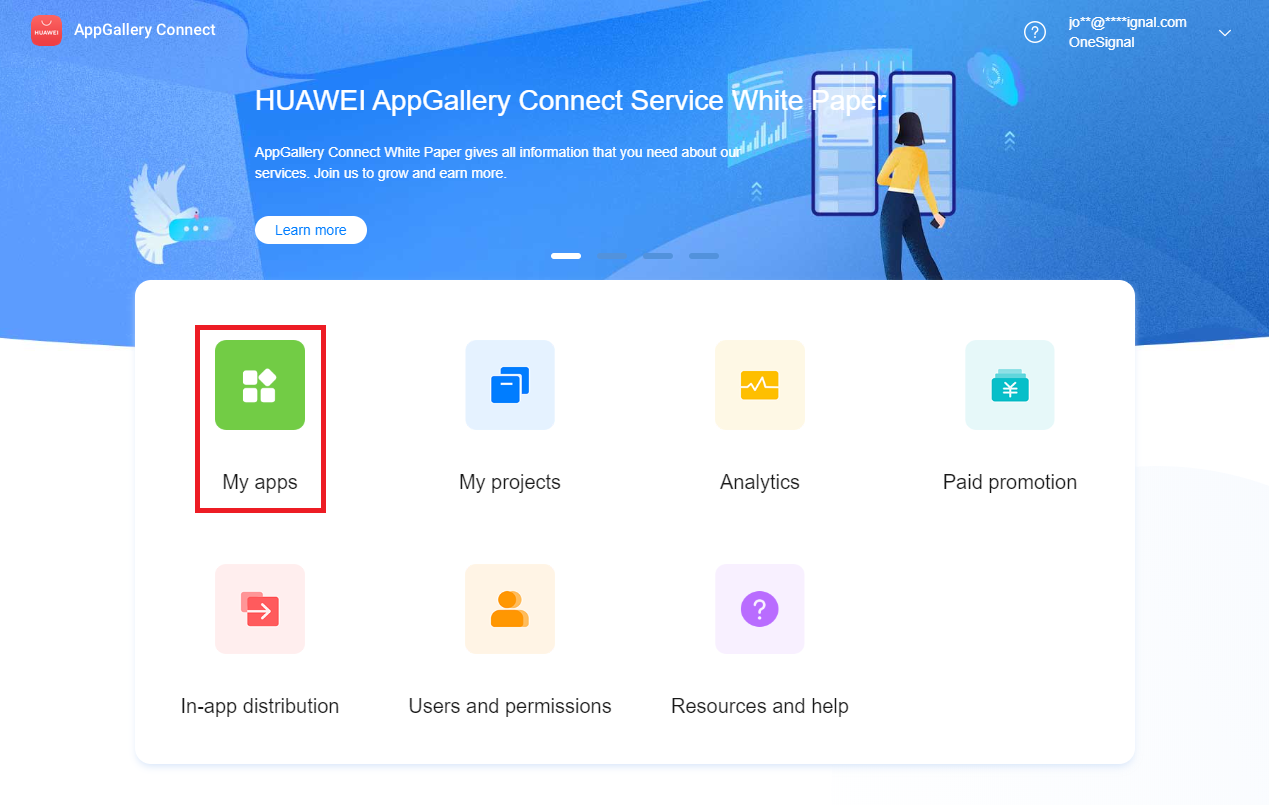
Open [AppGallery Connect](https://developer.huawei.com/consumer/cn/service/josp/agc/index.html) and select your app/project.
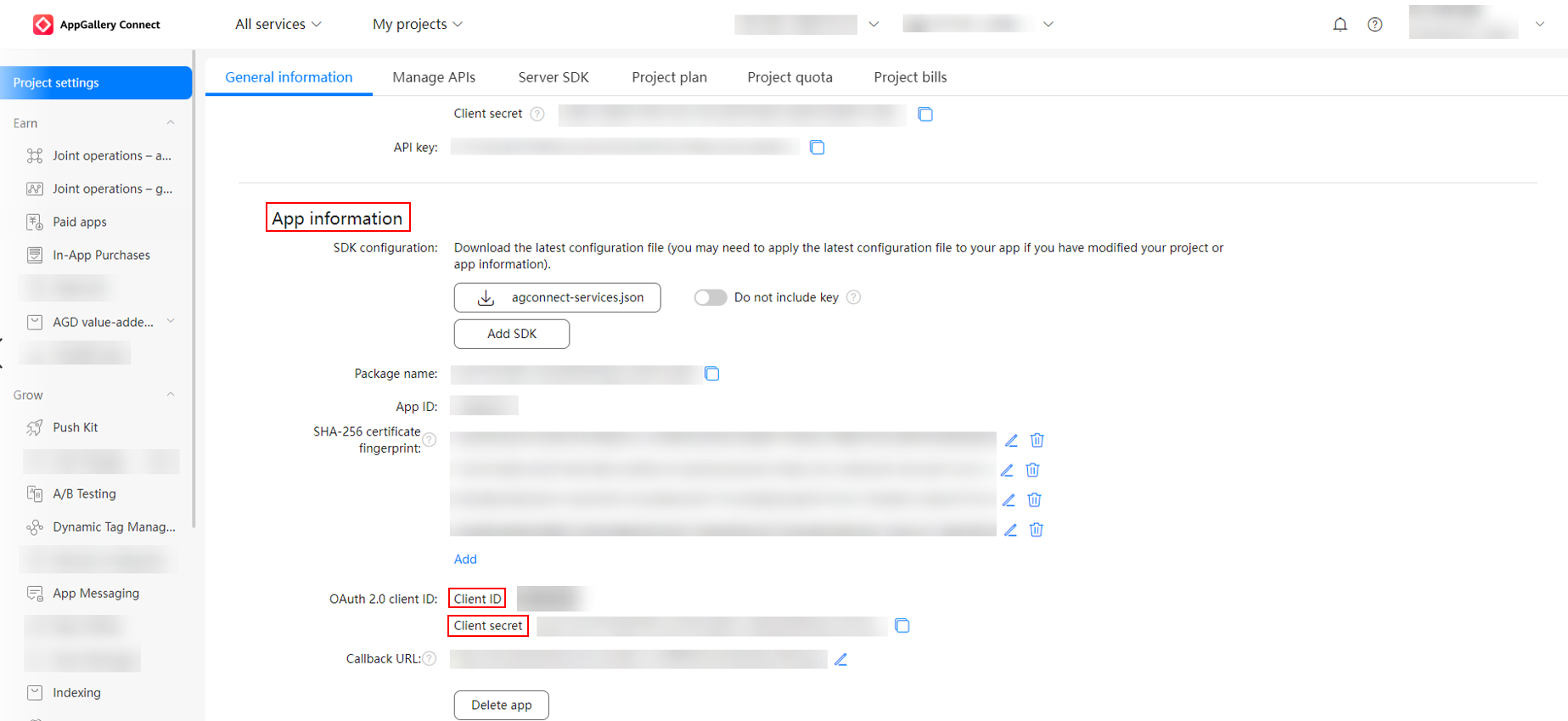
 Go to **In-App Purchases** under **All services > Earn**. Copy the following:
* **Package Name**
* **Client ID**
* **Client Secret**
Go to **In-App Purchases** under **All services > Earn**. Copy the following:
* **Package Name**
* **Client ID**
* **Client Secret**
 ### 3. Add credentials to OneSignal
In the OneSignal dashboard, go to your app **Settings > Push & In-App > Huawei Android (HMS)**.
### 3. Add credentials to OneSignal
In the OneSignal dashboard, go to your app **Settings > Push & In-App > Huawei Android (HMS)**.
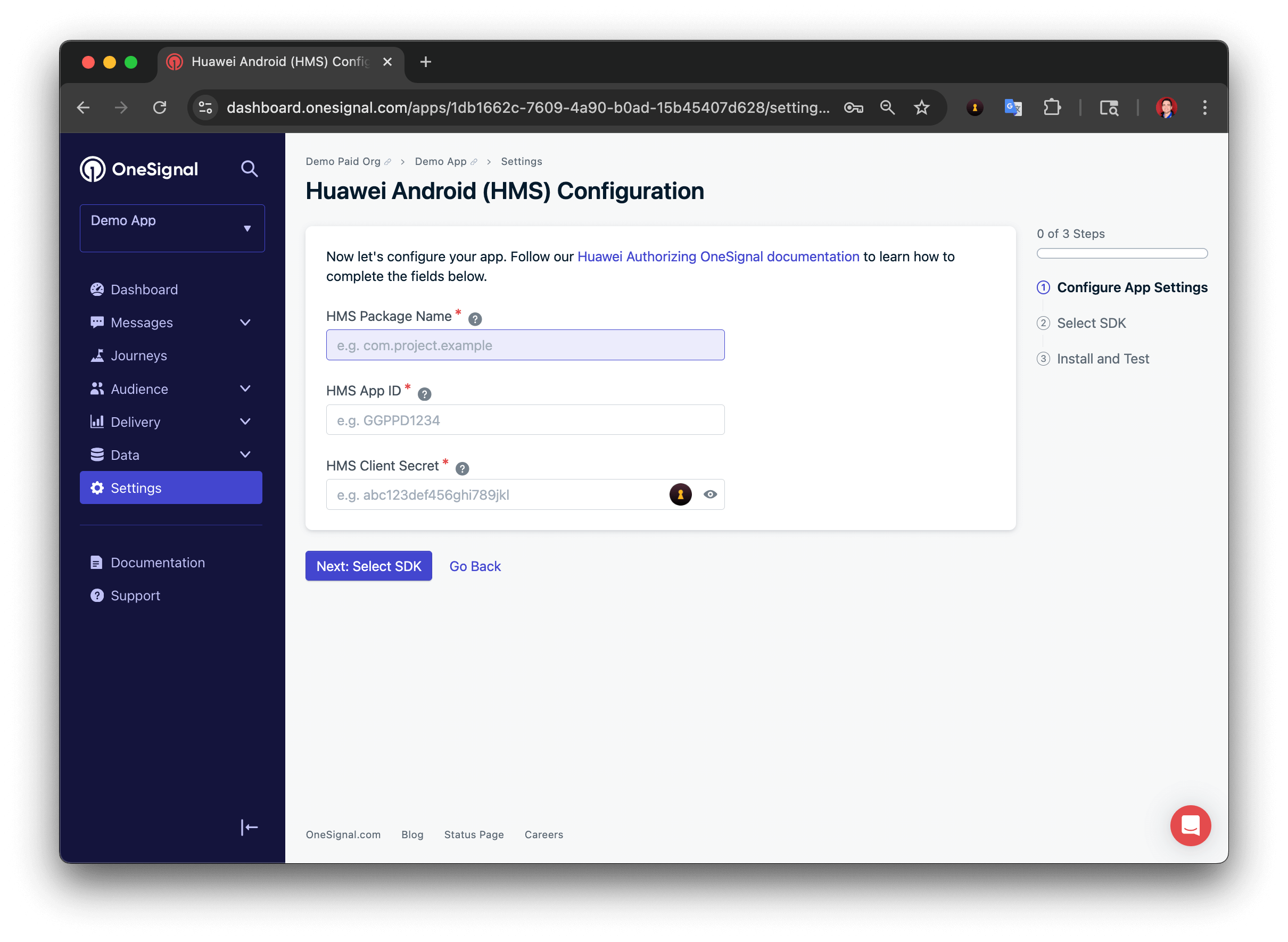
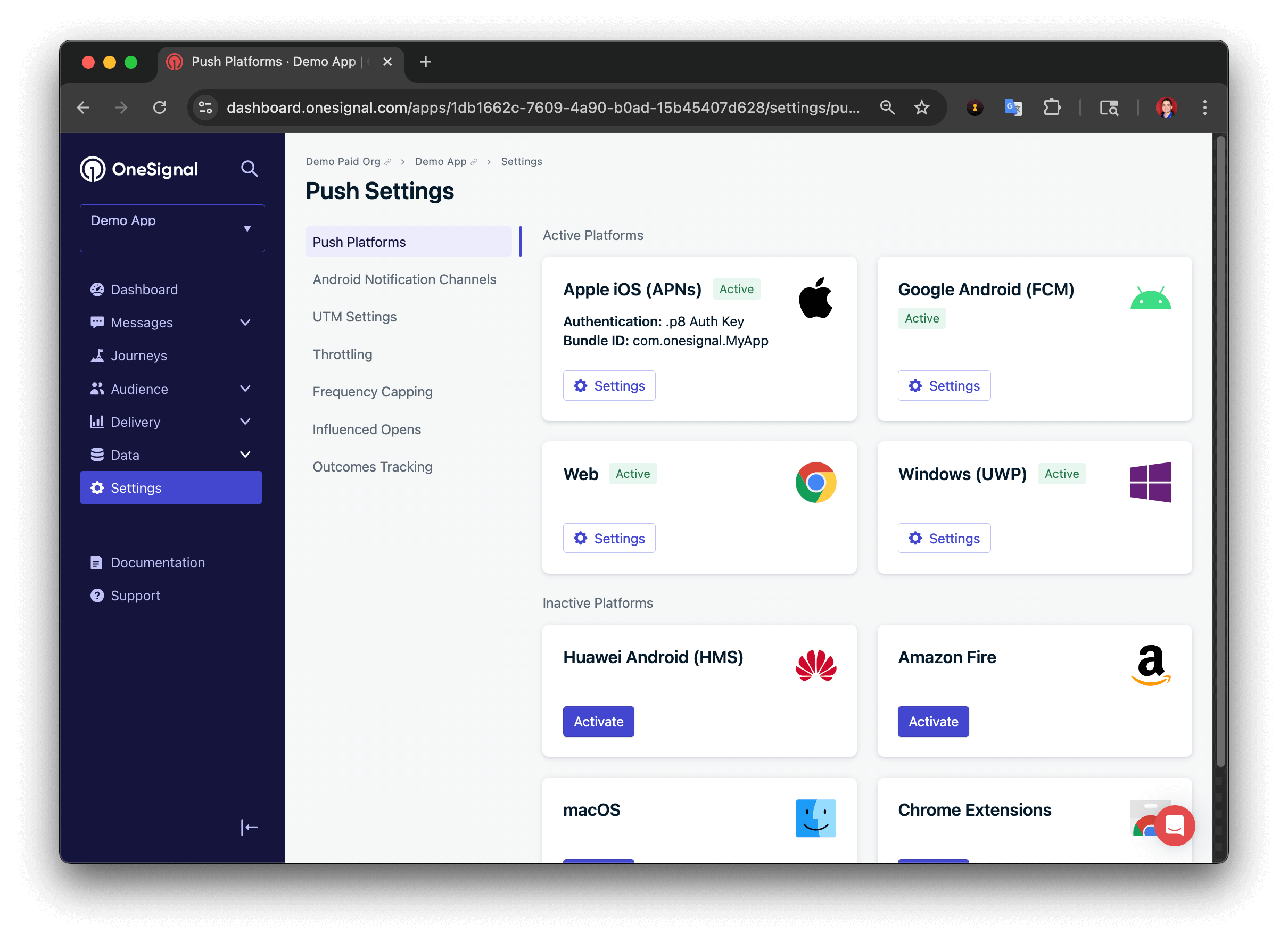 Click **Activate** and paste your credentials:
* **Package Name**
* **Client ID** (into **App ID** field)
* **Client Secret** (into **App Secret** field)
Then click **Next**.
Click **Activate** and paste your credentials:
* **Package Name**
* **Client ID** (into **App ID** field)
* **Client Secret** (into **App Secret** field)
Then click **Next**.
 ### 4. (Optional) Apply for Huawei’s Self-Classification Rights
Huawei requires AppGallery apps sending notifications to **users in China** to categorize messages. They offer **automatic classification**, but **self-classification** gives more control and higher send limits for critical message types.
#### How to apply
1. Follow Huawei’s [Self-Classification application guide](https://developer.huawei.com/consumer/cn/doc/development/HMSCore-Guides/message-classification-0000001149358835#section1653845862216).
2. Once approved, use the `Huawei_category` field in the OneSignal API to classify your messages.
#### Supported `Huawei_category` values
| Category | Description |
| - | - |
| `IM` | Instant messaging |
| `VOIP` | Voice-over-IP services |
| `SUBSCRIPTION` | Subscribed content notifications |
| `TRAVEL` | Travel info (e.g., ticket updates) |
| `HEALTH` | Health and wellness updates |
| `WORK` | Work-related reminders |
| `ACCOUNT` | Account activity alerts |
| `EXPRESS` | Logistics/delivery updates |
| `FINANCE` | Financial/banking alerts |
| `DEVICE_REMINDER` | Device-level system reminders |
| `MAIL` | Email client messages |
| `MARKETING` | Marketing or promotional content |
Default category is `MARKETING`, which is limited to 2–5 sends/day depending on [third-level classifications](https://developer.huawei.com/consumer/cn/doc/development/HMSCore-Guides/message-restriction-description-0000001361648361#section199311418515).
**Important:** [Classification violations](https://developer.huawei.com/consumer/cn/doc/development/HMSCore-Guides/volation-classification-violation-penalty-criteria-0000001356540133) may lead to penalties or delivery restrictions.
***
## Huawei badges
OneSignal supports setting app icon badge counts on Huawei devices via the API and dashboard. Use the `huawei_badge_class`, `huawei_badge_set_num`, and `huawei_badge_add_num` parameters when creating push notifications.
See [Badges](./badges#huawei-badges) for full details and examples.
***
You're now authorized to send Huawei push notifications using OneSignal!
Next steps:
* [Integrate the OneSignal SDK](./mobile-sdk-setup)
***
This documentation is built and hosted on [Mintlify](https://mintlify.com), a developer documentation platform.
### 4. (Optional) Apply for Huawei’s Self-Classification Rights
Huawei requires AppGallery apps sending notifications to **users in China** to categorize messages. They offer **automatic classification**, but **self-classification** gives more control and higher send limits for critical message types.
#### How to apply
1. Follow Huawei’s [Self-Classification application guide](https://developer.huawei.com/consumer/cn/doc/development/HMSCore-Guides/message-classification-0000001149358835#section1653845862216).
2. Once approved, use the `Huawei_category` field in the OneSignal API to classify your messages.
#### Supported `Huawei_category` values
| Category | Description |
| - | - |
| `IM` | Instant messaging |
| `VOIP` | Voice-over-IP services |
| `SUBSCRIPTION` | Subscribed content notifications |
| `TRAVEL` | Travel info (e.g., ticket updates) |
| `HEALTH` | Health and wellness updates |
| `WORK` | Work-related reminders |
| `ACCOUNT` | Account activity alerts |
| `EXPRESS` | Logistics/delivery updates |
| `FINANCE` | Financial/banking alerts |
| `DEVICE_REMINDER` | Device-level system reminders |
| `MAIL` | Email client messages |
| `MARKETING` | Marketing or promotional content |
Default category is `MARKETING`, which is limited to 2–5 sends/day depending on [third-level classifications](https://developer.huawei.com/consumer/cn/doc/development/HMSCore-Guides/message-restriction-description-0000001361648361#section199311418515).
**Important:** [Classification violations](https://developer.huawei.com/consumer/cn/doc/development/HMSCore-Guides/volation-classification-violation-penalty-criteria-0000001356540133) may lead to penalties or delivery restrictions.
***
## Huawei badges
OneSignal supports setting app icon badge counts on Huawei devices via the API and dashboard. Use the `huawei_badge_class`, `huawei_badge_set_num`, and `huawei_badge_add_num` parameters when creating push notifications.
See [Badges](./badges#huawei-badges) for full details and examples.
***
You're now authorized to send Huawei push notifications using OneSignal!
Next steps:
* [Integrate the OneSignal SDK](./mobile-sdk-setup)
***
This documentation is built and hosted on [Mintlify](https://mintlify.com), a developer documentation platform.