> ## Documentation Index
> Fetch the complete documentation index at: https://documentation.onesignal.com/llms.txt
> Use this file to discover all available pages before exploring further.
# Google Postmaster Tools
> Set up Google Postmaster Tools to monitor Gmail spam rates and domain reputation. Gmail does not share this data directly with email senders.
Gmail does not report per-user spam complaints or bounces to email senders. Yahoo, Outlook, and other providers do. For Gmail, that aggregate spam rate and domain reputation live in [Google Postmaster Tools](https://gmail.com/postmaster/).
You can connect Postmaster Tools to OneSignal. After you verify your sending domain with Google and add `mailmonitor@onesignal.com` as a managed user, OneSignal can read your Gmail spam-rate data and show it in **Messages > Email > [Deliverability insights](./email-deliverability-insights)** next to Outlook, Yahoo, Apple, and other providers. You can still open Postmaster Tools directly for full Gmail charts and domain reputation. Use either view to improve your [email deliverability](./email-deliverability).
If you send 5,000 or more emails per day to Gmail, your domain is permanently classified as a [bulk sender](./email-deliverability#gmail-and-yahoo-bulk-sender-requirements) and you must keep your spam rate below 0.3%. Connect Postmaster Tools to OneSignal before you reach that threshold so you have a Gmail baseline in Deliverability insights.
## How to connect Google Postmaster Tools
Go to [https://gmail.com/postmaster/](https://gmail.com/postmaster/) and **click "Get Started"**.
**Input the *subdomain*** that you have set up with OneSignal.
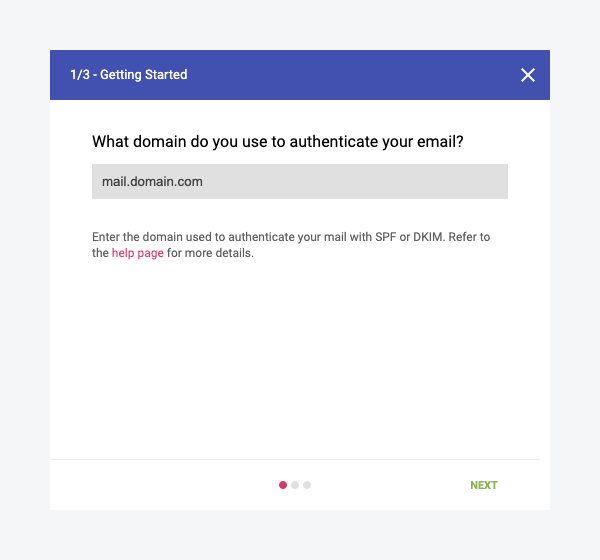 **Click "Next"** and Google will provide a TXT record for you to create in your DNS records.
* Create this record in your DNS registrar to verify ownership of the domain.
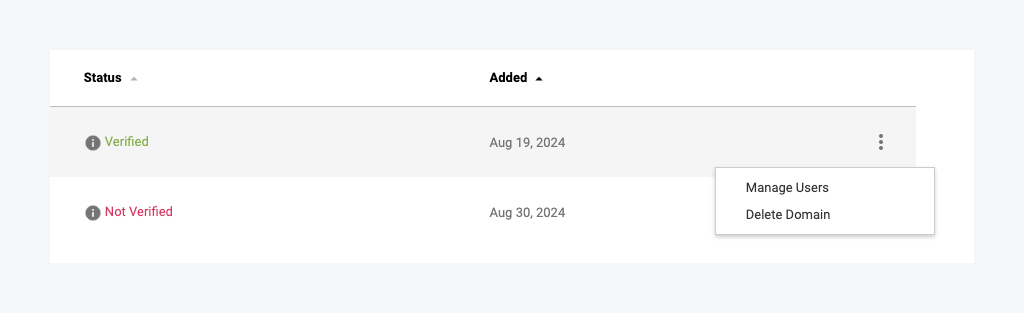
Once you have created the provided TXT record in your DNS records, **click "Verify"**.
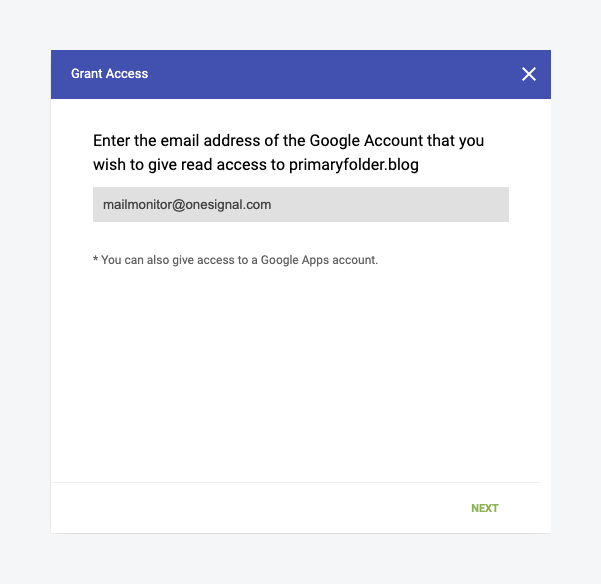
Lastly, add `mailmonitor@onesignal.com` as a **"managed user"**.
* This gives OneSignal view-only access so Gmail spam-rate data can appear in [Deliverability insights](./email-deliverability-insights) and so OneSignal can help monitor your reputation.
**Click "Next"** and Google will provide a TXT record for you to create in your DNS records.
* Create this record in your DNS registrar to verify ownership of the domain.
Once you have created the provided TXT record in your DNS records, **click "Verify"**.
Lastly, add `mailmonitor@onesignal.com` as a **"managed user"**.
* This gives OneSignal view-only access so Gmail spam-rate data can appear in [Deliverability insights](./email-deliverability-insights) and so OneSignal can help monitor your reputation.
 ***
## Monitor spam rate
The spam rate is the percentage of your mail volume that Gmail recipients reported as spam on a given day. Google aggregates this data and does not identify individual recipients.
You can view it in two places:
* **Google Postmaster Tools** (charts below): the source of truth for Gmail spam rate and domain reputation.
* **[Deliverability insights](./email-deliverability-insights)** in OneSignal: Gmail's spam figure next to other inbox providers, after you add `mailmonitor@onesignal.com` as a managed user.
This Gmail spam rate is separate from the overall spam complaint rate on the [Reputation dashboard](./email-deliverability#reputation). That overall rate excludes Gmail and Apple because those providers do not send per-recipient complaint feedback.
Google states: *"Keep spam rates reported in Postmaster Tools below 0.10% and avoid ever reaching a spam rate of 0.30% or higher."* See [Google's Email Sender Guidelines](https://support.google.com/a/answer/81126?hl=en#spam-rate).
***
## Monitor spam rate
The spam rate is the percentage of your mail volume that Gmail recipients reported as spam on a given day. Google aggregates this data and does not identify individual recipients.
You can view it in two places:
* **Google Postmaster Tools** (charts below): the source of truth for Gmail spam rate and domain reputation.
* **[Deliverability insights](./email-deliverability-insights)** in OneSignal: Gmail's spam figure next to other inbox providers, after you add `mailmonitor@onesignal.com` as a managed user.
This Gmail spam rate is separate from the overall spam complaint rate on the [Reputation dashboard](./email-deliverability#reputation). That overall rate excludes Gmail and Apple because those providers do not send per-recipient complaint feedback.
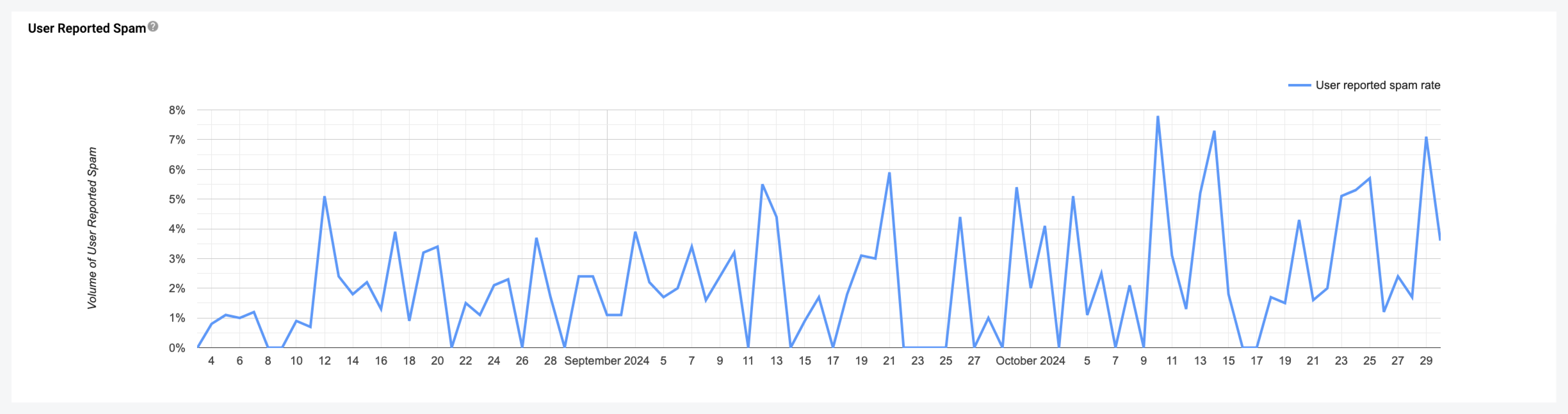
Google states: *"Keep spam rates reported in Postmaster Tools below 0.10% and avoid ever reaching a spam rate of 0.30% or higher."* See [Google's Email Sender Guidelines](https://support.google.com/a/answer/81126?hl=en#spam-rate).
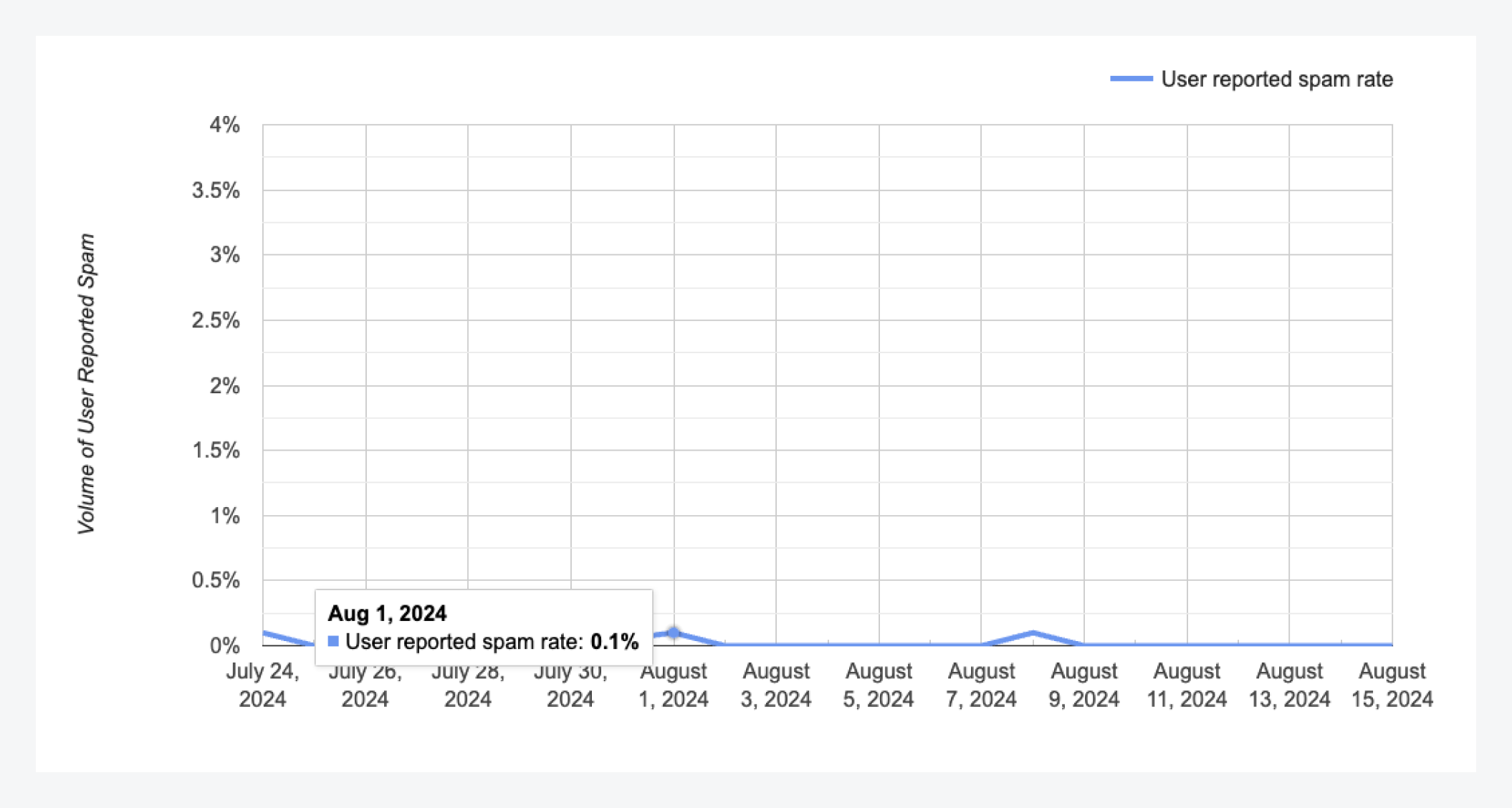 The following example shows a consistently high spam rate, with peaks regularly exceeding Google's recommended thresholds.
 See Gmail spam rate next to Outlook, Yahoo, Apple, and other providers in OneSignal.
Lower spam complaint rates and protect your sending reputation.
***
## FAQ
### Why does Google Postmaster Tools show 0% or no data for my domain?
Google Postmaster Tools requires a minimum daily email volume to Gmail before it displays data. If you're sending low volumes, you may not see any metrics.
If you do have sufficient volume, check that you added the correct domain. Data appears for the domain used in the visible "From" address header of your email, not necessarily your return-path or SMTP sending domain. Although you send from your "sending domain," the *from* address in the header may be different, causing the sending domain to show 0%.
See Gmail spam rate next to Outlook, Yahoo, Apple, and other providers in OneSignal.
Lower spam complaint rates and protect your sending reputation.
***
## FAQ
### Why does Google Postmaster Tools show 0% or no data for my domain?
Google Postmaster Tools requires a minimum daily email volume to Gmail before it displays data. If you're sending low volumes, you may not see any metrics.
If you do have sufficient volume, check that you added the correct domain. Data appears for the domain used in the visible "From" address header of your email, not necessarily your return-path or SMTP sending domain. Although you send from your "sending domain," the *from* address in the header may be different, causing the sending domain to show 0%.
 ### How often is Google Postmaster Tools data updated?
Google Postmaster Tools updates data daily, typically with a 1–2 day delay. You will not see same-day data.
### What do the domain reputation levels mean?
Google Postmaster Tools rates your domain as **High**, **Medium**, **Low**, or **Bad** based on your sending history and spam rates:
* **High**: good sending history with a very low spam rate.
* **Medium**: good sending history, but has occasionally generated spam.
* **Low**: known to send a considerable volume of spam regularly.
* **Bad**: history of sending a high volume of spam. Emails from this domain will almost always be rejected or filtered to spam.
If your reputation drops to Low or Bad, review the [email reputation best practices](./email-reputation-best-practices) to identify the cause. See [Google's domain reputation documentation](https://support.google.com/a/answer/9981691) for more details.
### What should I do if my spam rate is above 0.10%?
Review the [email reputation best practices](./email-reputation-best-practices) to identify and fix the cause. Common steps include verifying your [opt-in process](./email-reputation-best-practices#set-up-a-clear-opt-in-process), [sunsetting unengaged recipients](./email-reputation-best-practices#exclude-or-sunset-unengaged-recipients), and [controlling send frequency](./email-reputation-best-practices#control-send-frequency).
### Where do I see Postmaster data in OneSignal?
After you add `mailmonitor@onesignal.com` as a managed user, Gmail spam-rate data appears in [Deliverability insights](./email-deliverability-insights) under **Messages > Email**. Postmaster-sourced figures lag by about 1–2 days and only show once your domain meets Google's minimum daily volume. Domain reputation levels (High, Medium, Low, Bad) remain in Google Postmaster Tools.
***
This documentation is built and hosted on [Mintlify](https://mintlify.com), a developer documentation platform.
### How often is Google Postmaster Tools data updated?
Google Postmaster Tools updates data daily, typically with a 1–2 day delay. You will not see same-day data.
### What do the domain reputation levels mean?
Google Postmaster Tools rates your domain as **High**, **Medium**, **Low**, or **Bad** based on your sending history and spam rates:
* **High**: good sending history with a very low spam rate.
* **Medium**: good sending history, but has occasionally generated spam.
* **Low**: known to send a considerable volume of spam regularly.
* **Bad**: history of sending a high volume of spam. Emails from this domain will almost always be rejected or filtered to spam.
If your reputation drops to Low or Bad, review the [email reputation best practices](./email-reputation-best-practices) to identify the cause. See [Google's domain reputation documentation](https://support.google.com/a/answer/9981691) for more details.
### What should I do if my spam rate is above 0.10%?
Review the [email reputation best practices](./email-reputation-best-practices) to identify and fix the cause. Common steps include verifying your [opt-in process](./email-reputation-best-practices#set-up-a-clear-opt-in-process), [sunsetting unengaged recipients](./email-reputation-best-practices#exclude-or-sunset-unengaged-recipients), and [controlling send frequency](./email-reputation-best-practices#control-send-frequency).
### Where do I see Postmaster data in OneSignal?
After you add `mailmonitor@onesignal.com` as a managed user, Gmail spam-rate data appears in [Deliverability insights](./email-deliverability-insights) under **Messages > Email**. Postmaster-sourced figures lag by about 1–2 days and only show once your domain meets Google's minimum daily volume. Domain reputation levels (High, Medium, Low, Bad) remain in Google Postmaster Tools.
***
This documentation is built and hosted on [Mintlify](https://mintlify.com), a developer documentation platform.