> ## Documentation Index
> Fetch the complete documentation index at: https://documentation.onesignal.com/llms.txt
> Use this file to discover all available pages before exploring further.
# Identity verification
> Generate a JWT on your server and pass it to OneSignal.login so clients cannot impersonate another External ID or attach email and SMS subscriptions they do not own.
Generate a [JWT](https://jwt.io/introduction) on your server and pass it to `OneSignal.login` so a client cannot impersonate another External ID. The same token can authorize adding email and SMS subscriptions and selected User REST API calls.
Enable Identity Verification to secure:
* Logging in users
* Adding email subscriptions
* Adding SMS subscriptions
* Modifying user identities
Identity Verification (beta) currently supports **mobile only**. The Web SDK is not supported. Enabling it is an app-level setting. If the same app also uses the Web SDK, web `login`, `addEmail`, and `addSms` calls will fail until Web support ships. Do not enable Identity Verification on an app with an active Web SDK integration.
## Prerequisites
* An existing OneSignal app with a configured push platform.
* A mobile app using a supported native SDK:
* [OneSignal Android SDK 5.9.0+](https://github.com/OneSignal/OneSignal-Android-SDK/releases)
* [OneSignal iOS SDK 5.3.0+](https://github.com/OneSignal/OneSignal-iOS-SDK/releases)
* Identity Verification enabled for the app. Contact `support@onesignal.com` so the **Identity Verification** section appears under **Settings > Keys & IDs**. Then complete the [setup](#setup) below. Turn on the Token Identity Verification toggle last.
The JWT `login` overload ships in the native Android and iOS SDKs listed above. Flutter, React Native, Unity, and Cordova do not expose `login(externalId, token)` yet. The Web SDK is not supported. Because the dashboard toggle is app-wide, do not enable it until every client that calls `login` can send a JWT.
## Setup
Complete these steps in order. Do not turn on the dashboard toggle until your backend can mint JWTs and your app can pass them to `login`.
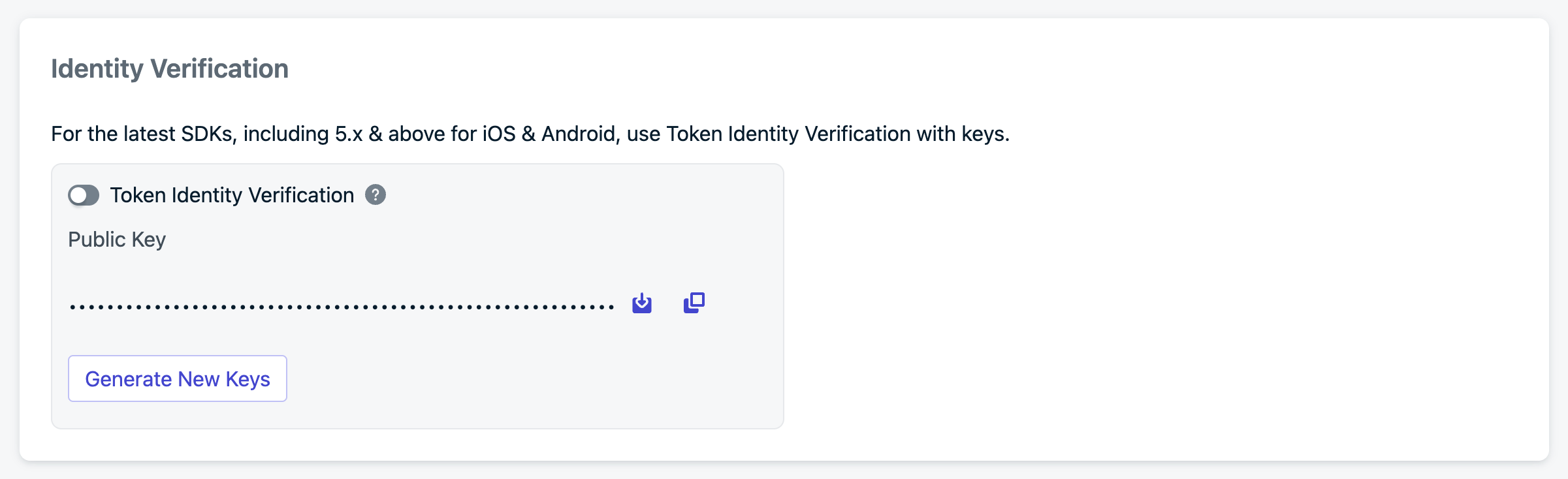
Log in to your OneSignal account and go to **Settings > Keys & IDs > Identity Verification**.
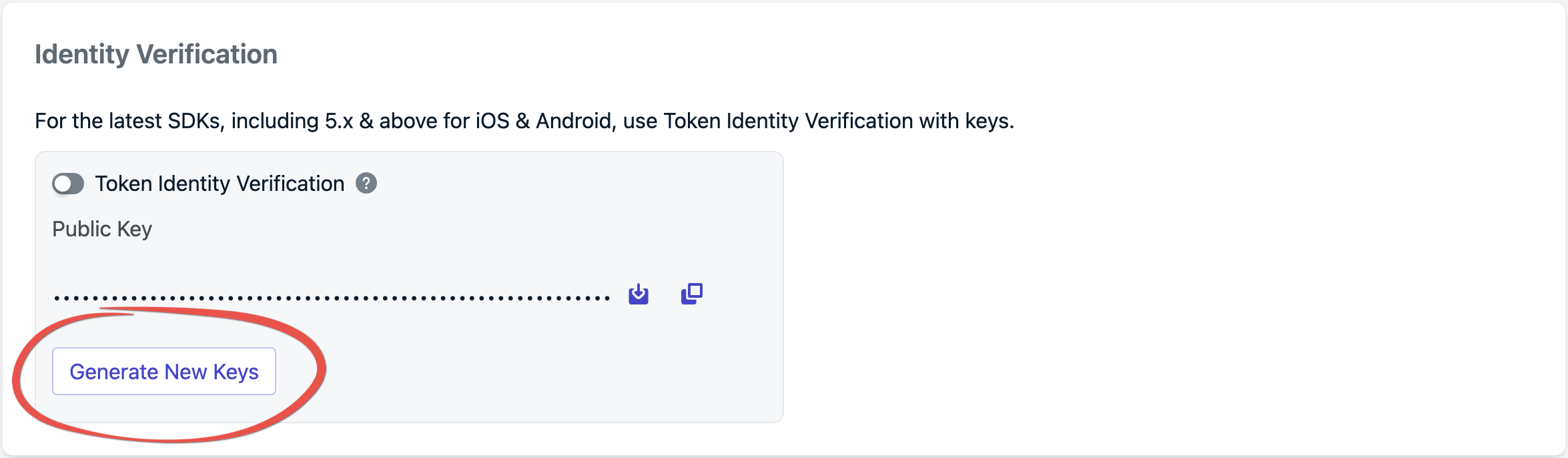
 Click **Generate New Keys** to create a new key pair.
 Download the PEM file or copy the private key and store it securely. This private key is not an [App API key](./keys-and-ids#app-api-key). Use it only to sign Identity Verification JWTs.
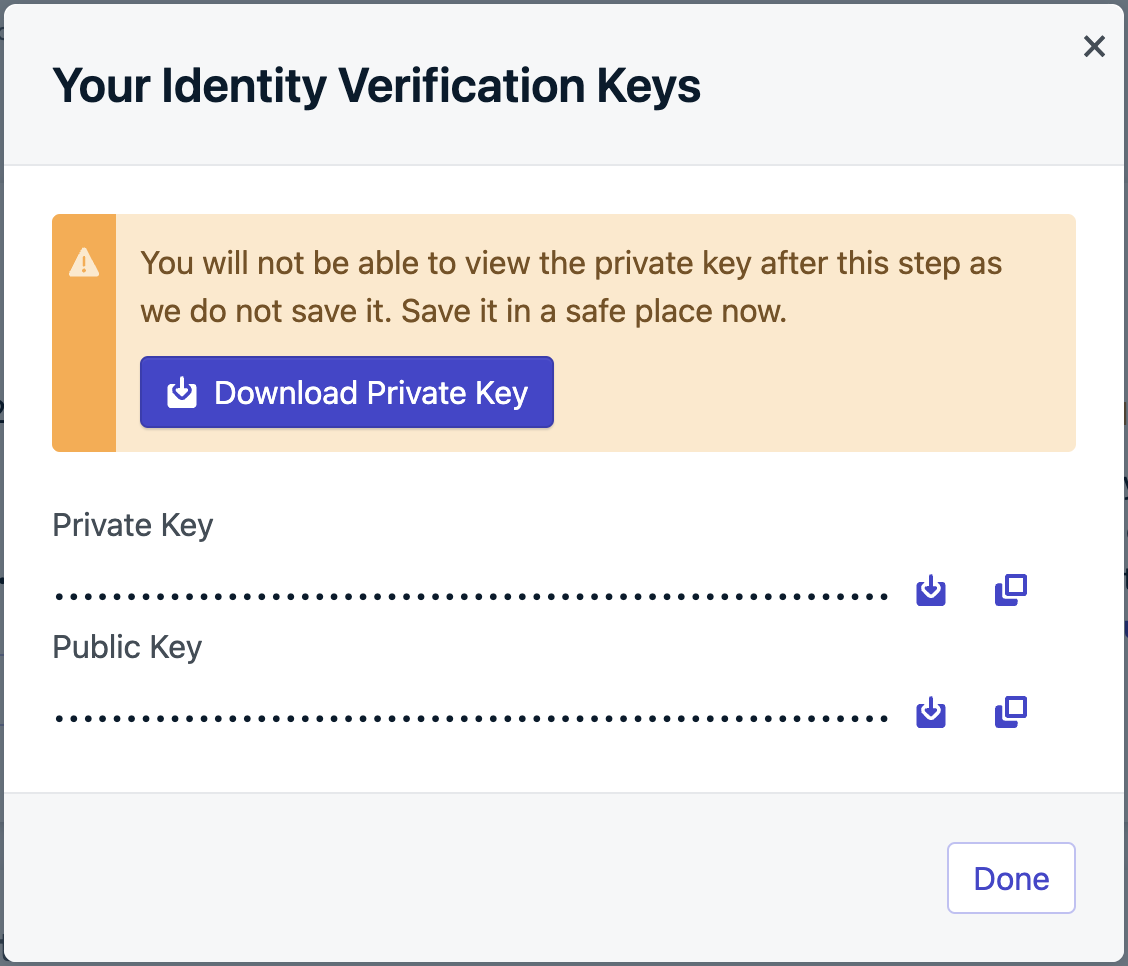 Always store private keys in a secure environment, such as a key management system. Never expose private keys in client-side code, public repositories, or logs.
Authenticate the user with your own server **before** logging them into OneSignal. When that auth succeeds, mint the JWT and return it to the device in the auth response. If your app has no backend, stand up a small server whose only job is to verify users and sign these tokens.
#### JWT payload
| Claim | Required | Description |
| - | - | - |
| `iss` | Yes | Your OneSignal App ID. |
| `exp` | Yes | Unix timestamp when the token expires. OneSignal rejects expired tokens. |
| `identity` | Yes | Object that includes `external_id`. This value must match the External ID you pass to `OneSignal.login()`. |
| `subscriptions` | No | Array of objects with `type` (`Email` or `SMS`) and `token` (email address or E.164 number). Include this claim **before** you call `addEmail` or `addSms`. |
#### Signing the JWT
Sign the JWT with the **ES256** algorithm (ECDSA using P-256 and SHA-256). Other algorithms are rejected. Use a [JWT library](https://jwt.io/libraries) rather than assembling the token by hand.
Example using [jsonwebtoken](https://www.npmjs.com/package/jsonwebtoken). Pass the PEM private key you downloaded in the previous step:
```javascript Node.js theme={null}
import jwt from "jsonwebtoken";
const APP_ID = process.env.ONESIGNAL_APP_ID;
const IDENTITY_VERIFICATION_SECRET =
process.env.ONESIGNAL_IDENTITY_VERIFICATION_SECRET_KEY;
function signOneSignalJWT(externalId, subscriptions) {
const payload = {
iss: APP_ID,
exp: Math.floor(Date.now() / 1000) + 3600,
identity: {
external_id: externalId,
},
};
if (subscriptions) {
payload.subscriptions = subscriptions;
}
return jwt.sign(payload, IDENTITY_VERIFICATION_SECRET, {
algorithm: "ES256",
});
}
const onesignalJWT = signOneSignalJWT("YOUR_EXTERNAL_ID");
```
#### Verify your JWT
Log or return the string from `signOneSignalJWT()`, then paste it at [jwt.io](https://jwt.io). The decoded payload must look like this:
```json theme={null}
{
"iss": "your-onesignal-app-id",
"exp": 1234567890,
"identity": {
"external_id": "your-external-id"
}
}
```
Confirm all of the following before you call `login`:
* `iss` matches your OneSignal App ID from **Settings > Keys & IDs**
* `identity.external_id` matches the value you will pass to `OneSignal.login()`
* `exp` is in the future
#### Including subscriptions
Include email and SMS in the JWT at login when you already have those values. If they arrive later, mint a new JWT that includes the `subscriptions` claim and pass it to `updateUserJwt` before you call `addEmail` or `addSms`. See [Adding subscriptions](#adding-subscriptions).
```javascript Node.js theme={null}
const subscriptions = [
{
type: "Email",
token: "user@example.com",
},
{
type: "SMS",
token: "+15551234567",
},
];
const onesignalJWT = signOneSignalJWT("YOUR_EXTERNAL_ID", subscriptions);
```
Phone numbers must use [E.164 format](https://www.twilio.com/docs/glossary/what-e164).
Call `login` with the External ID and the JWT. Until Token Identity Verification is enabled in the dashboard, the second argument is ignored. After you enable the toggle, `login` without a valid JWT fails.
```java Java theme={null}
String externalId = "YOUR_EXTERNAL_ID";
String onesignalJWT = "YOUR_JWT_TOKEN";
OneSignal.login(externalId, onesignalJWT);
```
```kotlin Kotlin theme={null}
val externalId = "YOUR_EXTERNAL_ID"
val onesignalJWT = "YOUR_JWT_TOKEN"
OneSignal.login(externalId, onesignalJWT)
```
```kotlin Kotlin (suspend) theme={null}
val externalId = "YOUR_EXTERNAL_ID"
val onesignalJWT = "YOUR_JWT_TOKEN"
OneSignal.loginSuspend(externalId, onesignalJWT)
```
```swift Swift theme={null}
let externalId = "YOUR_EXTERNAL_ID"
let onesignalJWT = "YOUR_JWT_TOKEN"
OneSignal.login(externalId: externalId, token: onesignalJWT)
```
```objc Objective-C theme={null}
NSString *externalId = @"YOUR_EXTERNAL_ID";
NSString *onesignalJWT = @"YOUR_JWT_TOKEN";
[OneSignal login:externalId withToken:onesignalJWT];
```
When a JWT expires, the SDK fires an invalidation event. Fetch a new token from your backend and pass it to `updateUserJwt`. You can use the same endpoint to mint a token that includes email or SMS if the original login token did not.
```java Java theme={null}
OneSignal.addUserJwtInvalidatedListener(event -> {
String externalId = event.getExternalId();
String onesignalJWT = fetchOneSignalJwt(externalId);
OneSignal.updateUserJwt(externalId, onesignalJWT);
});
```
```kotlin Kotlin theme={null}
OneSignal.addUserJwtInvalidatedListener { event ->
val externalId = event.externalId
val onesignalJWT = fetchOneSignalJwt(externalId)
OneSignal.updateUserJwt(externalId, onesignalJWT)
}
```
```kotlin Kotlin (suspend) theme={null}
OneSignal.addUserJwtInvalidatedListener { event ->
val externalId = event.externalId
appScope.launch {
val onesignalJWT = fetchOneSignalJwt(externalId)
OneSignal.updateUserJwtSuspend(externalId, onesignalJWT)
}
}
```
```swift Swift theme={null}
class AppDelegate: UIResponder, UIApplicationDelegate, OSUserJwtInvalidatedListener {
func application(_ application: UIApplication, didFinishLaunchingWithOptions launchOptions: [UIApplication.LaunchOptionsKey: Any]? = nil) -> Bool {
OneSignal.addUserJwtInvalidatedListener(self)
return true
}
func onUserJwtInvalidated(event: OneSignalUser.OSUserJwtInvalidatedEvent) {
let externalId = event.externalId
let onesignalJWT = fetchOneSignalJwt(externalId: externalId)
OneSignal.updateUserJwt(externalId: externalId, token: onesignalJWT)
}
}
```
```objc Objective-C theme={null}
@interface MyListener : NSObject
@end
@implementation MyListener
- (void)onUserJwtInvalidatedWithEvent:(OSUserJwtInvalidatedEvent * _Nonnull)event {
NSString *externalId = event.externalId;
NSString *onesignalJWT = [self fetchOneSignalJwt:externalId];
[OneSignal updateUserJwt:externalId withToken:onesignalJWT];
}
@end
[OneSignal addUserJwtInvalidatedListener:myListener];
[OneSignal removeUserJwtInvalidatedListener:myListener];
```
Replace `fetchOneSignalJwt` with a call to your backend. Do not sign JWTs on the device.
From **Settings > Keys & IDs**, turn on **Token Identity Verification**.
Always store private keys in a secure environment, such as a key management system. Never expose private keys in client-side code, public repositories, or logs.
Authenticate the user with your own server **before** logging them into OneSignal. When that auth succeeds, mint the JWT and return it to the device in the auth response. If your app has no backend, stand up a small server whose only job is to verify users and sign these tokens.
#### JWT payload
| Claim | Required | Description |
| - | - | - |
| `iss` | Yes | Your OneSignal App ID. |
| `exp` | Yes | Unix timestamp when the token expires. OneSignal rejects expired tokens. |
| `identity` | Yes | Object that includes `external_id`. This value must match the External ID you pass to `OneSignal.login()`. |
| `subscriptions` | No | Array of objects with `type` (`Email` or `SMS`) and `token` (email address or E.164 number). Include this claim **before** you call `addEmail` or `addSms`. |
#### Signing the JWT
Sign the JWT with the **ES256** algorithm (ECDSA using P-256 and SHA-256). Other algorithms are rejected. Use a [JWT library](https://jwt.io/libraries) rather than assembling the token by hand.
Example using [jsonwebtoken](https://www.npmjs.com/package/jsonwebtoken). Pass the PEM private key you downloaded in the previous step:
```javascript Node.js theme={null}
import jwt from "jsonwebtoken";
const APP_ID = process.env.ONESIGNAL_APP_ID;
const IDENTITY_VERIFICATION_SECRET =
process.env.ONESIGNAL_IDENTITY_VERIFICATION_SECRET_KEY;
function signOneSignalJWT(externalId, subscriptions) {
const payload = {
iss: APP_ID,
exp: Math.floor(Date.now() / 1000) + 3600,
identity: {
external_id: externalId,
},
};
if (subscriptions) {
payload.subscriptions = subscriptions;
}
return jwt.sign(payload, IDENTITY_VERIFICATION_SECRET, {
algorithm: "ES256",
});
}
const onesignalJWT = signOneSignalJWT("YOUR_EXTERNAL_ID");
```
#### Verify your JWT
Log or return the string from `signOneSignalJWT()`, then paste it at [jwt.io](https://jwt.io). The decoded payload must look like this:
```json theme={null}
{
"iss": "your-onesignal-app-id",
"exp": 1234567890,
"identity": {
"external_id": "your-external-id"
}
}
```
Confirm all of the following before you call `login`:
* `iss` matches your OneSignal App ID from **Settings > Keys & IDs**
* `identity.external_id` matches the value you will pass to `OneSignal.login()`
* `exp` is in the future
#### Including subscriptions
Include email and SMS in the JWT at login when you already have those values. If they arrive later, mint a new JWT that includes the `subscriptions` claim and pass it to `updateUserJwt` before you call `addEmail` or `addSms`. See [Adding subscriptions](#adding-subscriptions).
```javascript Node.js theme={null}
const subscriptions = [
{
type: "Email",
token: "user@example.com",
},
{
type: "SMS",
token: "+15551234567",
},
];
const onesignalJWT = signOneSignalJWT("YOUR_EXTERNAL_ID", subscriptions);
```
Phone numbers must use [E.164 format](https://www.twilio.com/docs/glossary/what-e164).
Call `login` with the External ID and the JWT. Until Token Identity Verification is enabled in the dashboard, the second argument is ignored. After you enable the toggle, `login` without a valid JWT fails.
```java Java theme={null}
String externalId = "YOUR_EXTERNAL_ID";
String onesignalJWT = "YOUR_JWT_TOKEN";
OneSignal.login(externalId, onesignalJWT);
```
```kotlin Kotlin theme={null}
val externalId = "YOUR_EXTERNAL_ID"
val onesignalJWT = "YOUR_JWT_TOKEN"
OneSignal.login(externalId, onesignalJWT)
```
```kotlin Kotlin (suspend) theme={null}
val externalId = "YOUR_EXTERNAL_ID"
val onesignalJWT = "YOUR_JWT_TOKEN"
OneSignal.loginSuspend(externalId, onesignalJWT)
```
```swift Swift theme={null}
let externalId = "YOUR_EXTERNAL_ID"
let onesignalJWT = "YOUR_JWT_TOKEN"
OneSignal.login(externalId: externalId, token: onesignalJWT)
```
```objc Objective-C theme={null}
NSString *externalId = @"YOUR_EXTERNAL_ID";
NSString *onesignalJWT = @"YOUR_JWT_TOKEN";
[OneSignal login:externalId withToken:onesignalJWT];
```
When a JWT expires, the SDK fires an invalidation event. Fetch a new token from your backend and pass it to `updateUserJwt`. You can use the same endpoint to mint a token that includes email or SMS if the original login token did not.
```java Java theme={null}
OneSignal.addUserJwtInvalidatedListener(event -> {
String externalId = event.getExternalId();
String onesignalJWT = fetchOneSignalJwt(externalId);
OneSignal.updateUserJwt(externalId, onesignalJWT);
});
```
```kotlin Kotlin theme={null}
OneSignal.addUserJwtInvalidatedListener { event ->
val externalId = event.externalId
val onesignalJWT = fetchOneSignalJwt(externalId)
OneSignal.updateUserJwt(externalId, onesignalJWT)
}
```
```kotlin Kotlin (suspend) theme={null}
OneSignal.addUserJwtInvalidatedListener { event ->
val externalId = event.externalId
appScope.launch {
val onesignalJWT = fetchOneSignalJwt(externalId)
OneSignal.updateUserJwtSuspend(externalId, onesignalJWT)
}
}
```
```swift Swift theme={null}
class AppDelegate: UIResponder, UIApplicationDelegate, OSUserJwtInvalidatedListener {
func application(_ application: UIApplication, didFinishLaunchingWithOptions launchOptions: [UIApplication.LaunchOptionsKey: Any]? = nil) -> Bool {
OneSignal.addUserJwtInvalidatedListener(self)
return true
}
func onUserJwtInvalidated(event: OneSignalUser.OSUserJwtInvalidatedEvent) {
let externalId = event.externalId
let onesignalJWT = fetchOneSignalJwt(externalId: externalId)
OneSignal.updateUserJwt(externalId: externalId, token: onesignalJWT)
}
}
```
```objc Objective-C theme={null}
@interface MyListener : NSObject
@end
@implementation MyListener
- (void)onUserJwtInvalidatedWithEvent:(OSUserJwtInvalidatedEvent * _Nonnull)event {
NSString *externalId = event.externalId;
NSString *onesignalJWT = [self fetchOneSignalJwt:externalId];
[OneSignal updateUserJwt:externalId withToken:onesignalJWT];
}
@end
[OneSignal addUserJwtInvalidatedListener:myListener];
[OneSignal removeUserJwtInvalidatedListener:myListener];
```
Replace `fetchOneSignalJwt` with a call to your backend. Do not sign JWTs on the device.
From **Settings > Keys & IDs**, turn on **Token Identity Verification**.
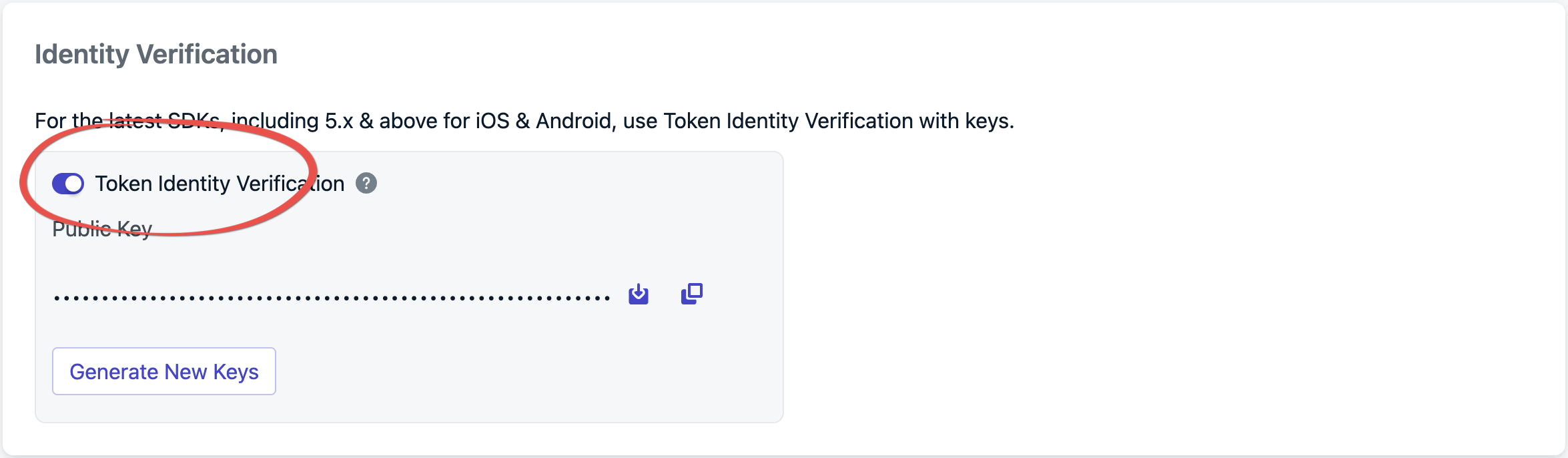 After this toggle is on, the app must call `login` with a JWT, and the User REST APIs listed below must send that JWT as a Bearer token. The toggle applies to the entire app. Leave it off if you still use the Web SDK or a wrapper SDK that cannot send a JWT.
## Adding subscriptions
If the login JWT already includes the email or phone number in `subscriptions`, `login` associates those subscriptions with the user. You do not need a second call.
If the address is not in the JWT yet, mint a new token that includes it, call `updateUserJwt`, then call `addEmail` or `addSms`. Do this on every platform. `addEmail` / `addSms` alone is not enough once Token Identity Verification is on.
```java Java theme={null}
String onesignalJWT = fetchOneSignalJwtWithEmail(externalId, emailAddress);
OneSignal.updateUserJwt(externalId, onesignalJWT);
OneSignal.getUser().addEmail(emailAddress);
```
```kotlin Kotlin theme={null}
val onesignalJWT = fetchOneSignalJwtWithEmail(externalId, emailAddress)
OneSignal.updateUserJwt(externalId, onesignalJWT)
OneSignal.User.addEmail(emailAddress)
```
```swift Swift theme={null}
let onesignalJWT = fetchOneSignalJwtWithEmail(externalId: externalId, email: emailAddress)
OneSignal.updateUserJwt(externalId: externalId, token: onesignalJWT)
OneSignal.User.addEmail(emailAddress)
```
```objc Objective-C theme={null}
NSString *onesignalJWT = [self fetchOneSignalJwtWithEmail:externalId email:emailAddress];
[OneSignal updateUserJwt:externalId withToken:onesignalJWT];
[OneSignal.User addEmail:emailAddress];
```
```java Java theme={null}
String onesignalJWT = fetchOneSignalJwtWithSms(externalId, smsNumber);
OneSignal.updateUserJwt(externalId, onesignalJWT);
OneSignal.getUser().addSms(smsNumber);
```
```kotlin Kotlin theme={null}
val onesignalJWT = fetchOneSignalJwtWithSms(externalId, smsNumber)
OneSignal.updateUserJwt(externalId, onesignalJWT)
OneSignal.User.addSms(smsNumber)
```
```swift Swift theme={null}
let onesignalJWT = fetchOneSignalJwtWithSms(externalId: externalId, sms: smsNumber)
OneSignal.updateUserJwt(externalId: externalId, token: onesignalJWT)
OneSignal.User.addSms(smsNumber)
```
```objc Objective-C theme={null}
NSString *onesignalJWT = [self fetchOneSignalJwtWithSms:externalId sms:smsNumber];
[OneSignal updateUserJwt:externalId withToken:onesignalJWT];
[OneSignal.User addSms:smsNumber];
```
***
## REST API
Identity Verification JWTs are **not** App API keys. Other endpoints (for example [Create message](/reference/create-message)) still use `Authorization: Key YOUR_APP_API_KEY`. See [Keys & IDs](./keys-and-ids).
When Token Identity Verification is enabled, the User and Subscription endpoints below authenticate with the identity JWT instead:
```
Authorization: Bearer YOUR_ONESIGNAL_JWT
```
Mint that JWT the same way as for SDK `login`. The `identity.external_id` in the token must match the user the request operates on.
* [Create user](/reference/create-user)
* [View user](/reference/view-user)
* [Update user](/reference/update-user)
* [Delete user](/reference/delete-user)
* [View user identity](/reference/fetch-aliases)
* [Create alias](/reference/create-alias)
* [Delete alias](/reference/delete-alias)
* [Create subscription](/reference/create-subscription)
* [Update subscription](/reference/update-subscription)
Example:
```bash theme={null}
curl -X GET 'https://api.onesignal.com/apps/YOUR_APP_ID/users/by/external_id/YOUR_EXTERNAL_ID' \
-H 'Authorization: Bearer YOUR_ONESIGNAL_JWT'
```
***
## FAQ
### Is identity verification required?
No, but it is strongly recommended for production apps. Without it, any client that knows a user's External ID can impersonate that user and modify their subscriptions or data.
### I toggled "Identity Verification for email + external\_id" in Keys & IDs, but I don't see the Identity Verification section. Why?
After this toggle is on, the app must call `login` with a JWT, and the User REST APIs listed below must send that JWT as a Bearer token. The toggle applies to the entire app. Leave it off if you still use the Web SDK or a wrapper SDK that cannot send a JWT.
## Adding subscriptions
If the login JWT already includes the email or phone number in `subscriptions`, `login` associates those subscriptions with the user. You do not need a second call.
If the address is not in the JWT yet, mint a new token that includes it, call `updateUserJwt`, then call `addEmail` or `addSms`. Do this on every platform. `addEmail` / `addSms` alone is not enough once Token Identity Verification is on.
```java Java theme={null}
String onesignalJWT = fetchOneSignalJwtWithEmail(externalId, emailAddress);
OneSignal.updateUserJwt(externalId, onesignalJWT);
OneSignal.getUser().addEmail(emailAddress);
```
```kotlin Kotlin theme={null}
val onesignalJWT = fetchOneSignalJwtWithEmail(externalId, emailAddress)
OneSignal.updateUserJwt(externalId, onesignalJWT)
OneSignal.User.addEmail(emailAddress)
```
```swift Swift theme={null}
let onesignalJWT = fetchOneSignalJwtWithEmail(externalId: externalId, email: emailAddress)
OneSignal.updateUserJwt(externalId: externalId, token: onesignalJWT)
OneSignal.User.addEmail(emailAddress)
```
```objc Objective-C theme={null}
NSString *onesignalJWT = [self fetchOneSignalJwtWithEmail:externalId email:emailAddress];
[OneSignal updateUserJwt:externalId withToken:onesignalJWT];
[OneSignal.User addEmail:emailAddress];
```
```java Java theme={null}
String onesignalJWT = fetchOneSignalJwtWithSms(externalId, smsNumber);
OneSignal.updateUserJwt(externalId, onesignalJWT);
OneSignal.getUser().addSms(smsNumber);
```
```kotlin Kotlin theme={null}
val onesignalJWT = fetchOneSignalJwtWithSms(externalId, smsNumber)
OneSignal.updateUserJwt(externalId, onesignalJWT)
OneSignal.User.addSms(smsNumber)
```
```swift Swift theme={null}
let onesignalJWT = fetchOneSignalJwtWithSms(externalId: externalId, sms: smsNumber)
OneSignal.updateUserJwt(externalId: externalId, token: onesignalJWT)
OneSignal.User.addSms(smsNumber)
```
```objc Objective-C theme={null}
NSString *onesignalJWT = [self fetchOneSignalJwtWithSms:externalId sms:smsNumber];
[OneSignal updateUserJwt:externalId withToken:onesignalJWT];
[OneSignal.User addSms:smsNumber];
```
***
## REST API
Identity Verification JWTs are **not** App API keys. Other endpoints (for example [Create message](/reference/create-message)) still use `Authorization: Key YOUR_APP_API_KEY`. See [Keys & IDs](./keys-and-ids).
When Token Identity Verification is enabled, the User and Subscription endpoints below authenticate with the identity JWT instead:
```
Authorization: Bearer YOUR_ONESIGNAL_JWT
```
Mint that JWT the same way as for SDK `login`. The `identity.external_id` in the token must match the user the request operates on.
* [Create user](/reference/create-user)
* [View user](/reference/view-user)
* [Update user](/reference/update-user)
* [Delete user](/reference/delete-user)
* [View user identity](/reference/fetch-aliases)
* [Create alias](/reference/create-alias)
* [Delete alias](/reference/delete-alias)
* [Create subscription](/reference/create-subscription)
* [Update subscription](/reference/update-subscription)
Example:
```bash theme={null}
curl -X GET 'https://api.onesignal.com/apps/YOUR_APP_ID/users/by/external_id/YOUR_EXTERNAL_ID' \
-H 'Authorization: Bearer YOUR_ONESIGNAL_JWT'
```
***
## FAQ
### Is identity verification required?
No, but it is strongly recommended for production apps. Without it, any client that knows a user's External ID can impersonate that user and modify their subscriptions or data.
### I toggled "Identity Verification for email + external\_id" in Keys & IDs, but I don't see the Identity Verification section. Why?
 That toggle is a separate, legacy setting for OneSignal SDK v3/v4. It is not the JWT-based Identity Verification (beta) on this page. Contact `support@onesignal.com` to enable the beta, then use **Generate New Keys** under **Keys & IDs > Identity Verification**. See [Generate new keys](#generate-new-keys).
### Which SDKs support identity verification?
Native Android SDK 5.9.0+ and iOS SDK 5.3.0+. Flutter, React Native, Unity, and Cordova do not expose `login(externalId, token)` yet. The Web SDK is not supported. The dashboard toggle is per-app, not per-platform, so enabling it breaks any client in that app that still calls `login` without a JWT.
### What algorithm does the JWT use?
ES256 (ECDSA using P-256 and SHA-256). Other algorithms are rejected.
### What happens if the JWT expires during a session?
The SDK fires a JWT invalidation event. Implement `addUserJwtInvalidatedListener` (see [Handle JWT lifecycle events](#handle-jwt-lifecycle-events)) to fetch a new token and pass it to `updateUserJwt`.
### Do I need identity verification for the REST API?
Only after you enable Token Identity Verification. Then the [User and Subscription endpoints](#rest-api) require `Authorization: Bearer YOUR_ONESIGNAL_JWT`. They do not accept the App API key for those calls. Create message and other non-user endpoints still use `Authorization: Key YOUR_APP_API_KEY`.
### What happens to the push subscription on logout?
When Identity Verification is enabled, `logout()` disables the push subscription. The subscription stays associated with that user. Calling `login` with a JWT restores the previous subscription status. You do not need to call `optIn()` again.
On Android (Kotlin), `logoutSuspend()` is the non-blocking equivalent of `logout()`.
***
## Related pages
External ID, anonymous vs identified Users, and login/logout.
App ID, App API keys, and where Identity Verification keys live.
login, logout, addEmail, addSms, and subscription methods.
Default App API key authentication for endpoints that are not JWT-gated.
This documentation is built and hosted on [Mintlify](https://mintlify.com), a developer documentation platform.
That toggle is a separate, legacy setting for OneSignal SDK v3/v4. It is not the JWT-based Identity Verification (beta) on this page. Contact `support@onesignal.com` to enable the beta, then use **Generate New Keys** under **Keys & IDs > Identity Verification**. See [Generate new keys](#generate-new-keys).
### Which SDKs support identity verification?
Native Android SDK 5.9.0+ and iOS SDK 5.3.0+. Flutter, React Native, Unity, and Cordova do not expose `login(externalId, token)` yet. The Web SDK is not supported. The dashboard toggle is per-app, not per-platform, so enabling it breaks any client in that app that still calls `login` without a JWT.
### What algorithm does the JWT use?
ES256 (ECDSA using P-256 and SHA-256). Other algorithms are rejected.
### What happens if the JWT expires during a session?
The SDK fires a JWT invalidation event. Implement `addUserJwtInvalidatedListener` (see [Handle JWT lifecycle events](#handle-jwt-lifecycle-events)) to fetch a new token and pass it to `updateUserJwt`.
### Do I need identity verification for the REST API?
Only after you enable Token Identity Verification. Then the [User and Subscription endpoints](#rest-api) require `Authorization: Bearer YOUR_ONESIGNAL_JWT`. They do not accept the App API key for those calls. Create message and other non-user endpoints still use `Authorization: Key YOUR_APP_API_KEY`.
### What happens to the push subscription on logout?
When Identity Verification is enabled, `logout()` disables the push subscription. The subscription stays associated with that user. Calling `login` with a JWT restores the previous subscription status. You do not need to call `optIn()` again.
On Android (Kotlin), `logoutSuspend()` is the non-blocking equivalent of `logout()`.
***
## Related pages
External ID, anonymous vs identified Users, and login/logout.
App ID, App API keys, and where Identity Verification keys live.
login, logout, addEmail, addSms, and subscription methods.
Default App API key authentication for endpoints that are not JWT-gated.
This documentation is built and hosted on [Mintlify](https://mintlify.com), a developer documentation platform.