> ## Documentation Index
> Fetch the complete documentation index at: https://documentation.onesignal.com/llms.txt
> Use this file to discover all available pages before exploring further.
# Multi-language messaging
> Send push, email, in-app, and SMS in each user's language. Set the language property, then match it from the dashboard or the Create message API.
Set each user's language, then send the message variant that matches it across push, email, in-app, and SMS.
## Prerequisites
* The channel you want to send is already set up.
* Each user has a language property. The mobile and web SDKs set it from the device language the first time the user is created. You can set and overwrite it. See [Set the user's language](#set-the-users-language).
## Choose how to localize each channel
OneSignal sends the message variant that matches the user's language property. Use the table for what each channel sends when nothing matches.
| Channel | Dashboard | API | Unmatched language |
| - | - | - | - |
| Push | **Add Languages**, [Liquid](./using-liquid-syntax), or [Dynamic Content](./dynamic-content) | `contents`, `headings`, and `subtitle` | **Any/English** or `en` |
| Email | One message per language segment, [Liquid](./using-liquid-syntax), or [Dynamic Content](./dynamic-content) | Liquid in `email_subject` and `email_body`. There is no language map. | Your Liquid `else` branch, or anyone outside the segment |
| In-app | **Add Languages**, [Liquid](./using-liquid-syntax) with tags, or one message per language segment | No language map. Liquid in the message can only read tags. | The default variant, or your Liquid `else` branch |
| SMS | One message per language segment or [Dynamic Content](./dynamic-content) | `contents` only | `en` in the API. A segment send reaches only that segment. |
### Send one message per language segment
Every channel can send one message per language segment. Use this when each language needs its own message instead of variants on a single message.
1. Create a [segment](./segmentation) for each language. Filter on **Language** and set the value to a code from [Supported languages](#supported-languages), such as `fr` or `es`.
2. Create one message or [template](./templates) per language.
3. Send each message to its segment.
***
## Set the user's language
The mobile and web SDKs set the `language` property from the device language when a user is first created.
Update it later with any of these:
1. The mobile SDK [`setLanguage`](./mobile-sdk-reference#setlanguage) method, or the web SDK [`setLanguage`](./web-sdk-reference#getlanguage-setlanguage) method.
2. The `language` field on [Create user](/reference/create-user) or [Update user](/reference/update-user).
3. The `language` column in the [CSV importer](./import).
Pass a code from [Supported languages](#supported-languages). Most codes are [ISO 639-1](https://en.wikipedia.org/wiki/List_of_ISO_639-1_codes) two-letter codes. Chinese is the exception: use `zh-Hans` for Simplified and `zh-Hant` for Traditional.
In email, push, and SMS, read the property in Liquid as [`user.language`](./personalization-properties-and-tags#user-subscription-properties). In-app messages cannot read `user.language`. They can only substitute tags. See [Why did my in-app message ignore `setLanguage`?](#why-did-my-in-app-message-ignore-setlanguage).
***
## Send messages in different languages
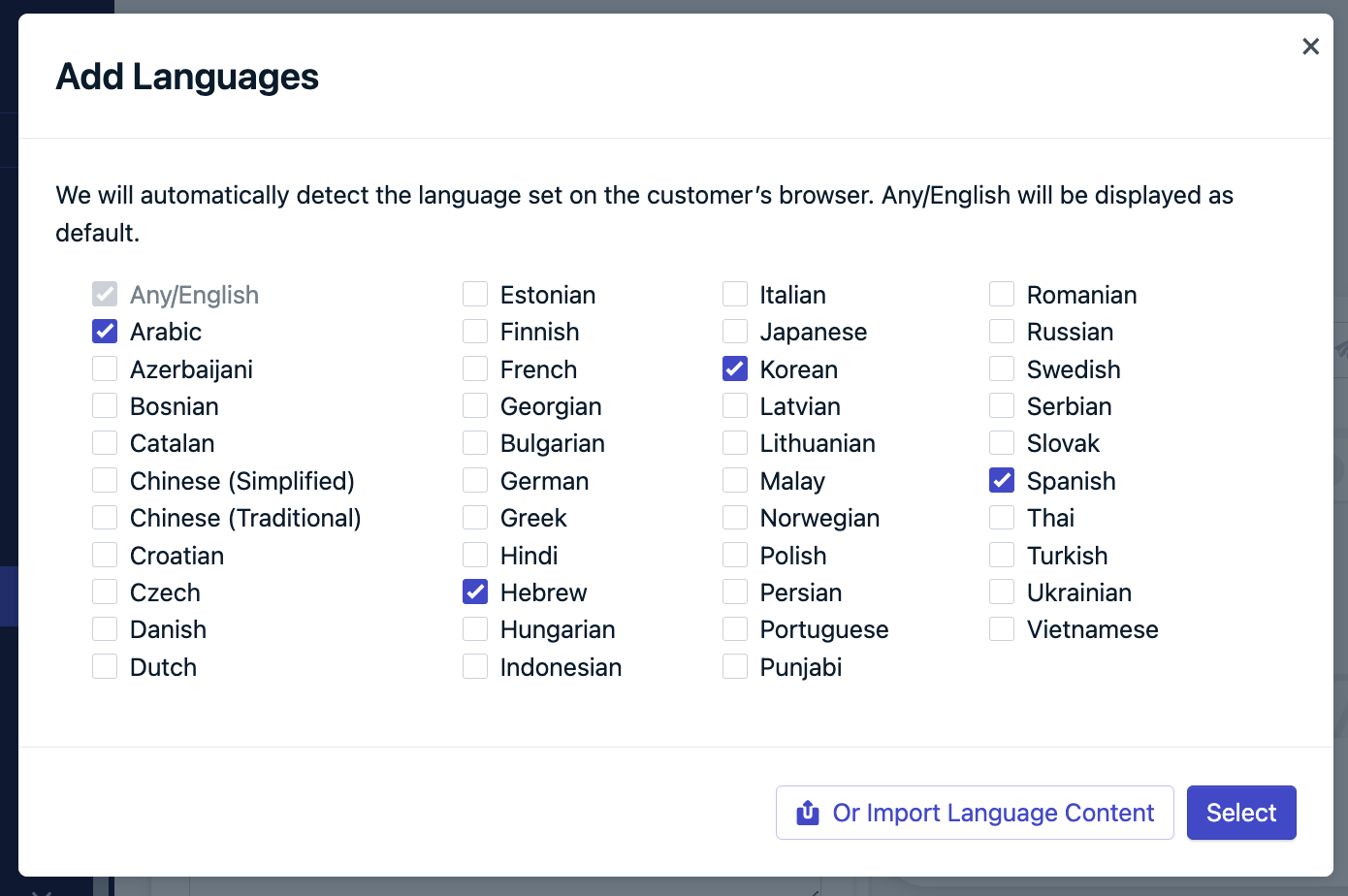
Open **Messages > Push > New Message** or a [template](./templates), then click **Add Languages**.
**Option 1: Checkboxes**
Select each language you support. The editor adds a tab per language. Recipients whose language you did not select receive the **Any/English** content.
 **Option 2: Import a spreadsheet**
From **Add Languages**, open the import option and copy the template.
**Option 2: Import a spreadsheet**
From **Add Languages**, open the import option and copy the template.
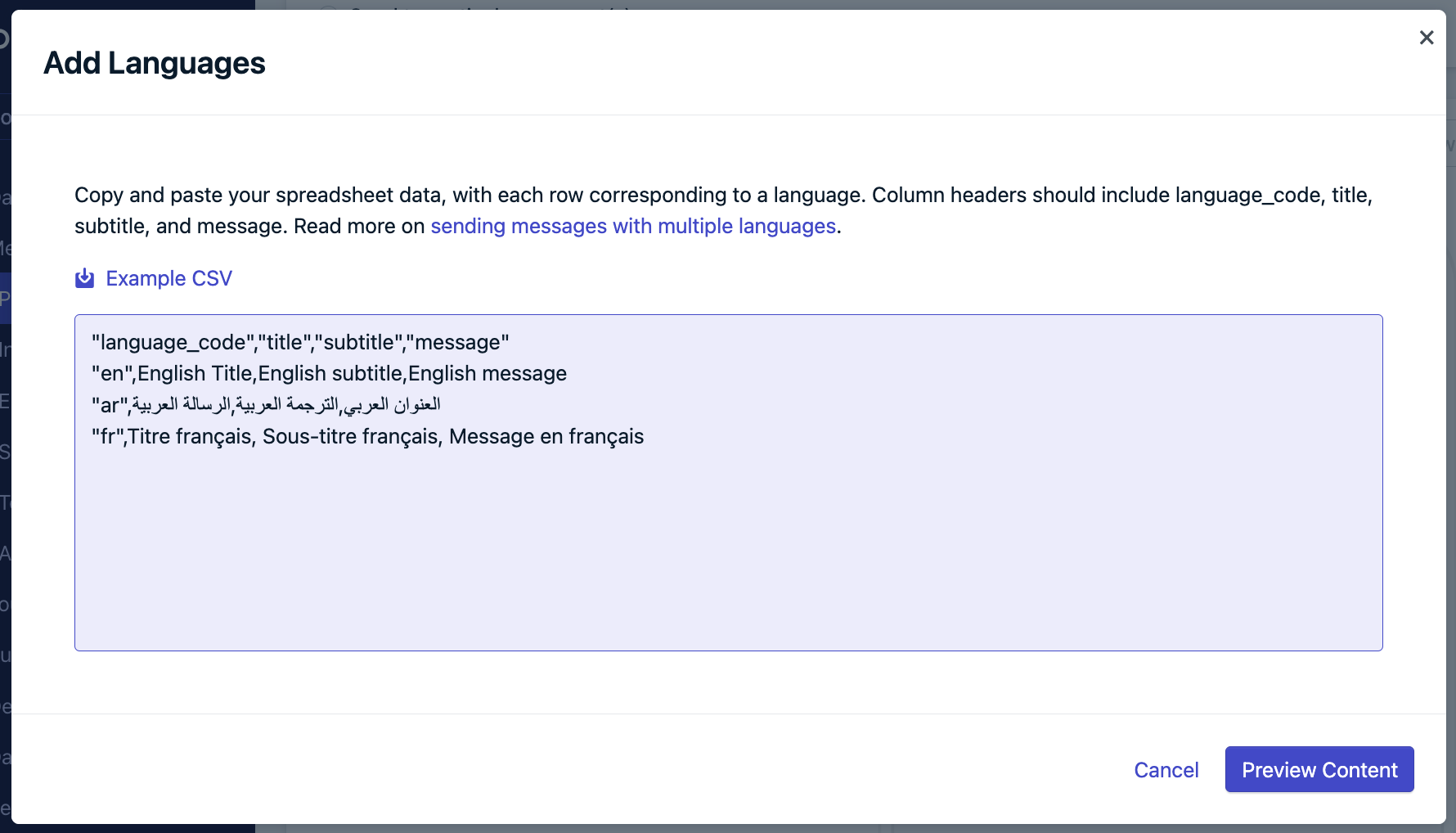
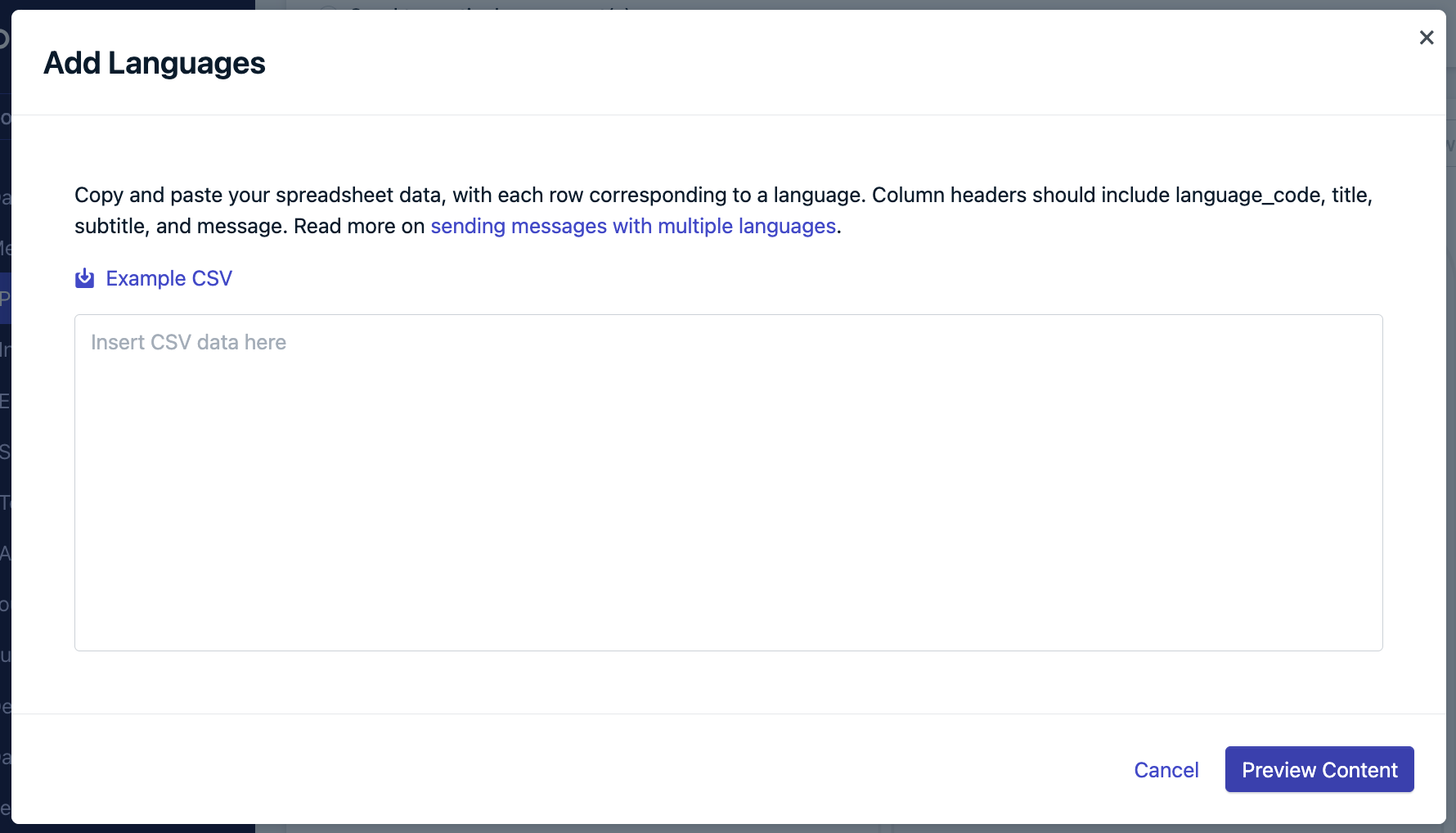 Use these column headers: `language_code`, `title`, `subtitle`, `message`. Include a row for `en`. These headers belong to this spreadsheet import. They are not the [Dynamic Content](./dynamic-content) CSV format.
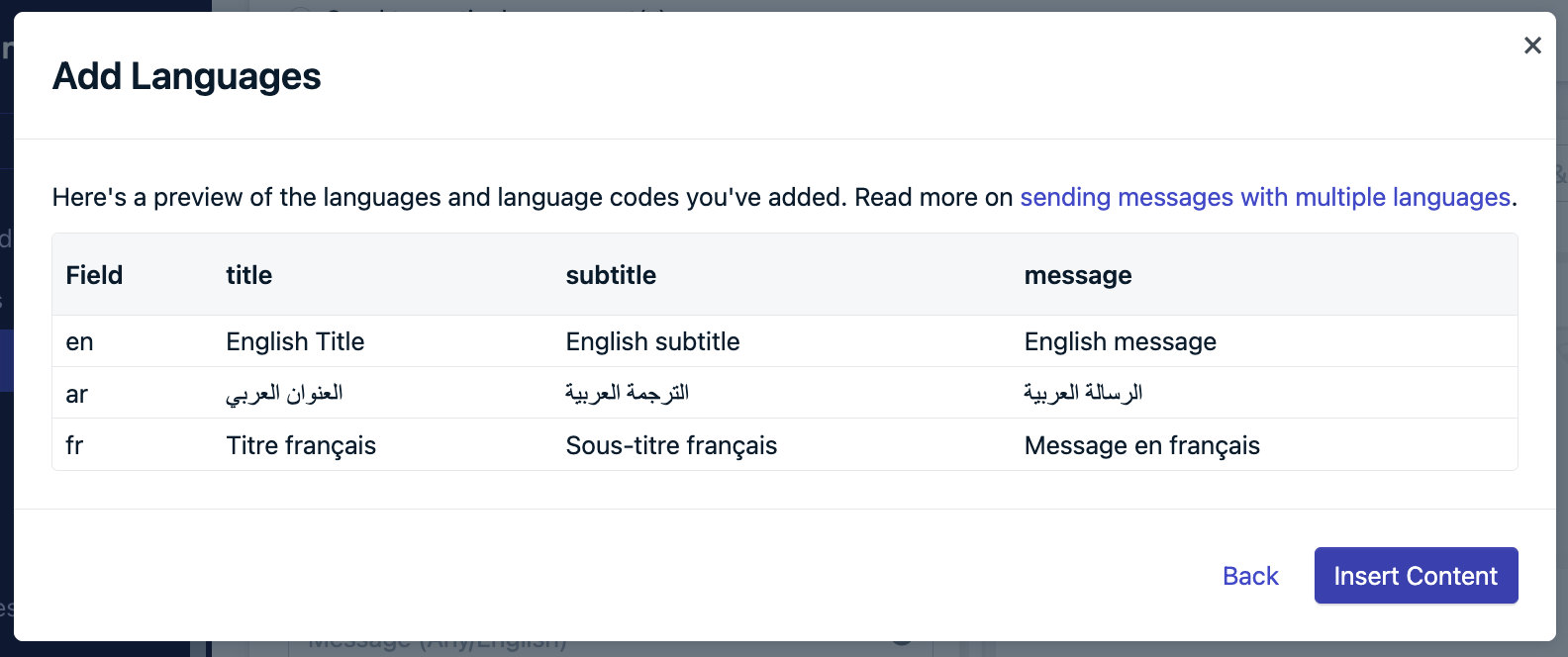
Paste the filled sheet into **Add Languages** and check the preview.
Use these column headers: `language_code`, `title`, `subtitle`, `message`. Include a row for `en`. These headers belong to this spreadsheet import. They are not the [Dynamic Content](./dynamic-content) CSV format.
Paste the filled sheet into **Add Languages** and check the preview.
 Insert the rows. The editor adds a tab for each language and fills in the title, subtitle, and message.
 **Option 3: Dynamic Content**
Upload a CSV whose column headers are language codes (`en`, `es`, `fr`) and whose rows are message sections. Reference each cell with `user.language`. See [Dynamic Content](./dynamic-content) for the CSV shape and the Liquid.
The push editor stores text as HTML. In right-to-left languages, a character such as `%` can display in the wrong place. Add a [right-to-left mark](https://en.wikipedia.org/wiki/Right-to-left_mark) immediately after the character.
**API**
Set `contents` to a map of language codes. Add `headings` for the title and `subtitle` for the iOS subtitle. Include `en` in every map, and use the same language codes in each map. `en` is required. Recipients whose language is not in the map receive the `en` text.
Include `headings` for web push and Huawei. If you omit `headings` for web push, OneSignal uses your site name. `subtitle` is iOS only.
```json theme={null}
{
"app_id": "YOUR_APP_ID",
"target_channel": "push",
"included_segments": ["Subscribed Users"],
"contents": {
"en": "Your order has shipped.",
"fr": "Votre commande a été expédiée.",
"zh-Hans": "您的订单已发货。"
},
"headings": {
"en": "Order update",
"fr": "Suivi de commande",
"zh-Hans": "订单更新"
},
"subtitle": {
"en": "Track your package",
"fr": "Suivez votre colis",
"zh-Hans": "追踪您的包裹"
}
}
```
See [Create message](/reference/create-message) for targeting, scheduling, and the rest of the push fields.
Open **Messages > Email > New Message** or a [template](./templates). Email has no language-map field.
**Option 1: One message per language segment**
Follow [Send one message per language segment](#send-one-message-per-language-segment). Create one email template per language and send it to the matching segment.
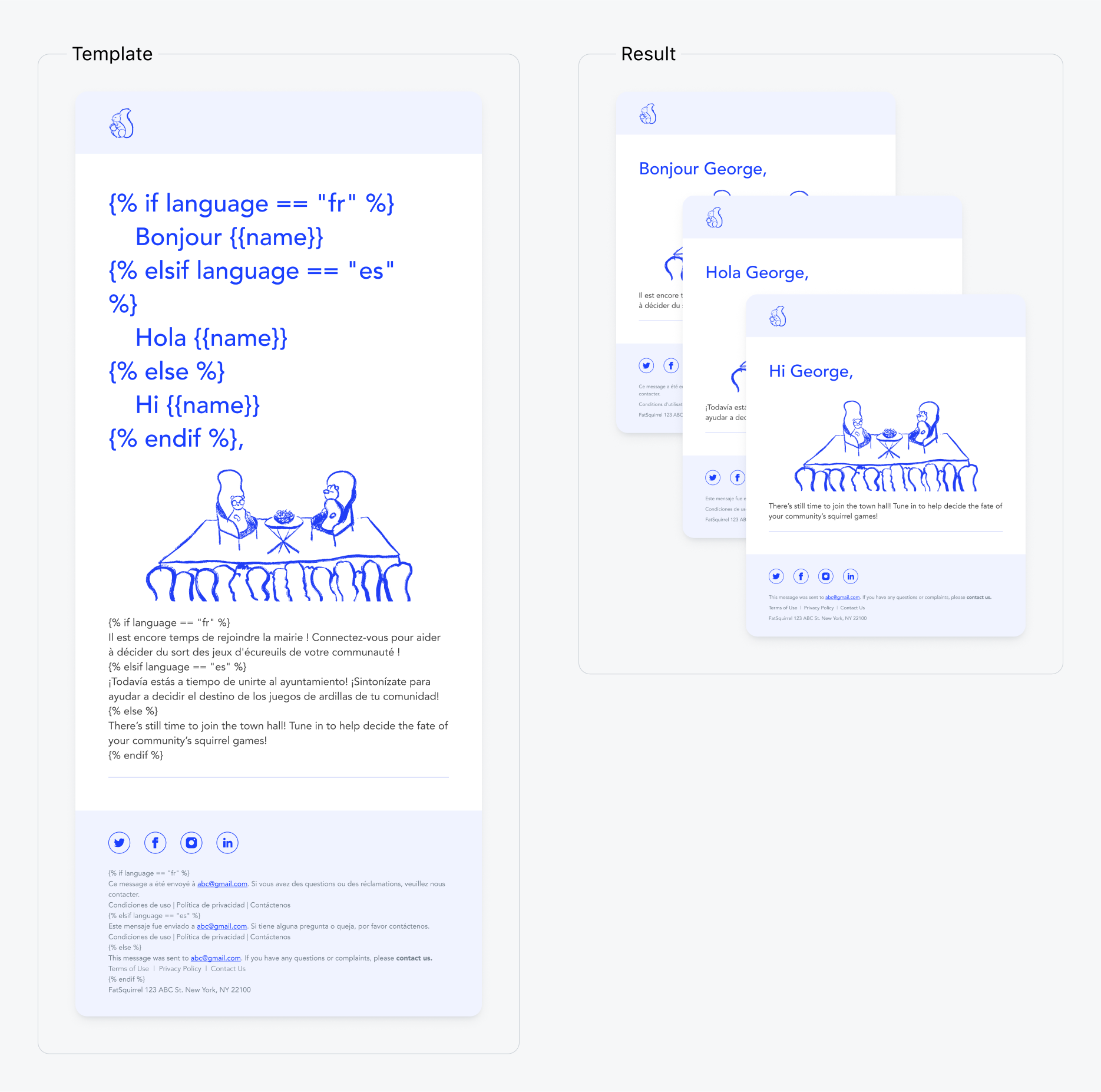
**Option 2: Liquid**
Read [`user.language`](./personalization-properties-and-tags#user-subscription-properties) and render one block per code. The `else` branch is the default for any other language.
```liquid theme={null}
{% assign lang = user.language | default: "en" %}
{% if lang == "fr" %}
Bonjour {{ first_name | default: "there" }}!
{% elsif lang == "es" %}
Hola {{ first_name | default: "there" }}!
{% else %}
Hi {{ first_name | default: "there" }}!
{% endif %}
```
A recipient with `user.language` set to `fr` sees the French greeting. A recipient with `de`, or with no language set, sees the English greeting.
**Option 3: Dynamic Content**
Upload a CSV whose column headers are language codes (`en`, `es`, `fr`) and whose rows are message sections. Reference each cell with `user.language`. See [Dynamic Content](./dynamic-content) for the CSV shape and the Liquid.
The push editor stores text as HTML. In right-to-left languages, a character such as `%` can display in the wrong place. Add a [right-to-left mark](https://en.wikipedia.org/wiki/Right-to-left_mark) immediately after the character.
**API**
Set `contents` to a map of language codes. Add `headings` for the title and `subtitle` for the iOS subtitle. Include `en` in every map, and use the same language codes in each map. `en` is required. Recipients whose language is not in the map receive the `en` text.
Include `headings` for web push and Huawei. If you omit `headings` for web push, OneSignal uses your site name. `subtitle` is iOS only.
```json theme={null}
{
"app_id": "YOUR_APP_ID",
"target_channel": "push",
"included_segments": ["Subscribed Users"],
"contents": {
"en": "Your order has shipped.",
"fr": "Votre commande a été expédiée.",
"zh-Hans": "您的订单已发货。"
},
"headings": {
"en": "Order update",
"fr": "Suivi de commande",
"zh-Hans": "订单更新"
},
"subtitle": {
"en": "Track your package",
"fr": "Suivez votre colis",
"zh-Hans": "追踪您的包裹"
}
}
```
See [Create message](/reference/create-message) for targeting, scheduling, and the rest of the push fields.
Open **Messages > Email > New Message** or a [template](./templates). Email has no language-map field.
**Option 1: One message per language segment**
Follow [Send one message per language segment](#send-one-message-per-language-segment). Create one email template per language and send it to the matching segment.
**Option 2: Liquid**
Read [`user.language`](./personalization-properties-and-tags#user-subscription-properties) and render one block per code. The `else` branch is the default for any other language.
```liquid theme={null}
{% assign lang = user.language | default: "en" %}
{% if lang == "fr" %}
Bonjour {{ first_name | default: "there" }}!
{% elsif lang == "es" %}
Hola {{ first_name | default: "there" }}!
{% else %}
Hi {{ first_name | default: "there" }}!
{% endif %}
```
A recipient with `user.language` set to `fr` sees the French greeting. A recipient with `de`, or with no language set, sees the English greeting.
 See [Using Liquid syntax](./using-liquid-syntax) for `case` / `when` and other conditionals.
**Option 3: Dynamic Content**
Upload a CSV whose column headers are language codes and reference the cells with `user.language`. See [Dynamic Content](./dynamic-content).
**API**
The Create message API does not accept a language map for email. `email_subject` and `email_body` are single strings. Put the Liquid from the section above in a template, then send that template:
```json theme={null}
{
"app_id": "YOUR_APP_ID",
"target_channel": "email",
"template_id": "YOUR_TEMPLATE_ID",
"included_segments": ["Subscribed Users"]
}
```
To send a different template to each language, target a language segment or a `language` [filter](/reference/create-message#language) instead of one template for every subscriber. See [Create message](/reference/create-message).
Open **Messages > In-App > New In-App** or an existing in-app message, then click **Add Languages**. This works in the block editor, the HTML editor, and on in-app steps in a Journey.
Each recipient sees the variant that matches their language property. Recipients with no matching variant see the default. **Test & Preview** sends each test device its own language variant. On the report, **Group by Language** compares impressions and clicks per language, and the CSV export includes the same breakdown.
An existing single-language in-app message stays unchanged until you edit it or duplicate it. Either action migrates the message to the multi-language format. Each language variant has its own 1 MB size limit, separate from the default message.
**Option 1: Checkboxes**
Select each language you support. The editor adds a tab per language. Recipients whose language you did not select receive the default variant.
See [Using Liquid syntax](./using-liquid-syntax) for `case` / `when` and other conditionals.
**Option 3: Dynamic Content**
Upload a CSV whose column headers are language codes and reference the cells with `user.language`. See [Dynamic Content](./dynamic-content).
**API**
The Create message API does not accept a language map for email. `email_subject` and `email_body` are single strings. Put the Liquid from the section above in a template, then send that template:
```json theme={null}
{
"app_id": "YOUR_APP_ID",
"target_channel": "email",
"template_id": "YOUR_TEMPLATE_ID",
"included_segments": ["Subscribed Users"]
}
```
To send a different template to each language, target a language segment or a `language` [filter](/reference/create-message#language) instead of one template for every subscriber. See [Create message](/reference/create-message).
Open **Messages > In-App > New In-App** or an existing in-app message, then click **Add Languages**. This works in the block editor, the HTML editor, and on in-app steps in a Journey.
Each recipient sees the variant that matches their language property. Recipients with no matching variant see the default. **Test & Preview** sends each test device its own language variant. On the report, **Group by Language** compares impressions and clicks per language, and the CSV export includes the same breakdown.
An existing single-language in-app message stays unchanged until you edit it or duplicate it. Either action migrates the message to the multi-language format. Each language variant has its own 1 MB size limit, separate from the default message.
**Option 1: Checkboxes**
Select each language you support. The editor adds a tab per language. Recipients whose language you did not select receive the default variant.
 **Option 2: One message per language segment**
Follow [Send one message per language segment](#send-one-message-per-language-segment) when each language needs its own in-app message instead of tabs on one message.
**Option 3: Tag substitution**
Use **Add Languages** to localize the message. Use a tag only when you need conditional copy inside a single variant.
In-app Liquid can only substitute tags. It cannot read `user.language`, `subscription.language`, or any other property object. Calling `setLanguage` does not change which tag branch renders.
Set a tag to the same code you store on the language property, such as `de` rather than `german`. The tag must already be on the user when they open the app and start a new session. See [Tags](./add-user-data-tags) and [supported personalization fields](./message-personalization#supported-fields-by-message-type).
```text Tags theme={null}
language : de
first_name : Jon
```
```liquid Template theme={null}
{% assign lang = language %}
{% if lang == "fr" %}
Bonjour {{ first_name }}!
{% elsif lang == "es" %}
Hola {{ first_name }}!
{% elsif lang == "de" %}
Guten Tag {{ first_name }}!
{% else %}
Hello {{ first_name }}!
{% endif %}
```
```text Result theme={null}
Guten Tag Jon!
```
Open **Messages > SMS > New Message** or a [template](./templates).
**Option 1: One message per language segment**
Follow [Send one message per language segment](#send-one-message-per-language-segment).
**Option 2: Dynamic Content**
Upload a [Dynamic Content](./dynamic-content) CSV whose column headers are language codes and reference the cells with `user.language`.
**API**
Set `contents` to a map of language codes. SMS does not use `headings` or `subtitle`. Include `en`. Recipients whose language is not in the map receive the `en` text.
```json theme={null}
{
"app_id": "YOUR_APP_ID",
"target_channel": "sms",
"included_segments": ["Subscribed Users"],
"contents": {
"en": "Your order has shipped.",
"fr": "Votre commande a été expédiée."
}
}
```
See [Create message](/reference/create-message) and [SMS](/reference/sms).
***
## Supported languages
Store one of these codes on the user's `language` property. `en` is the required default for push and SMS. Most codes are ISO 639-1. `zh-Hans` (Simplified Chinese) and `zh-Hant` (Traditional Chinese) are script subtags, not two-letter codes.
If a code is not in this table, OneSignal does not offer it in the dashboard language picker or the import template. Use the closest supported language, or email [support@onesignal.com](mailto:support@onesignal.com) to request the language.
| Language | Language code |
| - | - |
| Arabic | ar |
| Azerbaijani | az |
| Bosnian | bs |
| Bulgarian | bg |
| Catalan | ca |
| Chinese (Simplified) | zh-Hans |
| Chinese (Traditional) | zh-Hant |
| Croatian | hr |
| Czech | cs |
| Danish | da |
| Dutch | nl |
| English | en |
| Estonian | et |
| Finnish | fi |
| French | fr |
| Georgian | ka |
| German | de |
| Greek | el |
| Hebrew | he |
| Hindi | hi |
| Hungarian | hu |
| Indonesian | id |
| Italian | it |
| Japanese | ja |
| Korean | ko |
| Latvian | lv |
| Lithuanian | lt |
| Malay | ms |
| Norwegian | nb |
| Persian | fa |
| Polish | pl |
| Portuguese | pt |
| Punjabi | pa |
| Romanian | ro |
| Russian | ru |
| Serbian | sr |
| Slovak | sk |
| Spanish | es |
| Swedish | sv |
| Thai | th |
| Turkish | tr |
| Ukrainian | uk |
| Vietnamese | vi |
***
## FAQ
### Why did a user receive the English message?
Their language property did not match a variant on the message, so OneSignal sent the default. In the dashboard that default is the **Any/English** tab. In the push and SMS APIs it is the `en` entry. Check the user's language on their profile, then confirm that same code is a tab on the message or a key in `contents`.
### What happens if I omit English?
Push and SMS `contents` require `en`. The push dashboard keeps the **Any/English** tab as the default for anyone whose language you did not add. Email and in-app tag conditionals use the `else` branch for every other language.
### Can I localize email with a language map in the API?
No. Email `email_subject` and `email_body` are single strings. Branch on `user.language` with Liquid, use Dynamic Content, or send one template per language segment.
### Why did my in-app message ignore `setLanguage`?
`setLanguage` updates the language property, and **Add Languages** uses that property. Liquid inside an in-app message does not. In-app Liquid can only read tags. Set a tag to the same code, such as `de`, and branch on that tag. The tag must be present before the user starts a new session.
### How do I add languages to an existing in-app message?
Edit or duplicate the message. Either action migrates a single-language in-app message to the multi-language format. Until you do that, the message stays as it is.
### Can I localize an in-app message in a Journey?
Yes. **Add Languages** works on in-app steps in a Journey, in both the block editor and the HTML editor.
### Why does punctuation break in Arabic or Hebrew?
The push editor stores text as HTML. A character such as `%` can display in the wrong place in a right-to-left language. Add a [right-to-left mark](https://en.wikipedia.org/wiki/Right-to-left_mark) immediately after the character.
***
## Related pages
Upload a CSV whose columns are language codes and insert the matching cell with Liquid.
Branch message content with conditionals, filters, and fallbacks.
Read `user.language` and other stored properties in Liquid.
Build a segment filtered on Language and send one message per language.
This documentation is built and hosted on [Mintlify](https://mintlify.com), a developer documentation platform.
**Option 2: One message per language segment**
Follow [Send one message per language segment](#send-one-message-per-language-segment) when each language needs its own in-app message instead of tabs on one message.
**Option 3: Tag substitution**
Use **Add Languages** to localize the message. Use a tag only when you need conditional copy inside a single variant.
In-app Liquid can only substitute tags. It cannot read `user.language`, `subscription.language`, or any other property object. Calling `setLanguage` does not change which tag branch renders.
Set a tag to the same code you store on the language property, such as `de` rather than `german`. The tag must already be on the user when they open the app and start a new session. See [Tags](./add-user-data-tags) and [supported personalization fields](./message-personalization#supported-fields-by-message-type).
```text Tags theme={null}
language : de
first_name : Jon
```
```liquid Template theme={null}
{% assign lang = language %}
{% if lang == "fr" %}
Bonjour {{ first_name }}!
{% elsif lang == "es" %}
Hola {{ first_name }}!
{% elsif lang == "de" %}
Guten Tag {{ first_name }}!
{% else %}
Hello {{ first_name }}!
{% endif %}
```
```text Result theme={null}
Guten Tag Jon!
```
Open **Messages > SMS > New Message** or a [template](./templates).
**Option 1: One message per language segment**
Follow [Send one message per language segment](#send-one-message-per-language-segment).
**Option 2: Dynamic Content**
Upload a [Dynamic Content](./dynamic-content) CSV whose column headers are language codes and reference the cells with `user.language`.
**API**
Set `contents` to a map of language codes. SMS does not use `headings` or `subtitle`. Include `en`. Recipients whose language is not in the map receive the `en` text.
```json theme={null}
{
"app_id": "YOUR_APP_ID",
"target_channel": "sms",
"included_segments": ["Subscribed Users"],
"contents": {
"en": "Your order has shipped.",
"fr": "Votre commande a été expédiée."
}
}
```
See [Create message](/reference/create-message) and [SMS](/reference/sms).
***
## Supported languages
Store one of these codes on the user's `language` property. `en` is the required default for push and SMS. Most codes are ISO 639-1. `zh-Hans` (Simplified Chinese) and `zh-Hant` (Traditional Chinese) are script subtags, not two-letter codes.
If a code is not in this table, OneSignal does not offer it in the dashboard language picker or the import template. Use the closest supported language, or email [support@onesignal.com](mailto:support@onesignal.com) to request the language.
| Language | Language code |
| - | - |
| Arabic | ar |
| Azerbaijani | az |
| Bosnian | bs |
| Bulgarian | bg |
| Catalan | ca |
| Chinese (Simplified) | zh-Hans |
| Chinese (Traditional) | zh-Hant |
| Croatian | hr |
| Czech | cs |
| Danish | da |
| Dutch | nl |
| English | en |
| Estonian | et |
| Finnish | fi |
| French | fr |
| Georgian | ka |
| German | de |
| Greek | el |
| Hebrew | he |
| Hindi | hi |
| Hungarian | hu |
| Indonesian | id |
| Italian | it |
| Japanese | ja |
| Korean | ko |
| Latvian | lv |
| Lithuanian | lt |
| Malay | ms |
| Norwegian | nb |
| Persian | fa |
| Polish | pl |
| Portuguese | pt |
| Punjabi | pa |
| Romanian | ro |
| Russian | ru |
| Serbian | sr |
| Slovak | sk |
| Spanish | es |
| Swedish | sv |
| Thai | th |
| Turkish | tr |
| Ukrainian | uk |
| Vietnamese | vi |
***
## FAQ
### Why did a user receive the English message?
Their language property did not match a variant on the message, so OneSignal sent the default. In the dashboard that default is the **Any/English** tab. In the push and SMS APIs it is the `en` entry. Check the user's language on their profile, then confirm that same code is a tab on the message or a key in `contents`.
### What happens if I omit English?
Push and SMS `contents` require `en`. The push dashboard keeps the **Any/English** tab as the default for anyone whose language you did not add. Email and in-app tag conditionals use the `else` branch for every other language.
### Can I localize email with a language map in the API?
No. Email `email_subject` and `email_body` are single strings. Branch on `user.language` with Liquid, use Dynamic Content, or send one template per language segment.
### Why did my in-app message ignore `setLanguage`?
`setLanguage` updates the language property, and **Add Languages** uses that property. Liquid inside an in-app message does not. In-app Liquid can only read tags. Set a tag to the same code, such as `de`, and branch on that tag. The tag must be present before the user starts a new session.
### How do I add languages to an existing in-app message?
Edit or duplicate the message. Either action migrates a single-language in-app message to the multi-language format. Until you do that, the message stays as it is.
### Can I localize an in-app message in a Journey?
Yes. **Add Languages** works on in-app steps in a Journey, in both the block editor and the HTML editor.
### Why does punctuation break in Arabic or Hebrew?
The push editor stores text as HTML. A character such as `%` can display in the wrong place in a right-to-left language. Add a [right-to-left mark](https://en.wikipedia.org/wiki/Right-to-left_mark) immediately after the character.
***
## Related pages
Upload a CSV whose columns are language codes and insert the matching cell with Liquid.
Branch message content with conditionals, filters, and fallbacks.
Read `user.language` and other stored properties in Liquid.
Build a segment filtered on Language and send one message per language.
This documentation is built and hosted on [Mintlify](https://mintlify.com), a developer documentation platform.