> ## Documentation Index
> Fetch the complete documentation index at: https://documentation.onesignal.com/llms.txt
> Use this file to discover all available pages before exploring further.
# Notification icons
> Choose default and per-message push notification icons on Android, iOS, and Web, including sizes and the transparency rule that prevents a white square.
Set push notification icons so users can recognize your app in the notification shade and on the lock screen. Android, iOS, and Web each use a different icon source. For large images attached to notifications, see [Images & Rich Media](./rich-media).
 ## Android notification icons
Android (including Amazon and Huawei devices) supports **small** and **large** notification icons. On Android 8.0+ (API 26+), [notification categories](./android-notification-categories) and manufacturer UI also affect how the notification looks.
Android also supports [Conversation Notifications](https://developer.android.com/develop/ui/views/notifications/conversations) that can show a person's profile image in place of your icon.
## Android notification icons
Android (including Amazon and Huawei devices) supports **small** and **large** notification icons. On Android 8.0+ (API 26+), [notification categories](./android-notification-categories) and manufacturer UI also affect how the notification looks.
Android also supports [Conversation Notifications](https://developer.android.com/develop/ui/views/notifications/conversations) that can show a person's profile image in place of your icon.
 ### Small notification icons
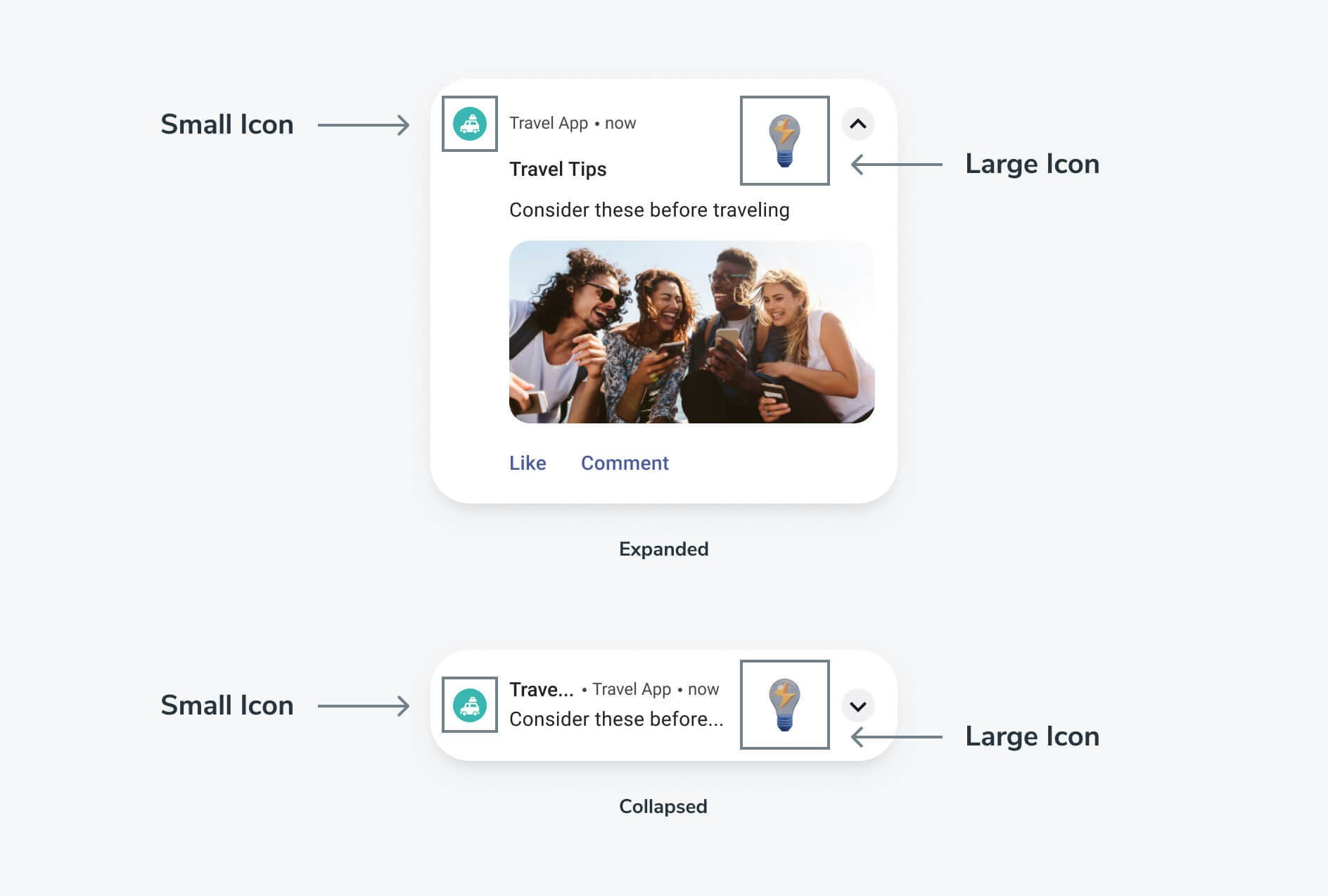
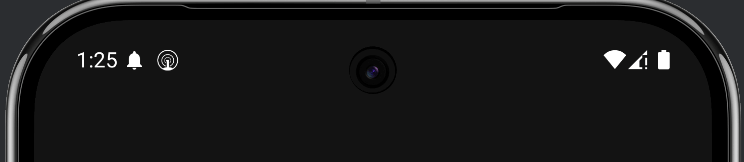
The small notification icon is required. It appears in the status bar as a monochrome silhouette. If you do not provide a custom small icon, OneSignal uses a default bell icon. Icon placement on the notification changes in Android 17 (API 37). See [Launcher icon on the notification](#launcher-icon-on-the-notification-android-17).
Android renders small notification icons using the **icon's alpha channel**, not its color data. Starting in Android 12 (API 31), the system tints that silhouette from the notification accent color you set. If you do not set a color, it uses the system theme color. See [Android notification design](https://developer.android.com/design/ui/mobile/guides/home-screen/notifications).
**Requirements:**
* Use a **monochrome silhouette icon** on a **transparent background**
* Design the icon so the **shape is defined by transparency**, not color
* Avoid gradients, shadows, or multi-color artwork
* Keep the design simple and recognizable at very small sizes
A common approach is **white artwork on a transparent background**. Android uses the **alpha mask**, not the white color itself.
Icons with solid backgrounds or full-color artwork often render as a white square, a clipped shape, or an unexpected silhouette. Android ignores color in small notification icons and derives the appearance from the alpha channel plus system or app tinting.
You cannot force a full-color small icon on stock Android. [Custom notification layouts](https://developer.android.com/develop/ui/views/notifications/custom-notification) on Android 12 (API 31) and newer still show the system-tinted small icon. Some manufacturers ignore the alpha channel and show a full-color image. Do not rely on that. Always ship a compliant alpha-channel icon.
#### Launcher icon on the notification (Android 17)
Starting with Android 17 (API 37), Android shows your app's **launcher icon** on the notification instead of the small icon. The small icon still appears in the status bar. This is Android system behavior that applies to all notifications, and exact appearance may vary by device manufacturer.
To show the small icon on the notification instead, set Android's [`EXTRA_PREFER_SMALL_ICON`](https://developer.android.com/reference/android/app/Notification#EXTRA_PREFER_SMALL_ICON) extra. The OneSignal SDK does not set this extra by default. Add it in your [notification service extension](./service-extensions). Annotate the class with `@Keep` and register it in the manifest as shown on that page.
```kotlin Kotlin theme={null}
import android.os.Bundle
import androidx.annotation.Keep
import com.onesignal.notifications.INotificationReceivedEvent
import com.onesignal.notifications.INotificationServiceExtension
@Keep
class NotificationServiceExtension : INotificationServiceExtension {
override fun onNotificationReceived(event: INotificationReceivedEvent) {
event.notification.setExtender { builder ->
// "android.app.preferSmallIcon" is Notification.EXTRA_PREFER_SMALL_ICON (API 37)
builder.addExtras(Bundle().apply { putBoolean("android.app.preferSmallIcon", true) })
}
}
}
```
```java Java theme={null}
import android.os.Bundle;
import androidx.annotation.Keep;
import com.onesignal.notifications.INotificationReceivedEvent;
import com.onesignal.notifications.INotificationServiceExtension;
@Keep
public class NotificationServiceExtension implements INotificationServiceExtension {
@Override
public void onNotificationReceived(INotificationReceivedEvent event) {
event.getNotification().setExtender(builder -> {
Bundle extras = new Bundle();
// "android.app.preferSmallIcon" is Notification.EXTRA_PREFER_SMALL_ICON (API 37)
extras.putBoolean("android.app.preferSmallIcon", true);
return builder.addExtras(extras);
});
}
}
```
The string key works with any `compileSdk` version. Android 16 (API 36) and below ignore the extra, so it is safe to set unconditionally.
#### Small icon accent color
You can set the notification accent color that Android 12 (API 31) and newer uses to tint the small icon. This maps to Android's `Notification.color` (`setColor`). It is not the same as colorizing the notification background (`setColorized`), which Android reserves for high-priority ongoing tasks.
Accent color is a per-notification property, not a channel property. [Android notification categories](./android-notification-categories) control sound, importance, vibration, LED color, and badges. Categories have no accent color setting, and your accent color applies regardless of which category the notification displays on.
On Android 17 (API 37) and newer, accent color may not appear on the notification when the launcher icon is showing. The status-bar small icon still tints.
### Small notification icons
The small notification icon is required. It appears in the status bar as a monochrome silhouette. If you do not provide a custom small icon, OneSignal uses a default bell icon. Icon placement on the notification changes in Android 17 (API 37). See [Launcher icon on the notification](#launcher-icon-on-the-notification-android-17).
Android renders small notification icons using the **icon's alpha channel**, not its color data. Starting in Android 12 (API 31), the system tints that silhouette from the notification accent color you set. If you do not set a color, it uses the system theme color. See [Android notification design](https://developer.android.com/design/ui/mobile/guides/home-screen/notifications).
**Requirements:**
* Use a **monochrome silhouette icon** on a **transparent background**
* Design the icon so the **shape is defined by transparency**, not color
* Avoid gradients, shadows, or multi-color artwork
* Keep the design simple and recognizable at very small sizes
A common approach is **white artwork on a transparent background**. Android uses the **alpha mask**, not the white color itself.
Icons with solid backgrounds or full-color artwork often render as a white square, a clipped shape, or an unexpected silhouette. Android ignores color in small notification icons and derives the appearance from the alpha channel plus system or app tinting.
You cannot force a full-color small icon on stock Android. [Custom notification layouts](https://developer.android.com/develop/ui/views/notifications/custom-notification) on Android 12 (API 31) and newer still show the system-tinted small icon. Some manufacturers ignore the alpha channel and show a full-color image. Do not rely on that. Always ship a compliant alpha-channel icon.
#### Launcher icon on the notification (Android 17)
Starting with Android 17 (API 37), Android shows your app's **launcher icon** on the notification instead of the small icon. The small icon still appears in the status bar. This is Android system behavior that applies to all notifications, and exact appearance may vary by device manufacturer.
To show the small icon on the notification instead, set Android's [`EXTRA_PREFER_SMALL_ICON`](https://developer.android.com/reference/android/app/Notification#EXTRA_PREFER_SMALL_ICON) extra. The OneSignal SDK does not set this extra by default. Add it in your [notification service extension](./service-extensions). Annotate the class with `@Keep` and register it in the manifest as shown on that page.
```kotlin Kotlin theme={null}
import android.os.Bundle
import androidx.annotation.Keep
import com.onesignal.notifications.INotificationReceivedEvent
import com.onesignal.notifications.INotificationServiceExtension
@Keep
class NotificationServiceExtension : INotificationServiceExtension {
override fun onNotificationReceived(event: INotificationReceivedEvent) {
event.notification.setExtender { builder ->
// "android.app.preferSmallIcon" is Notification.EXTRA_PREFER_SMALL_ICON (API 37)
builder.addExtras(Bundle().apply { putBoolean("android.app.preferSmallIcon", true) })
}
}
}
```
```java Java theme={null}
import android.os.Bundle;
import androidx.annotation.Keep;
import com.onesignal.notifications.INotificationReceivedEvent;
import com.onesignal.notifications.INotificationServiceExtension;
@Keep
public class NotificationServiceExtension implements INotificationServiceExtension {
@Override
public void onNotificationReceived(INotificationReceivedEvent event) {
event.getNotification().setExtender(builder -> {
Bundle extras = new Bundle();
// "android.app.preferSmallIcon" is Notification.EXTRA_PREFER_SMALL_ICON (API 37)
extras.putBoolean("android.app.preferSmallIcon", true);
return builder.addExtras(extras);
});
}
}
```
The string key works with any `compileSdk` version. Android 16 (API 36) and below ignore the extra, so it is safe to set unconditionally.
#### Small icon accent color
You can set the notification accent color that Android 12 (API 31) and newer uses to tint the small icon. This maps to Android's `Notification.color` (`setColor`). It is not the same as colorizing the notification background (`setColorized`), which Android reserves for high-priority ongoing tasks.
Accent color is a per-notification property, not a channel property. [Android notification categories](./android-notification-categories) control sound, importance, vibration, LED color, and badges. Categories have no accent color setting, and your accent color applies regardless of which category the notification displays on.
On Android 17 (API 37) and newer, accent color may not appear on the notification when the launcher icon is showing. The status-bar small icon still tints.
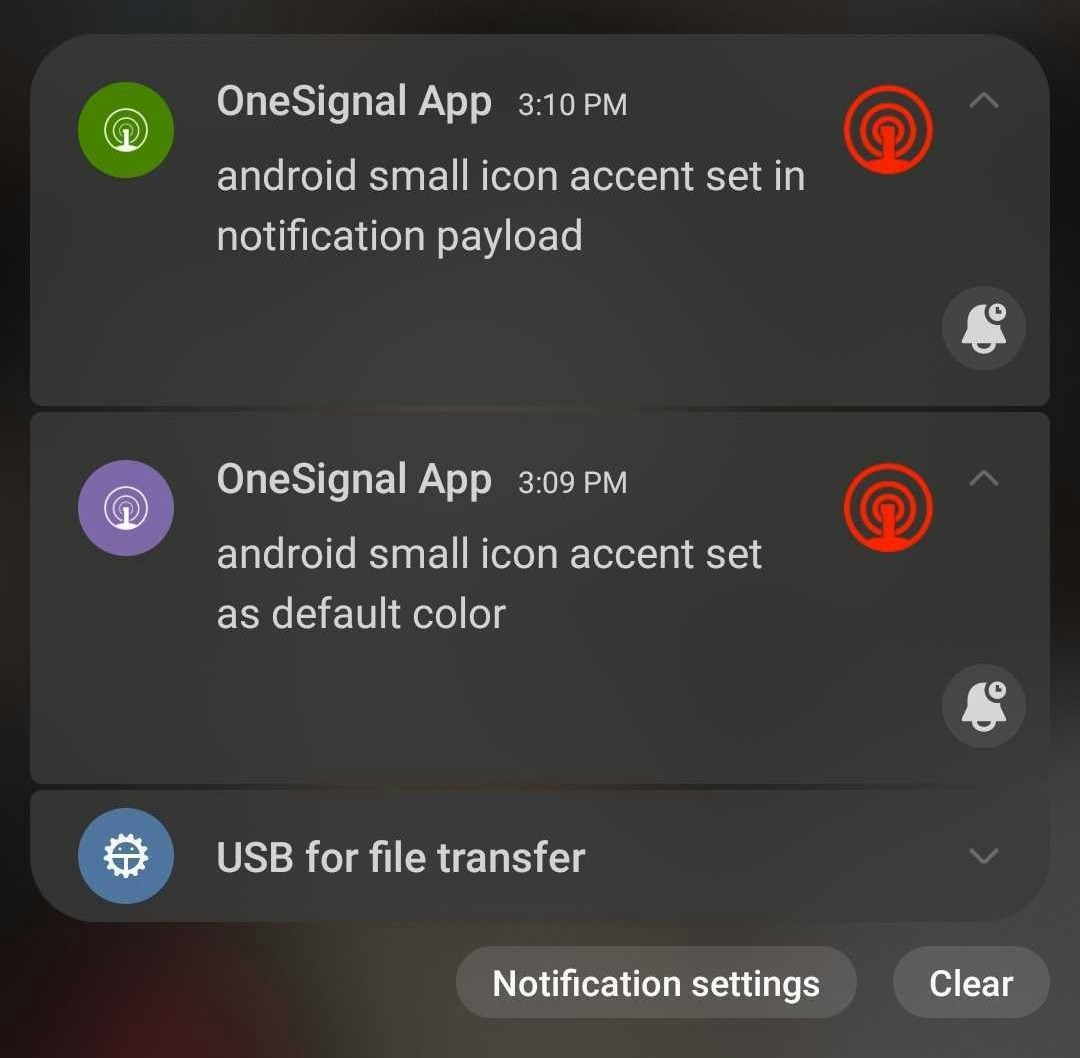 The SDK resolves the accent color in this order. The first value found wins:
1. **Per message**: the `android_accent_color` (Google Android) or `huawei_accent_color` (Huawei) parameter in the [Create message](/reference/create-message) API, or the **Accent color** field under **Messages > Push > New Push > Platform Settings > Google Android Options**.
2. **App default via resources**: the `onesignal_notification_accent_color` string resource.
3. **App default via manifest**: the `com.onesignal.NotificationAccentColor.DEFAULT` meta-data entry in `AndroidManifest.xml`.
Use an ARGB hex value with no `#` (for example, `FF00FF00`). You can preview colors in [Android Asset Studio](https://romannurik.github.io/AndroidAssetStudio/icons-generic.html#source.type=clipart\&source.clipart=ac_unit\&source.space.trim=1\&source.space.pad=0\&size=32\&padding=8\&color=rgb\(139%2C%20195%2C%2074\)\&name=ic_ac_unit).
To set a default color with resources, add the following line to your `res/values/strings.xml` file. For a different color in dark mode, add the same key to `res/values-night/strings.xml`.
```xml theme={null}
FF00FF00
```
To set the default in the manifest instead, add this inside the `` tag:
```xml theme={null}
```
For full control at display time, set the color from a [notification service extension](./service-extensions) using `notification.setExtender` with `builder.setColor()`. The extender runs after the SDK applies the values above, so it overrides all of them.
### Large notification icons
The large icon is optional. It appears on the right side of the notification. Android's design guidance is to use it only when the image **reinforces the notification content**, such as a sender photo, a third-party source logo, or a meaningful symbol. Do **not** use the large icon as a second app icon or for branding. See [The large icon](https://developer.android.com/design/ui/mobile/guides/home-screen/notifications#the-large-icon).
* Recommended size: **256×256 pixels**
* Format: PNG or JPG
* Color is allowed. Alpha-only is not required.
If you do not set a large icon, that slot stays empty on stock Android. Some manufacturers show the app launcher icon instead.
## How to add Android default icons
Configure default icons for every Android-based app (Google Play, Amazon, Huawei). Finish [Android SDK setup](./android-sdk-setup) (or your cross-platform setup) first. Add the files to your project's resource directories (or a plugin config for Expo), rebuild, and release. Missing or incorrectly named files are the most common cause of broken rendering.
Default icons ship in the app binary. They are not uploaded to the OneSignal dashboard. After you ship, wait until most users update before sending notifications that depend on a new icon name.
Generate a silhouette on a transparent background using [Android Asset Studio – Notification Icons](https://romannurik.github.io/AndroidAssetStudio/icons-notification.html#source.space.trim=1\&source.space.pad=0\&name=ic_stat_onesignal_default). Follow the [small icon requirements](#small-notification-icons).
**Name the icon:** `ic_stat_onesignal_default`
Include **all density variants** for the small icon. Missing any size can cause Android to fall back to a system default icon. These sizes are **24dp** at each density, which is Android's status bar icon size.
| Icon name | Density | Size (px) |
| - | - | - |
| `ic_stat_onesignal_default` | MDPI | 24×24 |
| `ic_stat_onesignal_default` | HDPI | 36×36 |
| `ic_stat_onesignal_default` | XHDPI | 48×48 |
| `ic_stat_onesignal_default` | XXHDPI | 72×72 |
| `ic_stat_onesignal_default` | XXXHDPI | 96×96 |
Use a 256×256 PNG or JPG. Color is allowed. Only one size is needed.
**Required file name:** `ic_onesignal_large_icon_default.png`
Create any missing folders. Place every small-icon density in its drawable folder. Place the large icon in `drawable-xxxhdpi/` next to the XXXHDPI small icon. The two files share a folder and use different names.
**Small icons** (`ic_stat_onesignal_default`):
* `res/drawable-mdpi/` (24×24)
* `res/drawable-hdpi/` (36×36)
* `res/drawable-xhdpi/` (48×48)
* `res/drawable-xxhdpi/` (72×72)
* `res/drawable-xxxhdpi/` (96×96)
**Large icon** (`ic_onesignal_large_icon_default.png`, 256×256):
* `res/drawable-xxxhdpi/`
**Small icons** (`ic_stat_onesignal_default`):
* `Assets/Plugins/Android/OneSignalConfig.androidlib/src/main/res/drawable-mdpi/` (24×24)
* `Assets/Plugins/Android/OneSignalConfig.androidlib/src/main/res/drawable-hdpi/` (36×36)
* `Assets/Plugins/Android/OneSignalConfig.androidlib/src/main/res/drawable-xhdpi/` (48×48)
* `Assets/Plugins/Android/OneSignalConfig.androidlib/src/main/res/drawable-xxhdpi/` (72×72)
* `Assets/Plugins/Android/OneSignalConfig.androidlib/src/main/res/drawable-xxxhdpi/` (96×96)
**Large icon** (`ic_onesignal_large_icon_default.png`, 256×256):
* `Assets/Plugins/Android/OneSignalConfig.androidlib/src/main/res/drawable-xxxhdpi/`
Use lowercase file names. Underscores are allowed.
**Small icons** (`ic_stat_onesignal_default`):
* `android/app/src/main/res/drawable-mdpi/` (24×24)
* `android/app/src/main/res/drawable-hdpi/` (36×36)
* `android/app/src/main/res/drawable-xhdpi/` (48×48)
* `android/app/src/main/res/drawable-xxhdpi/` (72×72)
* `android/app/src/main/res/drawable-xxxhdpi/` (96×96)
**Large icon** (`ic_onesignal_large_icon_default.png`, 256×256):
* `android/app/src/main/res/drawable-xxxhdpi/`
**Expo shortcut:** If you use the `onesignal-expo-plugin`, provide a 96×96 small-icon PNG and a 256×256 large-icon PNG. The plugin generates all density variants. Add them to `app.json` or `app.config.js`:
```json theme={null}
{
"plugins": [
["onesignal-expo-plugin", {
"mode": "production",
"smallIcons": ["./assets/ic_stat_onesignal_default.png"],
"largeIcons": ["./assets/ic_onesignal_large_icon_default.png"]
}]
]
}
```
You do not need to create the `android/` drawable folders yourself. The plugin places the generated files at build time. See [React Native / Expo SDK setup](./react-native-expo-sdk-setup) for full plugin configuration.
**Small icons** (`ic_stat_onesignal_default`):
* `android/app/src/main/res/drawable-mdpi/` (24×24)
* `android/app/src/main/res/drawable-hdpi/` (36×36)
* `android/app/src/main/res/drawable-xhdpi/` (48×48)
* `android/app/src/main/res/drawable-xxhdpi/` (72×72)
* `android/app/src/main/res/drawable-xxxhdpi/` (96×96)
**Large icon** (`ic_onesignal_large_icon_default.png`, 256×256):
* `android/app/src/main/res/drawable-xxxhdpi/`
For Ionic apps that still use the Cordova plugin. Capacitor apps use the Capacitor tab.
**Small icons** (`ic_stat_onesignal_default`):
* `/platforms/android/app/src/main/res/drawable-mdpi/` (24×24)
* `/platforms/android/app/src/main/res/drawable-hdpi/` (36×36)
* `/platforms/android/app/src/main/res/drawable-xhdpi/` (48×48)
* `/platforms/android/app/src/main/res/drawable-xxhdpi/` (72×72)
* `/platforms/android/app/src/main/res/drawable-xxxhdpi/` (96×96)
**Large icon** (`ic_onesignal_large_icon_default.png`, 256×256):
* `/platforms/android/app/src/main/res/drawable-xxxhdpi/`
On Cordova before 7.0, use `/platforms/android/res/drawable-{size}/` instead when adding the icon resource to `config.xml`.
For Capacitor and Ionic Capacitor apps. See [Capacitor SDK setup](./capacitor-sdk-setup).
**Small icons** (`ic_stat_onesignal_default`):
* `android/app/src/main/res/drawable-mdpi/` (24×24)
* `android/app/src/main/res/drawable-hdpi/` (36×36)
* `android/app/src/main/res/drawable-xhdpi/` (48×48)
* `android/app/src/main/res/drawable-xxhdpi/` (72×72)
* `android/app/src/main/res/drawable-xxxhdpi/` (96×96)
**Large icon** (`ic_onesignal_large_icon_default.png`, 256×256):
* `android/app/src/main/res/drawable-xxxhdpi/`
**Small icons** (`ic_stat_onesignal_default`):
* `Platforms/Android/Resources/drawable-mdpi/` (24×24)
* `Platforms/Android/Resources/drawable-hdpi/` (36×36)
* `Platforms/Android/Resources/drawable-xhdpi/` (48×48)
* `Platforms/Android/Resources/drawable-xxhdpi/` (72×72)
* `Platforms/Android/Resources/drawable-xxxhdpi/` (96×96)
**Large icon** (`ic_onesignal_large_icon_default.png`, 256×256):
* `Platforms/Android/Resources/drawable-xxxhdpi/`
Your project should look similar to this (depending on your SDK):
The SDK resolves the accent color in this order. The first value found wins:
1. **Per message**: the `android_accent_color` (Google Android) or `huawei_accent_color` (Huawei) parameter in the [Create message](/reference/create-message) API, or the **Accent color** field under **Messages > Push > New Push > Platform Settings > Google Android Options**.
2. **App default via resources**: the `onesignal_notification_accent_color` string resource.
3. **App default via manifest**: the `com.onesignal.NotificationAccentColor.DEFAULT` meta-data entry in `AndroidManifest.xml`.
Use an ARGB hex value with no `#` (for example, `FF00FF00`). You can preview colors in [Android Asset Studio](https://romannurik.github.io/AndroidAssetStudio/icons-generic.html#source.type=clipart\&source.clipart=ac_unit\&source.space.trim=1\&source.space.pad=0\&size=32\&padding=8\&color=rgb\(139%2C%20195%2C%2074\)\&name=ic_ac_unit).
To set a default color with resources, add the following line to your `res/values/strings.xml` file. For a different color in dark mode, add the same key to `res/values-night/strings.xml`.
```xml theme={null}
FF00FF00
```
To set the default in the manifest instead, add this inside the `` tag:
```xml theme={null}
```
For full control at display time, set the color from a [notification service extension](./service-extensions) using `notification.setExtender` with `builder.setColor()`. The extender runs after the SDK applies the values above, so it overrides all of them.
### Large notification icons
The large icon is optional. It appears on the right side of the notification. Android's design guidance is to use it only when the image **reinforces the notification content**, such as a sender photo, a third-party source logo, or a meaningful symbol. Do **not** use the large icon as a second app icon or for branding. See [The large icon](https://developer.android.com/design/ui/mobile/guides/home-screen/notifications#the-large-icon).
* Recommended size: **256×256 pixels**
* Format: PNG or JPG
* Color is allowed. Alpha-only is not required.
If you do not set a large icon, that slot stays empty on stock Android. Some manufacturers show the app launcher icon instead.
## How to add Android default icons
Configure default icons for every Android-based app (Google Play, Amazon, Huawei). Finish [Android SDK setup](./android-sdk-setup) (or your cross-platform setup) first. Add the files to your project's resource directories (or a plugin config for Expo), rebuild, and release. Missing or incorrectly named files are the most common cause of broken rendering.
Default icons ship in the app binary. They are not uploaded to the OneSignal dashboard. After you ship, wait until most users update before sending notifications that depend on a new icon name.
Generate a silhouette on a transparent background using [Android Asset Studio – Notification Icons](https://romannurik.github.io/AndroidAssetStudio/icons-notification.html#source.space.trim=1\&source.space.pad=0\&name=ic_stat_onesignal_default). Follow the [small icon requirements](#small-notification-icons).
**Name the icon:** `ic_stat_onesignal_default`
Include **all density variants** for the small icon. Missing any size can cause Android to fall back to a system default icon. These sizes are **24dp** at each density, which is Android's status bar icon size.
| Icon name | Density | Size (px) |
| - | - | - |
| `ic_stat_onesignal_default` | MDPI | 24×24 |
| `ic_stat_onesignal_default` | HDPI | 36×36 |
| `ic_stat_onesignal_default` | XHDPI | 48×48 |
| `ic_stat_onesignal_default` | XXHDPI | 72×72 |
| `ic_stat_onesignal_default` | XXXHDPI | 96×96 |
Use a 256×256 PNG or JPG. Color is allowed. Only one size is needed.
**Required file name:** `ic_onesignal_large_icon_default.png`
Create any missing folders. Place every small-icon density in its drawable folder. Place the large icon in `drawable-xxxhdpi/` next to the XXXHDPI small icon. The two files share a folder and use different names.
**Small icons** (`ic_stat_onesignal_default`):
* `res/drawable-mdpi/` (24×24)
* `res/drawable-hdpi/` (36×36)
* `res/drawable-xhdpi/` (48×48)
* `res/drawable-xxhdpi/` (72×72)
* `res/drawable-xxxhdpi/` (96×96)
**Large icon** (`ic_onesignal_large_icon_default.png`, 256×256):
* `res/drawable-xxxhdpi/`
**Small icons** (`ic_stat_onesignal_default`):
* `Assets/Plugins/Android/OneSignalConfig.androidlib/src/main/res/drawable-mdpi/` (24×24)
* `Assets/Plugins/Android/OneSignalConfig.androidlib/src/main/res/drawable-hdpi/` (36×36)
* `Assets/Plugins/Android/OneSignalConfig.androidlib/src/main/res/drawable-xhdpi/` (48×48)
* `Assets/Plugins/Android/OneSignalConfig.androidlib/src/main/res/drawable-xxhdpi/` (72×72)
* `Assets/Plugins/Android/OneSignalConfig.androidlib/src/main/res/drawable-xxxhdpi/` (96×96)
**Large icon** (`ic_onesignal_large_icon_default.png`, 256×256):
* `Assets/Plugins/Android/OneSignalConfig.androidlib/src/main/res/drawable-xxxhdpi/`
Use lowercase file names. Underscores are allowed.
**Small icons** (`ic_stat_onesignal_default`):
* `android/app/src/main/res/drawable-mdpi/` (24×24)
* `android/app/src/main/res/drawable-hdpi/` (36×36)
* `android/app/src/main/res/drawable-xhdpi/` (48×48)
* `android/app/src/main/res/drawable-xxhdpi/` (72×72)
* `android/app/src/main/res/drawable-xxxhdpi/` (96×96)
**Large icon** (`ic_onesignal_large_icon_default.png`, 256×256):
* `android/app/src/main/res/drawable-xxxhdpi/`
**Expo shortcut:** If you use the `onesignal-expo-plugin`, provide a 96×96 small-icon PNG and a 256×256 large-icon PNG. The plugin generates all density variants. Add them to `app.json` or `app.config.js`:
```json theme={null}
{
"plugins": [
["onesignal-expo-plugin", {
"mode": "production",
"smallIcons": ["./assets/ic_stat_onesignal_default.png"],
"largeIcons": ["./assets/ic_onesignal_large_icon_default.png"]
}]
]
}
```
You do not need to create the `android/` drawable folders yourself. The plugin places the generated files at build time. See [React Native / Expo SDK setup](./react-native-expo-sdk-setup) for full plugin configuration.
**Small icons** (`ic_stat_onesignal_default`):
* `android/app/src/main/res/drawable-mdpi/` (24×24)
* `android/app/src/main/res/drawable-hdpi/` (36×36)
* `android/app/src/main/res/drawable-xhdpi/` (48×48)
* `android/app/src/main/res/drawable-xxhdpi/` (72×72)
* `android/app/src/main/res/drawable-xxxhdpi/` (96×96)
**Large icon** (`ic_onesignal_large_icon_default.png`, 256×256):
* `android/app/src/main/res/drawable-xxxhdpi/`
For Ionic apps that still use the Cordova plugin. Capacitor apps use the Capacitor tab.
**Small icons** (`ic_stat_onesignal_default`):
* `/platforms/android/app/src/main/res/drawable-mdpi/` (24×24)
* `/platforms/android/app/src/main/res/drawable-hdpi/` (36×36)
* `/platforms/android/app/src/main/res/drawable-xhdpi/` (48×48)
* `/platforms/android/app/src/main/res/drawable-xxhdpi/` (72×72)
* `/platforms/android/app/src/main/res/drawable-xxxhdpi/` (96×96)
**Large icon** (`ic_onesignal_large_icon_default.png`, 256×256):
* `/platforms/android/app/src/main/res/drawable-xxxhdpi/`
On Cordova before 7.0, use `/platforms/android/res/drawable-{size}/` instead when adding the icon resource to `config.xml`.
For Capacitor and Ionic Capacitor apps. See [Capacitor SDK setup](./capacitor-sdk-setup).
**Small icons** (`ic_stat_onesignal_default`):
* `android/app/src/main/res/drawable-mdpi/` (24×24)
* `android/app/src/main/res/drawable-hdpi/` (36×36)
* `android/app/src/main/res/drawable-xhdpi/` (48×48)
* `android/app/src/main/res/drawable-xxhdpi/` (72×72)
* `android/app/src/main/res/drawable-xxxhdpi/` (96×96)
**Large icon** (`ic_onesignal_large_icon_default.png`, 256×256):
* `android/app/src/main/res/drawable-xxxhdpi/`
**Small icons** (`ic_stat_onesignal_default`):
* `Platforms/Android/Resources/drawable-mdpi/` (24×24)
* `Platforms/Android/Resources/drawable-hdpi/` (36×36)
* `Platforms/Android/Resources/drawable-xhdpi/` (48×48)
* `Platforms/Android/Resources/drawable-xxhdpi/` (72×72)
* `Platforms/Android/Resources/drawable-xxxhdpi/` (96×96)
**Large icon** (`ic_onesignal_large_icon_default.png`, 256×256):
* `Platforms/Android/Resources/drawable-xxxhdpi/`
Your project should look similar to this (depending on your SDK):
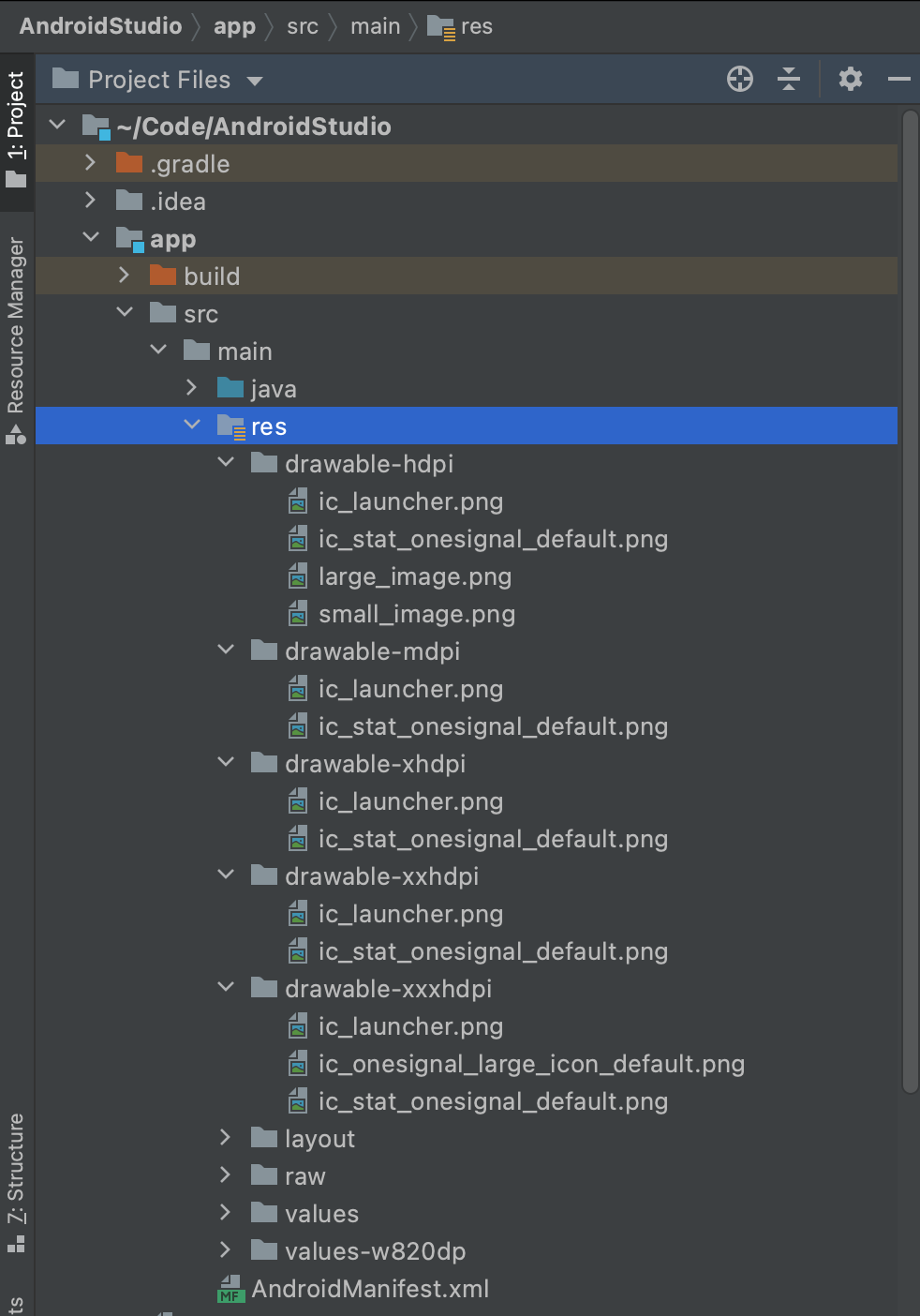 Your Android app is now configured with default notification icons. If you see a solid square or the OneSignal bell, see the [FAQ](#faq).
## iOS notification icons
iOS notifications always use your **app icon**. The system displays a large version of that icon at the leading edge of each notification and scales it from your app icon asset. You cannot change it per message. To change it, update the app icon and ship a new app version. See [Human Interface Guidelines: Notifications](https://developer.apple.com/design/human-interface-guidelines/notifications).
The APNs payload has `alert`, `badge`, and `sound`. It has no field for a custom notification icon. Apple ignores custom keys inside the `aps` dictionary. This applies to standard push notifications and Critical Alerts. Live Activity UI can show its own images through ActivityKit. That is not a replacement for the notification icon.
### Communication notifications
On iOS 15 and newer, Apple supports [Communication Notifications](https://developer.apple.com/documentation/usernotifications/implementing-communication-notifications) for messaging and calling apps. After you donate an `INSendMessageIntent` or `INStartCallIntent`, the system can show the sender or caller **avatar** (`INImage`) in place of the large app icon. The app icon still appears as a small badge on that avatar.
This requires the Communication Notifications capability, SiriKit intents, and a Notification Service Extension to update the notification content. It is not available for general-purpose notifications.
## Web notification icons
Web push notifications display an icon provided at send time or set as the default in your site settings. If no icon is provided, a default bell icon is used.
* Supported formats: PNG, JPG, GIF (non-animated)
* Icon must be square. Recommended size is `256×256` pixels. [web.dev](https://web.dev/articles/push-notifications-display-a-notification) cites 64dp on Android, so `192×192` or larger is the usual minimum. `256×256` stays the most consistent size across Chrome, Firefox, Edge, and Safari.
* Browsers and operating systems crop and scale the icon differently. Chrome and Firefox use the platform notification UI where one exists.
Set **Default Icon URL** in **Settings > Push & In-App > Web**. See [Web SDK setup](./web-sdk-setup#site-setup).
You can also override the icon per notification using the dashboard or REST API. See [Send notifications with non-default icons](#send-notifications-with-non-default-icons).
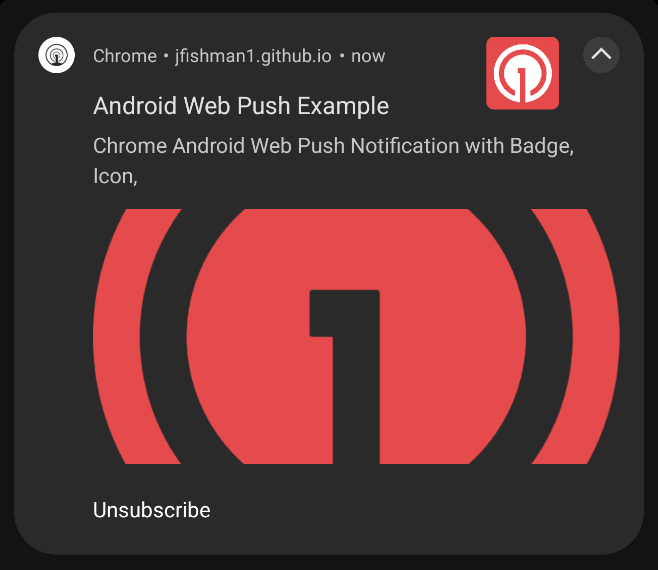
### Android web push badge icon
On Android, Chrome web push can show a smaller **badge icon** in the status bar when there is not enough room for the full notification. OneSignal sends this with `chrome_web_badge`, which maps to the Notifications API `badge` option. Chrome on Android uses this badge. If you do not set one, Chrome uses the browser icon. Other browsers typically show the browser icon. See [Notification: badge](https://developer.mozilla.org/en-US/docs/Web/API/Notification/badge).
This is not an app-icon badge (dot or number). For those, see [Badges](./badges).
Treat the badge as a **monochrome** icon. MDN states that Android **automatically masks** the image. Use a square PNG silhouette on a transparent background (same rules as the Android small icon). Avoid text, fine detail, and full-color artwork.
MDN recommends about `96×96` pixels so the image holds up at 4x. `72×72` is the usual minimum (24dp at 3x). Larger images are downscaled.
Your Android app is now configured with default notification icons. If you see a solid square or the OneSignal bell, see the [FAQ](#faq).
## iOS notification icons
iOS notifications always use your **app icon**. The system displays a large version of that icon at the leading edge of each notification and scales it from your app icon asset. You cannot change it per message. To change it, update the app icon and ship a new app version. See [Human Interface Guidelines: Notifications](https://developer.apple.com/design/human-interface-guidelines/notifications).
The APNs payload has `alert`, `badge`, and `sound`. It has no field for a custom notification icon. Apple ignores custom keys inside the `aps` dictionary. This applies to standard push notifications and Critical Alerts. Live Activity UI can show its own images through ActivityKit. That is not a replacement for the notification icon.
### Communication notifications
On iOS 15 and newer, Apple supports [Communication Notifications](https://developer.apple.com/documentation/usernotifications/implementing-communication-notifications) for messaging and calling apps. After you donate an `INSendMessageIntent` or `INStartCallIntent`, the system can show the sender or caller **avatar** (`INImage`) in place of the large app icon. The app icon still appears as a small badge on that avatar.
This requires the Communication Notifications capability, SiriKit intents, and a Notification Service Extension to update the notification content. It is not available for general-purpose notifications.
## Web notification icons
Web push notifications display an icon provided at send time or set as the default in your site settings. If no icon is provided, a default bell icon is used.
* Supported formats: PNG, JPG, GIF (non-animated)
* Icon must be square. Recommended size is `256×256` pixels. [web.dev](https://web.dev/articles/push-notifications-display-a-notification) cites 64dp on Android, so `192×192` or larger is the usual minimum. `256×256` stays the most consistent size across Chrome, Firefox, Edge, and Safari.
* Browsers and operating systems crop and scale the icon differently. Chrome and Firefox use the platform notification UI where one exists.
Set **Default Icon URL** in **Settings > Push & In-App > Web**. See [Web SDK setup](./web-sdk-setup#site-setup).
You can also override the icon per notification using the dashboard or REST API. See [Send notifications with non-default icons](#send-notifications-with-non-default-icons).
### Android web push badge icon
On Android, Chrome web push can show a smaller **badge icon** in the status bar when there is not enough room for the full notification. OneSignal sends this with `chrome_web_badge`, which maps to the Notifications API `badge` option. Chrome on Android uses this badge. If you do not set one, Chrome uses the browser icon. Other browsers typically show the browser icon. See [Notification: badge](https://developer.mozilla.org/en-US/docs/Web/API/Notification/badge).
This is not an app-icon badge (dot or number). For those, see [Badges](./badges).
Treat the badge as a **monochrome** icon. MDN states that Android **automatically masks** the image. Use a square PNG silhouette on a transparent background (same rules as the Android small icon). Avoid text, fine detail, and full-color artwork.
MDN recommends about `96×96` pixels so the image holds up at 4x. `72×72` is the usual minimum (24dp at 3x). Larger images are downscaled.
 ## Send notifications with non-default icons
When you send push from the OneSignal dashboard or REST API, you can override the default icons for Android, Amazon, Huawei, and Web Push. You cannot override the icon for iOS notifications.
### REST API parameters
**Android, Amazon, and Huawei:**
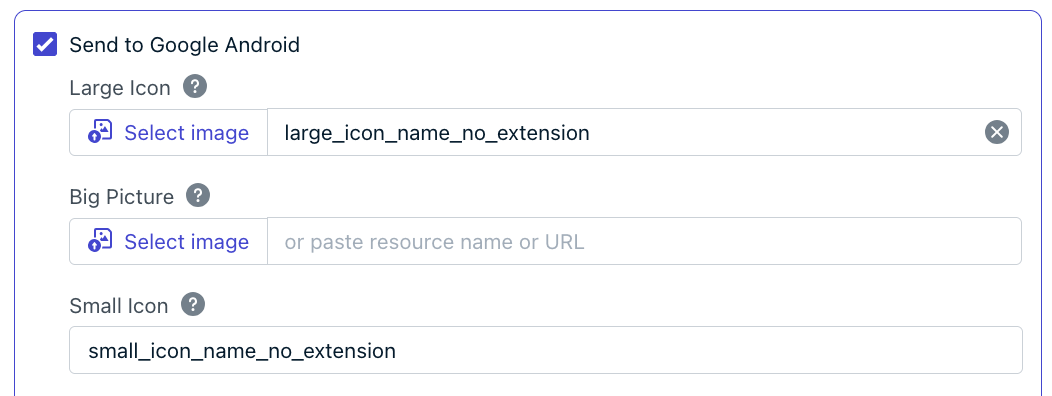
Icon resource name without the file extension. The image must exist in the same project folders as the default small icon. Remote URLs are not supported. See [How to add Android default icons](#how-to-add-android-default-icons).
For Amazon use `adm_small_icon`. For Huawei use `huawei_small_icon`.
Example: `"small_icon": "my_custom_icon"`
Icon resource name without the file extension, or a remote URL. If you use a resource name, the image must exist in the same project folders as the default large icon. See [How to add Android default icons](#how-to-add-android-default-icons).
For Amazon use `adm_large_icon`. For Huawei use `huawei_large_icon`.
Example: `"large_icon": "my_custom_icon"`
**Web Push:**
Direct URL to the image resource.
For Firefox use `firefox_icon`.
Example: `"chrome_web_icon": "https://example.com/my_custom_icon.png"`
Direct URL to the image resource used as the Android status-bar badge for Chrome web notifications.
Example: `"chrome_web_badge": "https://example.com/badge.png"`
### Dashboard
In **Messages > Push > New Push** or **Templates**, open the platform-specific options.
For Android, Amazon, and Huawei, if the file exists in the same project path as the default icon, set the icon names **without** the file extension. For large notification icons, you can also supply a direct URL.
## Send notifications with non-default icons
When you send push from the OneSignal dashboard or REST API, you can override the default icons for Android, Amazon, Huawei, and Web Push. You cannot override the icon for iOS notifications.
### REST API parameters
**Android, Amazon, and Huawei:**
Icon resource name without the file extension. The image must exist in the same project folders as the default small icon. Remote URLs are not supported. See [How to add Android default icons](#how-to-add-android-default-icons).
For Amazon use `adm_small_icon`. For Huawei use `huawei_small_icon`.
Example: `"small_icon": "my_custom_icon"`
Icon resource name without the file extension, or a remote URL. If you use a resource name, the image must exist in the same project folders as the default large icon. See [How to add Android default icons](#how-to-add-android-default-icons).
For Amazon use `adm_large_icon`. For Huawei use `huawei_large_icon`.
Example: `"large_icon": "my_custom_icon"`
**Web Push:**
Direct URL to the image resource.
For Firefox use `firefox_icon`.
Example: `"chrome_web_icon": "https://example.com/my_custom_icon.png"`
Direct URL to the image resource used as the Android status-bar badge for Chrome web notifications.
Example: `"chrome_web_badge": "https://example.com/badge.png"`
### Dashboard
In **Messages > Push > New Push** or **Templates**, open the platform-specific options.
For Android, Amazon, and Huawei, if the file exists in the same project path as the default icon, set the icon names **without** the file extension. For large notification icons, you can also supply a direct URL.
 ## FAQ
### Why does my Android small icon show as a white or grey square?
The image does not have proper transparency. Android renders small notification icons using the alpha channel only. Fully opaque pixels with a solid background appear as a filled square. Regenerate the icon as a monochrome silhouette on a transparent background using [Android Asset Studio](https://romannurik.github.io/AndroidAssetStudio/icons-notification.html#source.space.trim=1\&source.space.pad=0\&name=ic_stat_onesignal_default).
### Why does the OneSignal bell icon appear instead of my custom icon?
One or more required density variants of the small icon are missing, placed in the wrong drawable directory, or named incorrectly. Include all five sizes (MDPI through XXXHDPI) with the exact file name `ic_stat_onesignal_default`. See [How to add Android default icons](#how-to-add-android-default-icons) for the correct paths.
### Why do notifications show my app icon instead of my small icon?
Starting with Android 17 (API 37), Android displays the app's launcher icon on the notification by default. The small icon still appears in the status bar. To show the small icon on the notification, set the [`EXTRA_PREFER_SMALL_ICON`](https://developer.android.com/reference/android/app/Notification#EXTRA_PREFER_SMALL_ICON) extra in a notification service extension. See [Launcher icon on the notification](#launcher-icon-on-the-notification-android-17).
### Can I change the iOS notification icon per message?
No. iOS always uses your app icon for push notifications. The APNs payload has no icon field. Changing the icon requires updating your app icon asset and releasing a new app version. Messaging and calling apps can show a sender avatar only by adopting [Communication Notifications](#communication-notifications).
### What size should my web push icon be?
Use a square PNG, JPG, or non-animated GIF at `256×256` pixels. Different browsers and operating systems may crop or scale the icon, but `256×256` is the most consistent size across Chrome, Firefox, Edge, and Safari.
### Can I use a URL for the Android small icon?
No. The Android small icon must be a local resource file bundled with your app. Only the large icon supports remote URLs.
### How do I add notification icons in Expo?
Use the `onesignal-expo-plugin` with a 96×96 small-icon PNG and a 256×256 large-icon PNG in `app.json` or `app.config.js`. The plugin generates density variants at build time. See the [Expo tab](#how-to-add-android-default-icons) for the config.
### Do I upload default icons to the OneSignal dashboard?
No. Default notification icons are bundled inside your app binary, not uploaded to OneSignal. You add them to your project's resource directories (or plugin config for Expo), and the OneSignal SDK uses them automatically. The OneSignal dashboard only lets you override icons on a per-message basis for Android and Web Push.
***
## Related
Attach large images, GIFs, and videos to push notifications.
Install the Android SDK, then add default notification icons in your drawable folders.
Configure `smallIcons` and `largeIcons` in the OneSignal Expo plugin.
Create and manage Android notification channels for sound, vibration, and importance.
Set Default Icon URL in Settings > Push & In-App > Web.
Send push notifications with custom icons using the REST API.
This documentation is built and hosted on [Mintlify](https://mintlify.com), a developer documentation platform.
## FAQ
### Why does my Android small icon show as a white or grey square?
The image does not have proper transparency. Android renders small notification icons using the alpha channel only. Fully opaque pixels with a solid background appear as a filled square. Regenerate the icon as a monochrome silhouette on a transparent background using [Android Asset Studio](https://romannurik.github.io/AndroidAssetStudio/icons-notification.html#source.space.trim=1\&source.space.pad=0\&name=ic_stat_onesignal_default).
### Why does the OneSignal bell icon appear instead of my custom icon?
One or more required density variants of the small icon are missing, placed in the wrong drawable directory, or named incorrectly. Include all five sizes (MDPI through XXXHDPI) with the exact file name `ic_stat_onesignal_default`. See [How to add Android default icons](#how-to-add-android-default-icons) for the correct paths.
### Why do notifications show my app icon instead of my small icon?
Starting with Android 17 (API 37), Android displays the app's launcher icon on the notification by default. The small icon still appears in the status bar. To show the small icon on the notification, set the [`EXTRA_PREFER_SMALL_ICON`](https://developer.android.com/reference/android/app/Notification#EXTRA_PREFER_SMALL_ICON) extra in a notification service extension. See [Launcher icon on the notification](#launcher-icon-on-the-notification-android-17).
### Can I change the iOS notification icon per message?
No. iOS always uses your app icon for push notifications. The APNs payload has no icon field. Changing the icon requires updating your app icon asset and releasing a new app version. Messaging and calling apps can show a sender avatar only by adopting [Communication Notifications](#communication-notifications).
### What size should my web push icon be?
Use a square PNG, JPG, or non-animated GIF at `256×256` pixels. Different browsers and operating systems may crop or scale the icon, but `256×256` is the most consistent size across Chrome, Firefox, Edge, and Safari.
### Can I use a URL for the Android small icon?
No. The Android small icon must be a local resource file bundled with your app. Only the large icon supports remote URLs.
### How do I add notification icons in Expo?
Use the `onesignal-expo-plugin` with a 96×96 small-icon PNG and a 256×256 large-icon PNG in `app.json` or `app.config.js`. The plugin generates density variants at build time. See the [Expo tab](#how-to-add-android-default-icons) for the config.
### Do I upload default icons to the OneSignal dashboard?
No. Default notification icons are bundled inside your app binary, not uploaded to OneSignal. You add them to your project's resource directories (or plugin config for Expo), and the OneSignal SDK uses them automatically. The OneSignal dashboard only lets you override icons on a per-message basis for Android and Web Push.
***
## Related
Attach large images, GIFs, and videos to push notifications.
Install the Android SDK, then add default notification icons in your drawable folders.
Configure `smallIcons` and `largeIcons` in the OneSignal Expo plugin.
Create and manage Android notification channels for sound, vibration, and importance.
Set Default Icon URL in Settings > Push & In-App > Web.
Send push notifications with custom icons using the REST API.
This documentation is built and hosted on [Mintlify](https://mintlify.com), a developer documentation platform.