> ## Documentation Index
> Fetch the complete documentation index at: https://documentation.onesignal.com/llms.txt
> Use this file to discover all available pages before exploring further.
# Segments
> Create and manage dynamic user segments in OneSignal to target personalized messaging based on activity, location, tags, and more.
A **segment** is a dynamic group of users defined by filters on Subscription attributes, behavior, and custom data. OneSignal segments update automatically as users interact with your app or site, with no extra tracking required. Use segments to target messages, exclude audiences, and trigger Journeys.
User-based segmentation is coming soon. With it, segments contain users instead of Subscriptions. Learn how it works in advance in [User-based segmentation](./user-based-segmentation).
Push notifications, emails, and SMS messages are only sent to opted-in (subscribed) [Subscriptions](./subscriptions). The segment editor shows both subscribed and unsubscribed counts for transparency, but only subscribed Subscriptions receive messages when you target a segment. In-App Messages are displayed to all mobile Subscriptions, regardless of status.
When used in Journeys, all Subscriptions in a segment, regardless of status, are evaluated to their respective [Users](./users) and those users are entered into the Journey.
## Segment types
The OneSignal platform supports two main categories of segments:
### Subscription-based segments
Subscription-based segments are built using filters on Subscription attributes, such as device type, language, or app version.
### Event-based segments
Event-based segments are built using filters on user-level activity rather than individual Subscriptions. A segment is event-based when it includes [message event](./message-events) or [Custom Event](./custom-events) filters. You can add other filter types, such as tags and session filters, to the same segment. Examples include:
* When a user last opened an email, SMS, or push notification sent via OneSignal.
* Specific Custom Events tracked in your app or website.
An event-based segment includes all users who meet the criteria and automatically makes all of their Subscriptions eligible to be targeted, enabling richer audience definitions that can reach any of the user's devices.
## Creating segments
Segments can be created in the dashboard, via the API, or by uploading a CSV. Target your audience by including and excluding segments when sending messages or building Journeys.
Create and manage segments from **Audience > Segments**.
Create segments programmatically using the Create Segment API.
Bulk-import Subscriptions and Tags via CSV, then build segments that match them.
#### Create a segment in the dashboard
Navigate to the Segments page in the dashboard.
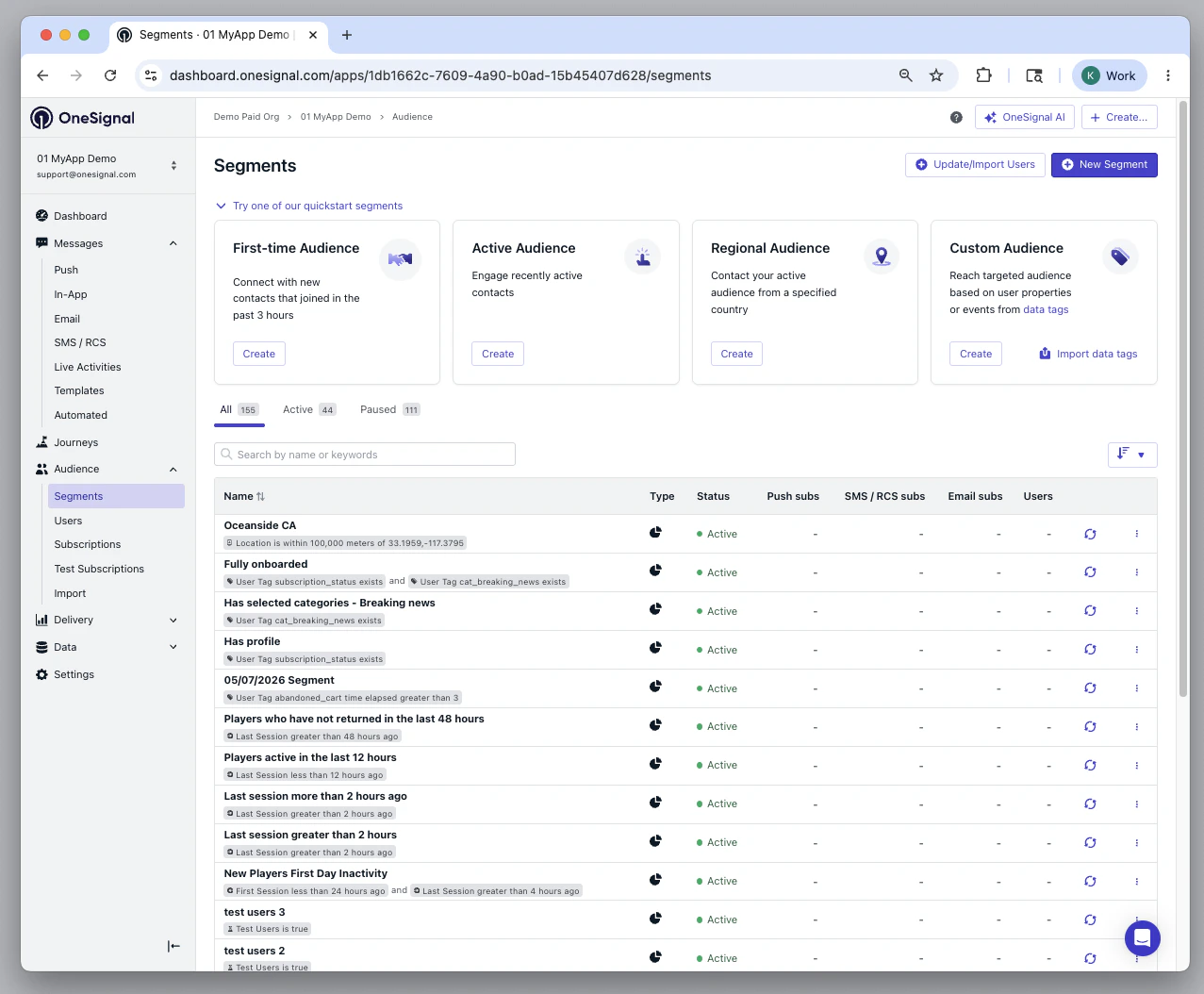 Opens the segment creation interface.
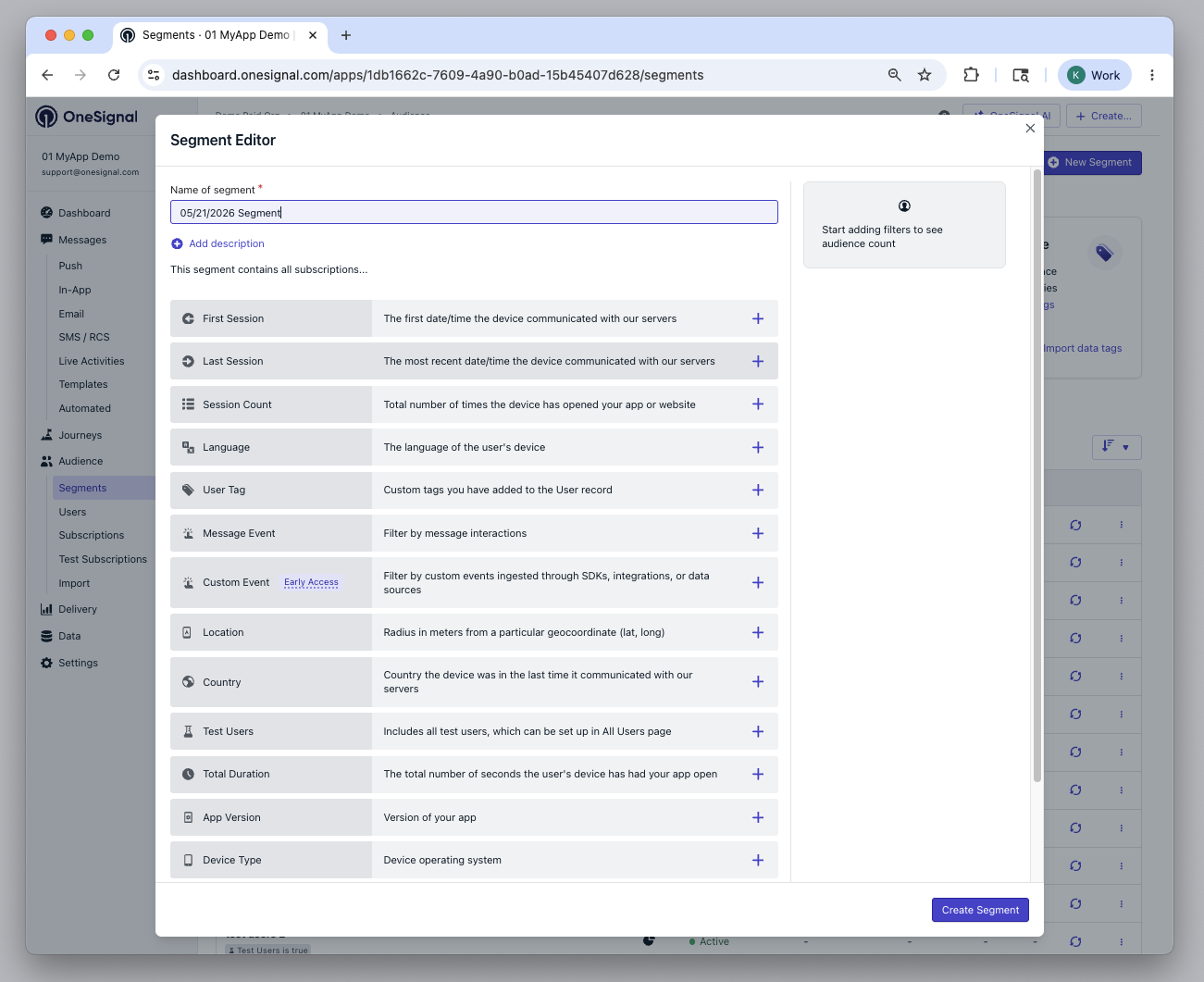 * Add filters to define your audience criteria.
* Name the segment.
* Enter a **Description** (optional). Click **Add description** below the segment name (up to 255 characters).
* Click **Create Segment**.
* Add filters to define your audience criteria.
* Name the segment.
* Enter a **Description** (optional). Click **Add description** below the segment name (up to 255 characters).
* Click **Create Segment**.
 ### Segment logic: AND vs OR
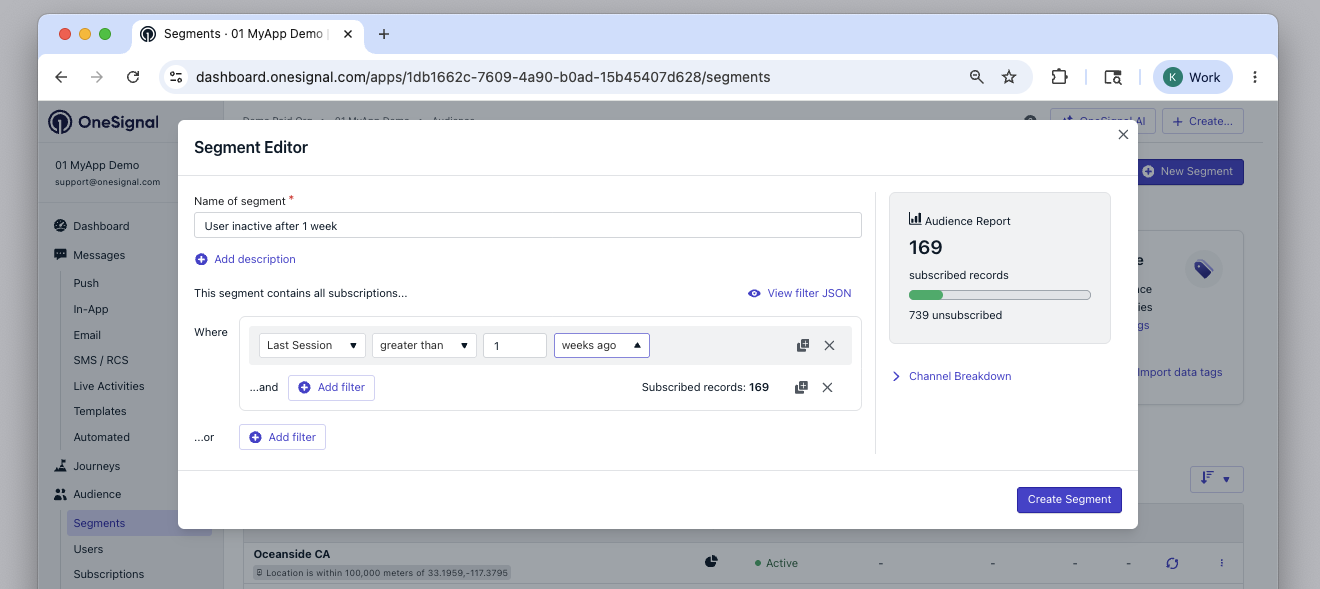
Use **AND** to combine filters that all must match. Use **OR** to match any of multiple conditions.
Create a segment of users who:
* Have been active within the last 30 days
* Have at least 3 total sessions
### Segment logic: AND vs OR
Use **AND** to combine filters that all must match. Use **OR** to match any of multiple conditions.
Create a segment of users who:
* Have been active within the last 30 days
* Have at least 3 total sessions
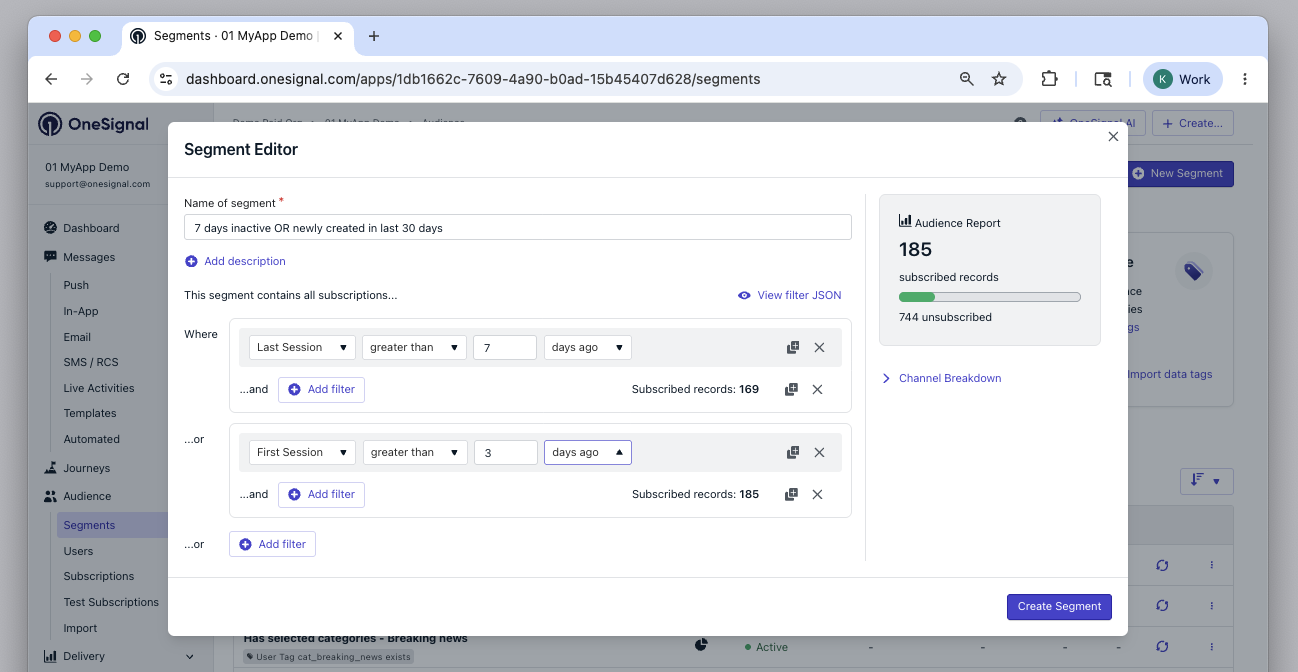
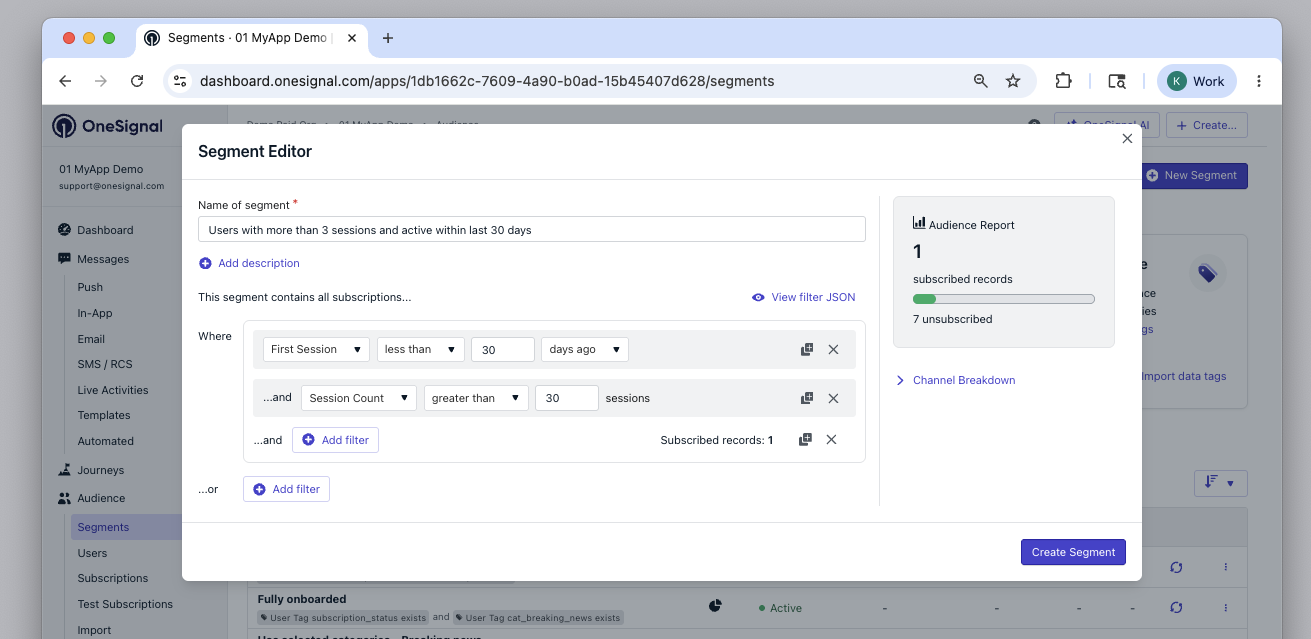 Create a segment of users who:
* Have not returned in more than 7 days
* Have new Subscriptions created in the last 3 days
Create a segment of users who:
* Have not returned in more than 7 days
* Have new Subscriptions created in the last 3 days
 ## Filters
Filters define which Subscriptions belong to a segment. You can combine multiple filters using **AND** or **OR** logic. If no filters are selected, the segment defaults to every user of your app.
| Filter | Description |
| - | - |
| **First session** | The first time OneSignal saw this user active on any device, including email or SMS. Equivalent to the user's `created_at` timestamp. |
| **Last session** | The last time OneSignal saw this user active on any SDK-tracked device. |
| **Session count** | Number of times Subscription opened the app or visited the site. See [Sessions](./sessions). |
| **Usage duration** | Total seconds the Subscription had your app/site open. |
| **Language** | User's preferred language (based on device/browser). See [multi-language support](./multi-language-messaging). |
| **App version** | Pulled from Android `versionCode` or iOS `CFBundleShortVersionString`. Combine with **Device type** to filter by different app versions per platform. See [Target outdated app versions](./app-version-update). |
| **Device type** | iOS, Android, Web Push (browser), Email, etc. Select multiple device types in one filter with "is any of", or exclude them with "is not any of". |
| **User tag** | Custom Tags you set via the SDK or API. See [Add Tags](./add-user-data-tags). |
| **Location** | Filter by radius from coordinates (lat/long). Requires at least 1 meter and up to 2 decimal places of precision. See [location permission](./mobile-sdk-reference#location). |
| **Country** | Based on last IP geolocation (ISO 3166-1 alpha-2 code). |
| **Test users** | Users marked as [Test Users](./test-users). |
| **Message event** | Filter by [message event](./message-events) (e.g., "clicked", "delivered", "failed"). See [Message event filters](#message-event-filters). |
| **Custom event** | Filter by [custom event](./custom-events) (e.g., "purchase", "user login"). See [Custom event filters](#custom-event-filters). |
### Event-based filters
Event-based filters target users by the actions they take, both interactions with your OneSignal messages and custom events you send to OneSignal.
#### Message event filters
Message event filters target users based on their interaction with one of your messaging channels within a certain window. See [Message events](./message-events) for the full event catalog and conceptual reference.
## Filters
Filters define which Subscriptions belong to a segment. You can combine multiple filters using **AND** or **OR** logic. If no filters are selected, the segment defaults to every user of your app.
| Filter | Description |
| - | - |
| **First session** | The first time OneSignal saw this user active on any device, including email or SMS. Equivalent to the user's `created_at` timestamp. |
| **Last session** | The last time OneSignal saw this user active on any SDK-tracked device. |
| **Session count** | Number of times Subscription opened the app or visited the site. See [Sessions](./sessions). |
| **Usage duration** | Total seconds the Subscription had your app/site open. |
| **Language** | User's preferred language (based on device/browser). See [multi-language support](./multi-language-messaging). |
| **App version** | Pulled from Android `versionCode` or iOS `CFBundleShortVersionString`. Combine with **Device type** to filter by different app versions per platform. See [Target outdated app versions](./app-version-update). |
| **Device type** | iOS, Android, Web Push (browser), Email, etc. Select multiple device types in one filter with "is any of", or exclude them with "is not any of". |
| **User tag** | Custom Tags you set via the SDK or API. See [Add Tags](./add-user-data-tags). |
| **Location** | Filter by radius from coordinates (lat/long). Requires at least 1 meter and up to 2 decimal places of precision. See [location permission](./mobile-sdk-reference#location). |
| **Country** | Based on last IP geolocation (ISO 3166-1 alpha-2 code). |
| **Test users** | Users marked as [Test Users](./test-users). |
| **Message event** | Filter by [message event](./message-events) (e.g., "clicked", "delivered", "failed"). See [Message event filters](#message-event-filters). |
| **Custom event** | Filter by [custom event](./custom-events) (e.g., "purchase", "user login"). See [Custom event filters](#custom-event-filters). |
### Event-based filters
Event-based filters target users by the actions they take, both interactions with your OneSignal messages and custom events you send to OneSignal.
#### Message event filters
Message event filters target users based on their interaction with one of your messaging channels within a certain window. See [Message events](./message-events) for the full event catalog and conceptual reference.
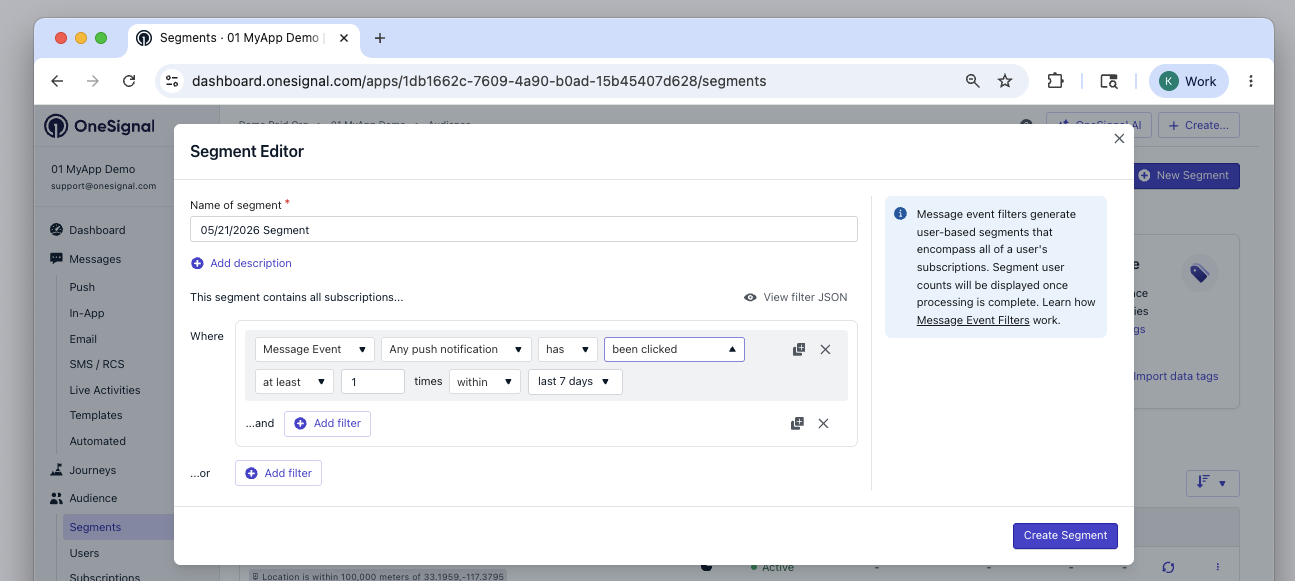 First select the messaging channel you want to filter on, then specify the action to track and whether the user has or has not performed that action.
You can specify a minimum, maximum, or exact number of times the user must have performed the action, as well as a time window ranging from the last 24 hours to the last 90 days. Use the `between` option to define a custom start and end range (in days ago).
#### Trackable interactions by channel
| Channel | Trackable interactions |
| - | - |
| Push | Delivered, Confirmed Receipt, Clicked, Failed |
| SMS | Delivered, Read, Failed |
| Email | Delivered, Opened, Clicked, Bounced, Failed, Suppressed, Reported as spam |
| In-App | Impression, Clicked |
Segments with message event filters are event-based. Outside [Journeys](./journeys-overview), you cannot include or exclude them with segments that have no message event or custom event filters. See [Can I combine custom event or message event segments with other segments?](#can-i-combine-custom-event-or-message-event-segments-with-other-segments) for the dashboard and API rules.
#### Message event retention
The amount of time message event data is retained depends on your plan. The dashboard time window selector shows up to 90 days, but data beyond your plan's retention period will not return results.
Free, Growth, Pro, and Enterprise retention windows for message event data.
### Custom event filters
[Custom Event](./custom-events) filters let you target users based on meaningful actions they have taken in your app, website, or external systems.
Custom event filters read stored events. Turn on [storage](./custom-event-storage) for each event you segment on.
First select the messaging channel you want to filter on, then specify the action to track and whether the user has or has not performed that action.
You can specify a minimum, maximum, or exact number of times the user must have performed the action, as well as a time window ranging from the last 24 hours to the last 90 days. Use the `between` option to define a custom start and end range (in days ago).
#### Trackable interactions by channel
| Channel | Trackable interactions |
| - | - |
| Push | Delivered, Confirmed Receipt, Clicked, Failed |
| SMS | Delivered, Read, Failed |
| Email | Delivered, Opened, Clicked, Bounced, Failed, Suppressed, Reported as spam |
| In-App | Impression, Clicked |
Segments with message event filters are event-based. Outside [Journeys](./journeys-overview), you cannot include or exclude them with segments that have no message event or custom event filters. See [Can I combine custom event or message event segments with other segments?](#can-i-combine-custom-event-or-message-event-segments-with-other-segments) for the dashboard and API rules.
#### Message event retention
The amount of time message event data is retained depends on your plan. The dashboard time window selector shows up to 90 days, but data beyond your plan's retention period will not return results.
Free, Growth, Pro, and Enterprise retention windows for message event data.
### Custom event filters
[Custom Event](./custom-events) filters let you target users based on meaningful actions they have taken in your app, website, or external systems.
Custom event filters read stored events. Turn on [storage](./custom-event-storage) for each event you segment on.
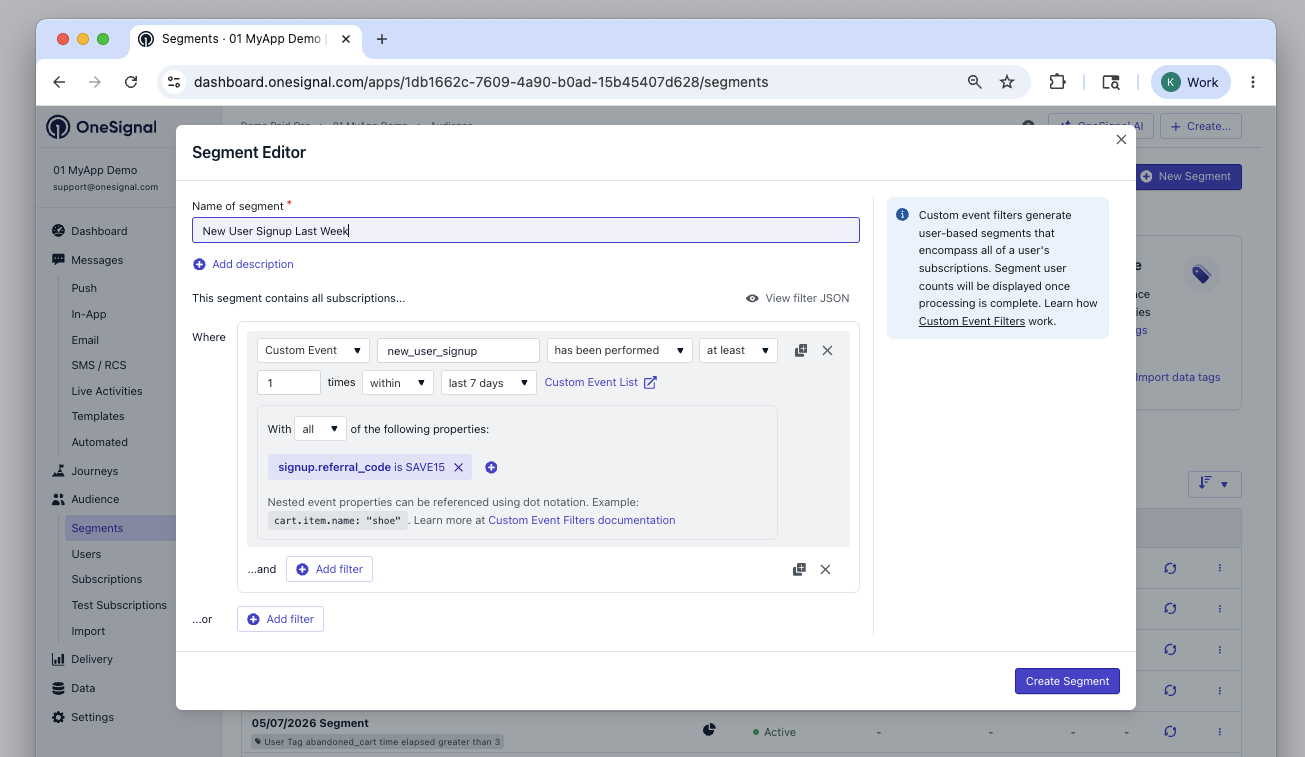 Start by selecting:
* The event name you want to filter on.
* Whether the user `has` or `has not` performed that action.
* The minimum, maximum, or exact number of times the action must be performed.
* A time window during which the action must (or must not) occur. Choose a preset range or define a custom window using the `between` option (start and end in days ago).
After specifying the event, you can optionally filter on specific or multiple properties:
* `all`: applies an AND condition across properties.
* `at least one`: applies an OR condition.
Then set the properties you want to filter on using `dot notation`.
* Custom Events are represented as [JSON Objects](https://www.w3schools.com/js/js_json.asp).
* See [Custom Events](./custom-events#what-are-custom-events) for more details.
#### Example
Given the following Custom Event:
```json theme={null}
{
"events": [
{
"name": "cart_updated",
"properties": {
"product_name": "24 Pack of Acorns",
"product_price": 12.99,
"product_quantity": 2
},
"external_id": "ID_OF_THE_USER"
}
]
}
```
You can filter by:
* `product_name` → to target users with product name `24 Pack of Acorns`.
* `product_price` → to target users with a product price greater than `10`.
* `product_quantity` → to target users with a product quantity of `2` or more.
Start by selecting:
* The event name you want to filter on.
* Whether the user `has` or `has not` performed that action.
* The minimum, maximum, or exact number of times the action must be performed.
* A time window during which the action must (or must not) occur. Choose a preset range or define a custom window using the `between` option (start and end in days ago).
After specifying the event, you can optionally filter on specific or multiple properties:
* `all`: applies an AND condition across properties.
* `at least one`: applies an OR condition.
Then set the properties you want to filter on using `dot notation`.
* Custom Events are represented as [JSON Objects](https://www.w3schools.com/js/js_json.asp).
* See [Custom Events](./custom-events#what-are-custom-events) for more details.
#### Example
Given the following Custom Event:
```json theme={null}
{
"events": [
{
"name": "cart_updated",
"properties": {
"product_name": "24 Pack of Acorns",
"product_price": 12.99,
"product_quantity": 2
},
"external_id": "ID_OF_THE_USER"
}
]
}
```
You can filter by:
* `product_name` → to target users with product name `24 Pack of Acorns`.
* `product_price` → to target users with a product price greater than `10`.
* `product_quantity` → to target users with a product quantity of `2` or more.
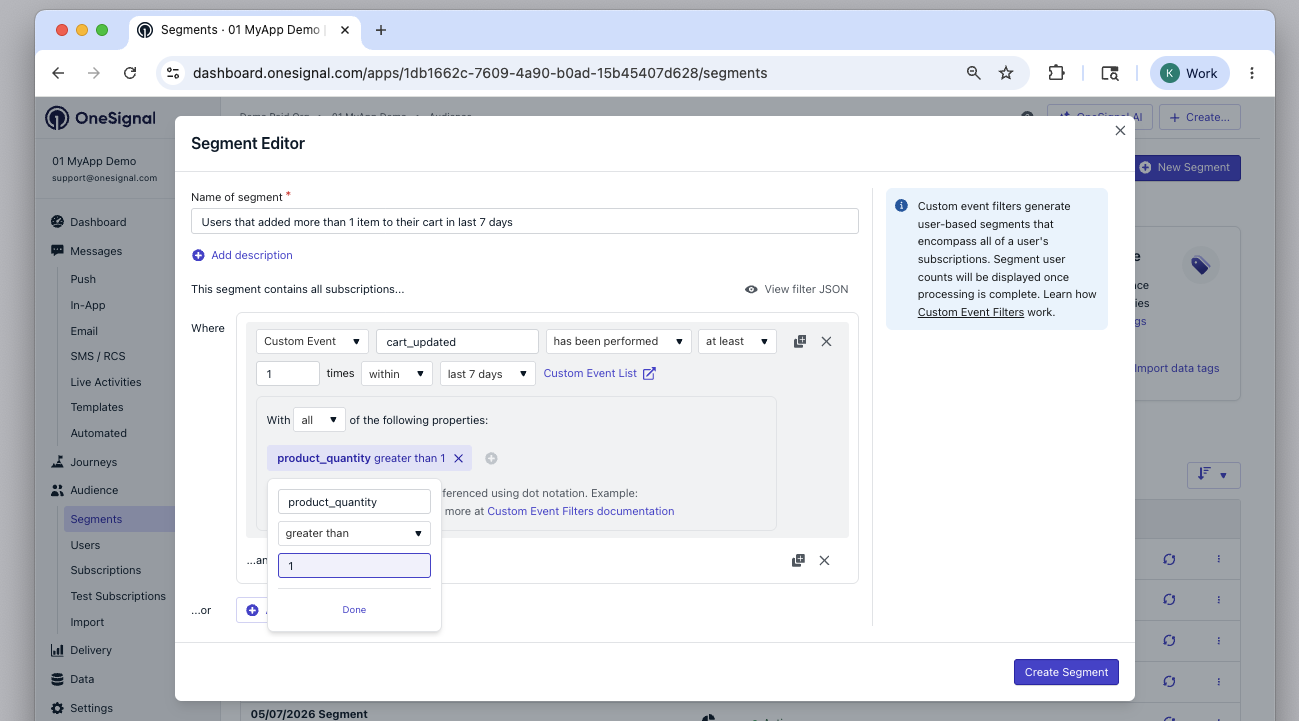 You can add other filter types to the same segment, including message events, tags, and session filters.
Segments with custom event filters are event-based. Outside [Journeys](./journeys-overview), you cannot include or exclude them with segments that have no message event or custom event filters. See [Can I combine custom event or message event segments with other segments?](#can-i-combine-custom-event-or-message-event-segments-with-other-segments) for the dashboard and API rules.
Shape event properties for Segment filters and see an example Segment for each event.
## Audience counts
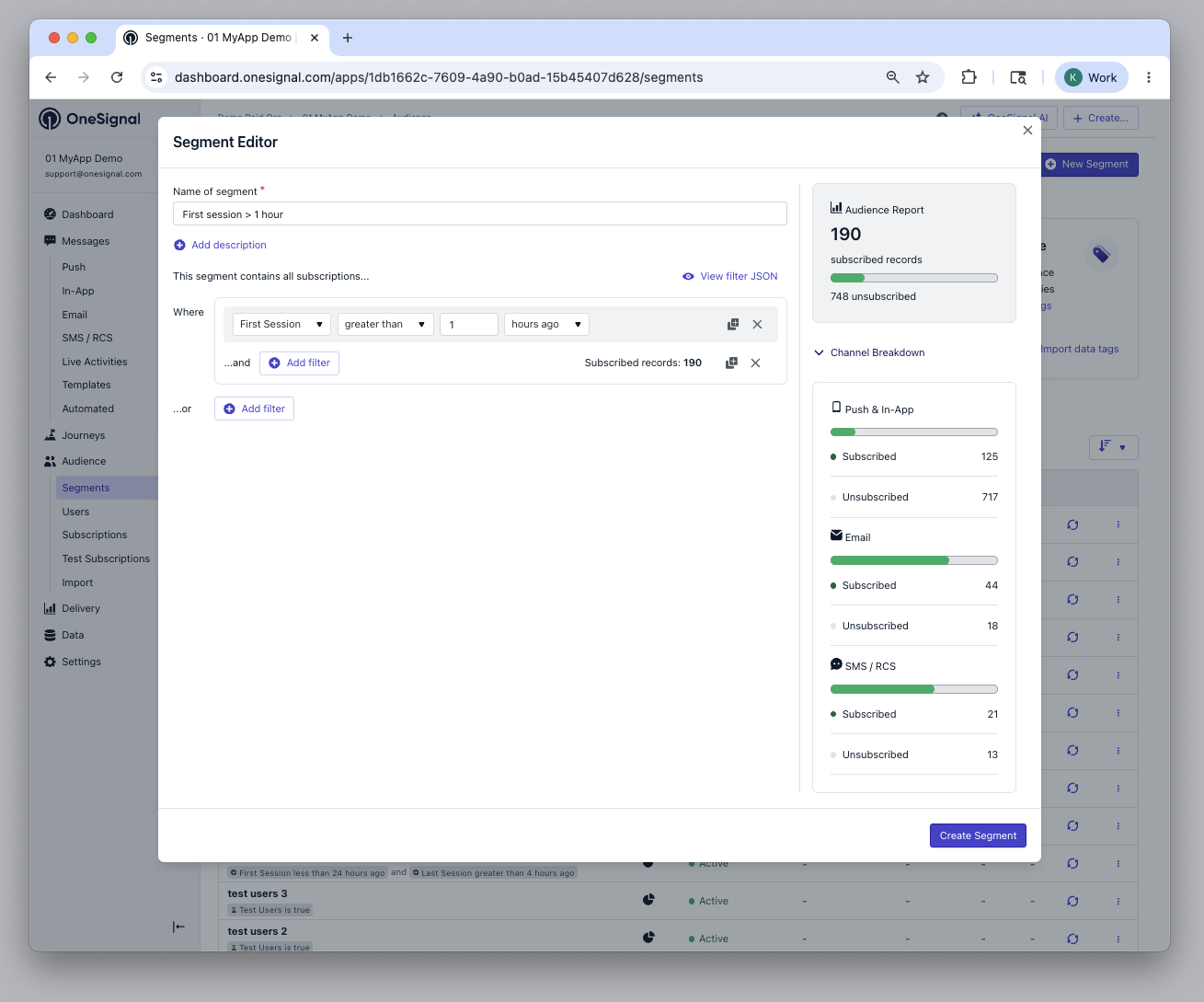
The segment editor shows how many subscribed and unsubscribed Subscriptions are in your segment, with a breakdown by channel (push, email, and SMS).
* **Subscribed** Subscriptions are opted in and will receive messages when you target this segment.
* **Unsubscribed** Subscriptions match your segment filters but are opted out and will not receive messages.
The channel breakdown lets you see reachable vs. unreachable Subscriptions per channel, which helps you understand which channels will be most effective before you build a message or Journey.
You can add other filter types to the same segment, including message events, tags, and session filters.
Segments with custom event filters are event-based. Outside [Journeys](./journeys-overview), you cannot include or exclude them with segments that have no message event or custom event filters. See [Can I combine custom event or message event segments with other segments?](#can-i-combine-custom-event-or-message-event-segments-with-other-segments) for the dashboard and API rules.
Shape event properties for Segment filters and see an example Segment for each event.
## Audience counts
The segment editor shows how many subscribed and unsubscribed Subscriptions are in your segment, with a breakdown by channel (push, email, and SMS).
* **Subscribed** Subscriptions are opted in and will receive messages when you target this segment.
* **Unsubscribed** Subscriptions match your segment filters but are opted out and will not receive messages.
The channel breakdown lets you see reachable vs. unreachable Subscriptions per channel, which helps you understand which channels will be most effective before you build a message or Journey.
 ### Exact counts and estimates
OneSignal always returns a count within approximately 15 seconds. Whenever possible within that time limit, you will see an exact count. For large or complex segments where exact counts can take a long time to compute, an estimate is shown instead.
Estimates are labeled to make clear they are not exact:
| Segment size | Format | Example |
| - | - | - |
| Above 10,000 | Count with margin of error | `140,000 +/- 5,000` |
| Below 10,000 | Less-than value | `<4,800` |
Both formats are rounded to signal the number is approximate. Estimates will never display as 0: if your segment has very few members, the estimate reflects a small non-zero estimate to avoid implying the segment is empty when records may exist.
Segments with message event or custom event filters show counts on the Segments page once they finish processing. The segment editor doesn't show a live estimate for them.
## Managing segments
When viewing your Segments in the dashboard, you can:
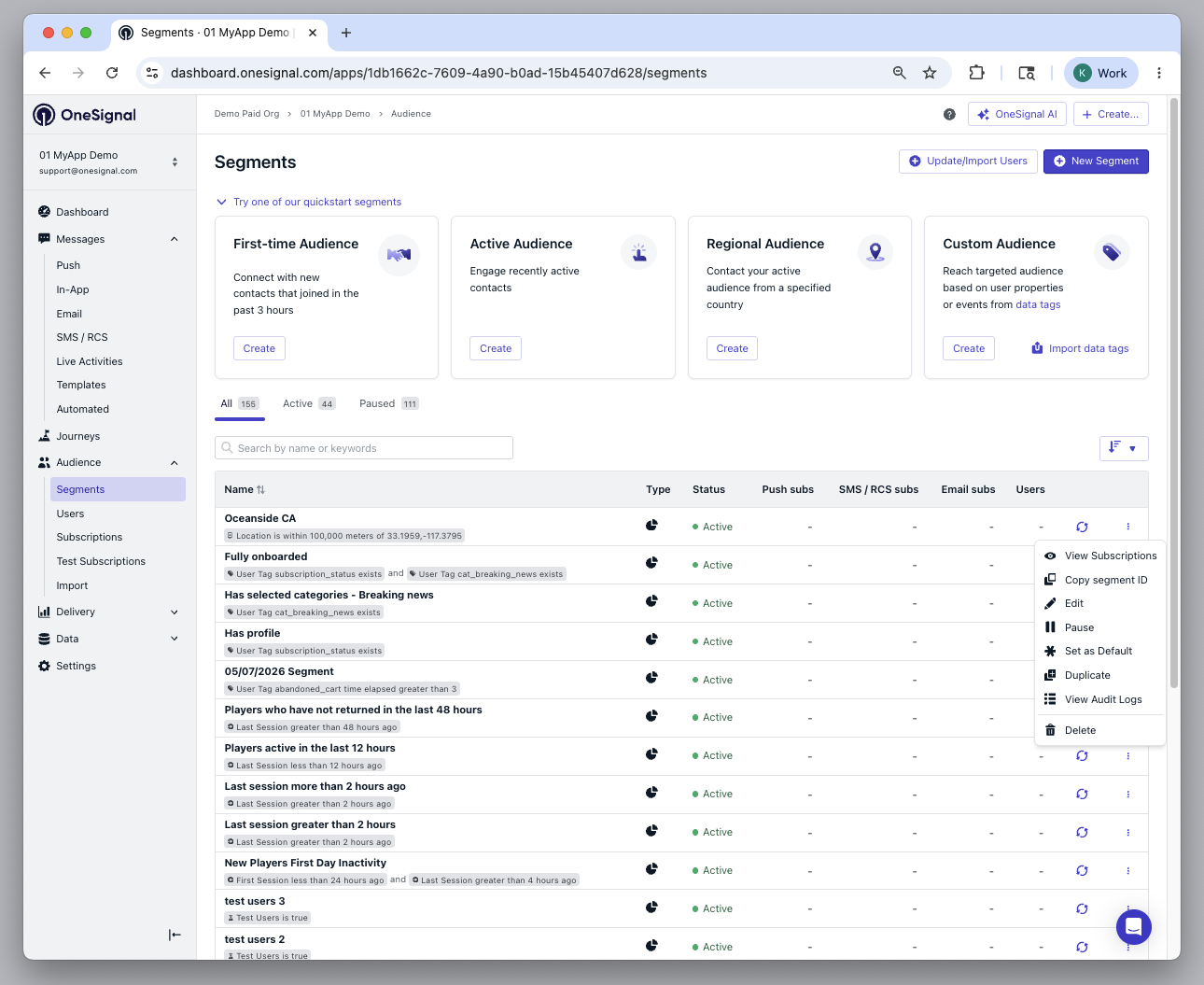
* **View Subscriptions:** See which [Subscriptions](./subscriptions) are in the segment.
* **Copy segment ID:** Copy the segment ID to use in the API.
* **Edit:** Change filters or name.
* **Pause / Resume:** Pause a segment to keep its configuration without it counting toward your [Segment limit](#segment-limit). Targeting a paused segment will fail.
* **Set as default:** Set a default segment to be auto-selected when sending a new message. This helps reduce targeting mistakes and save time.
* **Duplicate:** Copy a segment's filters to create a new one.
* **View Audit Logs:** See the [audit logs](./audit-logs) for who may have changed a segment and when.
* **Delete:** Delete the segment.
### Segment limit
Your plan determines how many segments you can have at one time. Only **active** (non-paused) segments count toward this limit. Paused segments stay in your account but do not count, so you can pause segments you no longer use instead of deleting them.
To free up capacity:
* **Pause** segments you may want to use again later. The filter configuration is preserved and the segment can be resumed at any time.
* **Delete** segments you no longer need.
See the [pricing page](https://onesignal.com/pricing) for the segment limit on each plan.
### Deleting segments
Deleting a segment removes it from your list of segments. It does **not** delete the users inside it. To delete the users inside a segment, see [Delete Users](./delete-users).
1. Go to **Audience > Segments**
2. Click the three-dot menu next to a segment
3. Select **Delete**
### Exact counts and estimates
OneSignal always returns a count within approximately 15 seconds. Whenever possible within that time limit, you will see an exact count. For large or complex segments where exact counts can take a long time to compute, an estimate is shown instead.
Estimates are labeled to make clear they are not exact:
| Segment size | Format | Example |
| - | - | - |
| Above 10,000 | Count with margin of error | `140,000 +/- 5,000` |
| Below 10,000 | Less-than value | `<4,800` |
Both formats are rounded to signal the number is approximate. Estimates will never display as 0: if your segment has very few members, the estimate reflects a small non-zero estimate to avoid implying the segment is empty when records may exist.
Segments with message event or custom event filters show counts on the Segments page once they finish processing. The segment editor doesn't show a live estimate for them.
## Managing segments
When viewing your Segments in the dashboard, you can:
* **View Subscriptions:** See which [Subscriptions](./subscriptions) are in the segment.
* **Copy segment ID:** Copy the segment ID to use in the API.
* **Edit:** Change filters or name.
* **Pause / Resume:** Pause a segment to keep its configuration without it counting toward your [Segment limit](#segment-limit). Targeting a paused segment will fail.
* **Set as default:** Set a default segment to be auto-selected when sending a new message. This helps reduce targeting mistakes and save time.
* **Duplicate:** Copy a segment's filters to create a new one.
* **View Audit Logs:** See the [audit logs](./audit-logs) for who may have changed a segment and when.
* **Delete:** Delete the segment.
### Segment limit
Your plan determines how many segments you can have at one time. Only **active** (non-paused) segments count toward this limit. Paused segments stay in your account but do not count, so you can pause segments you no longer use instead of deleting them.
To free up capacity:
* **Pause** segments you may want to use again later. The filter configuration is preserved and the segment can be resumed at any time.
* **Delete** segments you no longer need.
See the [pricing page](https://onesignal.com/pricing) for the segment limit on each plan.
### Deleting segments
Deleting a segment removes it from your list of segments. It does **not** delete the users inside it. To delete the users inside a segment, see [Delete Users](./delete-users).
1. Go to **Audience > Segments**
2. Click the three-dot menu next to a segment
3. Select **Delete**
 Use the [Delete Segment API](/reference/delete-segments). This only removes the segment definition, not the users inside it.
## FAQ
### Can I manually add specific users to a segment?
Not directly. Segments are dynamic groups defined by filters, so there is no option to hand-pick individual members. To group specific users:
1. Add a shared [Tag](./add-user-data-tags) to those users via the SDK, the API, or a [CSV import](./import).
2. Create a segment with a **User tag** filter matching that tag.
The [CSV importer](./import#review-and-confirm) can also do both steps at once: enable **Automatically create a Segment** on the Review screen to tag every imported user and create a matching segment.
To test with a small group, such as your own team's devices, mark those devices as [Test Users](./test-users) and create a segment with the **Test Users** filter.
### How do I add myself to a segment?
Set yourself as a Test User or add a custom Tag, then create a segment that targets it.
1. Find your Subscriptions using your [External ID](./users).
2. Either:
* Set yourself as a [Test User](./test-users)
* Add a custom [Tag](./add-user-data-tags)
3. Create a segment using the **Test Users** filter or the Tag.
### Do segment counts include opted-out users?
Yes. The segment editor shows counts for both subscribed and unsubscribed Subscriptions. Subscribed Subscriptions are opted in and will receive messages. Unsubscribed Subscriptions match your filters but are opted out and will not receive messages.
Only subscribed Subscriptions are targeted when you send a message.
When used in Journeys and in-app messages, segments include both subscribed and unsubscribed Subscriptions.
### Are segment counts always accurate?
OneSignal always returns a count within approximately 15 seconds. For smaller or simpler segments, this is an exact count. For larger or more complex segments, an estimate is shown instead.
Estimates are clearly labeled with their precision. See [Audience counts](#audience-counts) for details on how estimates are formatted and what they mean.
### Can I combine custom event or message event segments with other segments?
Yes, with some send-time limits. A custom event segment can include other filter types such as message events, tags, and session filters.
When sending messages outside of [Journeys](./journeys-overview), you cannot include or exclude event-based segments (custom event or message event) with segments that have no event filters. In the dashboard, you can send custom event segments and message event segments together. The API accepts message event segments only with other message event segments, and custom event segments only with other custom event segments.
Inside Journeys, you can combine event-based segments with any other segments.
### Does the segment limit count paused segments?
No. Only active (non-paused) segments count toward your plan's segment limit. Pause segments you no longer use to free up capacity without losing the filter configuration. See [Segment limit](#segment-limit) for details.
## Related pages
Coming soon: segments of users that work across every channel.
The push, email, and SMS records segments target.
Tag users with custom data so segments can filter on it.
Send user actions to OneSignal for use in segments and Journeys.
Per-user record of message interactions, the basis of message event filters.
Trigger automated workflows from segment membership.
Bulk-import users and Tags via CSV.
This documentation is built and hosted on [Mintlify](https://mintlify.com), a developer documentation platform.
Use the [Delete Segment API](/reference/delete-segments). This only removes the segment definition, not the users inside it.
## FAQ
### Can I manually add specific users to a segment?
Not directly. Segments are dynamic groups defined by filters, so there is no option to hand-pick individual members. To group specific users:
1. Add a shared [Tag](./add-user-data-tags) to those users via the SDK, the API, or a [CSV import](./import).
2. Create a segment with a **User tag** filter matching that tag.
The [CSV importer](./import#review-and-confirm) can also do both steps at once: enable **Automatically create a Segment** on the Review screen to tag every imported user and create a matching segment.
To test with a small group, such as your own team's devices, mark those devices as [Test Users](./test-users) and create a segment with the **Test Users** filter.
### How do I add myself to a segment?
Set yourself as a Test User or add a custom Tag, then create a segment that targets it.
1. Find your Subscriptions using your [External ID](./users).
2. Either:
* Set yourself as a [Test User](./test-users)
* Add a custom [Tag](./add-user-data-tags)
3. Create a segment using the **Test Users** filter or the Tag.
### Do segment counts include opted-out users?
Yes. The segment editor shows counts for both subscribed and unsubscribed Subscriptions. Subscribed Subscriptions are opted in and will receive messages. Unsubscribed Subscriptions match your filters but are opted out and will not receive messages.
Only subscribed Subscriptions are targeted when you send a message.
When used in Journeys and in-app messages, segments include both subscribed and unsubscribed Subscriptions.
### Are segment counts always accurate?
OneSignal always returns a count within approximately 15 seconds. For smaller or simpler segments, this is an exact count. For larger or more complex segments, an estimate is shown instead.
Estimates are clearly labeled with their precision. See [Audience counts](#audience-counts) for details on how estimates are formatted and what they mean.
### Can I combine custom event or message event segments with other segments?
Yes, with some send-time limits. A custom event segment can include other filter types such as message events, tags, and session filters.
When sending messages outside of [Journeys](./journeys-overview), you cannot include or exclude event-based segments (custom event or message event) with segments that have no event filters. In the dashboard, you can send custom event segments and message event segments together. The API accepts message event segments only with other message event segments, and custom event segments only with other custom event segments.
Inside Journeys, you can combine event-based segments with any other segments.
### Does the segment limit count paused segments?
No. Only active (non-paused) segments count toward your plan's segment limit. Pause segments you no longer use to free up capacity without losing the filter configuration. See [Segment limit](#segment-limit) for details.
## Related pages
Coming soon: segments of users that work across every channel.
The push, email, and SMS records segments target.
Tag users with custom data so segments can filter on it.
Send user actions to OneSignal for use in segments and Journeys.
Per-user record of message interactions, the basis of message event filters.
Trigger automated workflows from segment membership.
Bulk-import users and Tags via CSV.
This documentation is built and hosted on [Mintlify](https://mintlify.com), a developer documentation platform.