> ## Documentation Index
> Fetch the complete documentation index at: https://documentation.onesignal.com/llms.txt
> Use this file to discover all available pages before exploring further.
# Test users
> Mark a User as a test user in OneSignal to validate message delivery, rendering, and Journey behavior across all of their Subscriptions before sending to production.
Set users and subscriptions in OneSignal as **Test Users** to send messages to yourself and your team before sending to real customers. The test user flag applies to every [subscription](./subscriptions) that user has, so you can check delivery across all of their devices, email addresses, and phone numbers at once. Test users have a dedicated segment filter and can be targeted from the message composer, Journey audiences, and webhook tests.
## Find your Subscription
Go to **Audience > Users & subscriptions > Subscriptions** in the OneSignal Dashboard and search by any of these identifiers:
* **External ID** (preferred): the user ID from your database, CRM, or other system of record.
* **Email**: if you send email addresses to OneSignal.
* **Phone number**: if you send phone numbers to OneSignal.
* **Subscription ID**: the ID for a single messaging channel. That's one install of your app on a device, one browser opted in to web push, one email address, or one phone number. Copy it from the device using the steps below, or ask your developer to pull it from your app logs.
### Copy the Subscription ID from a mobile device
To find the Subscription ID for a mobile device without writing any code:
1. Background and foreground the app six times within 30 seconds.
2. On the sixth return to the foreground, the OneSignal SDK copies the device's push Subscription ID to the clipboard.
3. Paste the value into the **Audience > Users & subscriptions > Subscriptions** search box.
What you paste starts with `os: `. Delete that part, including the space, so you're left with the ID on its own. Example:
* **Copied from the device:** `os: 4cbe1a4e-8f9e-4a0d-a2b9-3d3d4c7e1f20`
* **Search for this:** `4cbe1a4e-8f9e-4a0d-a2b9-3d3d4c7e1f20`
If you paste `os: no subscription ID yet`, the app found no Subscription ID to copy. Open the app with an internet connection, then repeat the steps above.
On iOS, the Subscription ID stays on the clipboard for 5 minutes, so paste it before then. On Android, it stays until something else replaces it.
This works on OneSignal Mobile SDK iOS 5.6.2 or higher, or Android 5.10.1 or higher, and is enabled by default. If nothing lands on your clipboard, ask your developer which SDK version your app uses. Developers can turn the feature off with the key for their platform.
Add to your app's `Info.plist`:
```xml Info.plist theme={null}
OneSignal_disable_subscription_id_copy
```
Add inside the `` tag of your `AndroidManifest.xml`:
```xml AndroidManifest.xml theme={null}
```
### Copy the Subscription ID from a web browser
To find the Subscription ID for a browser without writing any code:
1. Visit your site with the OneSignal Web SDK installed and subscribe to notifications.
2. Open your browser's developer tools and select the **Console** tab.
3. Paste this code into the console and press Enter:
```javascript theme={null}
console.log(OneSignal.User.PushSubscription.id);
```
4. Copy the Subscription ID printed in the console.
5. Paste the value into the **Audience > Users & subscriptions > Subscriptions** search box.
If the console prints `null`, the browser doesn't have a push Subscription yet. Subscribe to notifications on the site, reload the page, then run the code again. For a fuller diagnostic that also reports push support and opt-in state, see [Troubleshooting web push](./troubleshooting-web-push#notifications-not-shown).
### Find your Subscription by device and IP
If you don't have any of these identifiers and can't copy the Subscription ID from a mobile device or browser, find your Subscription by device and IP:
1. Note your device make and model (for example, "iPhone 17 Pro").
2. Find your IP address. On the device, open a browser and search "What is my IP address?". Note both the IPv4 and IPv6 values if provided. OneSignal doesn't record IP addresses in the EU or when you turn IP tracking off.
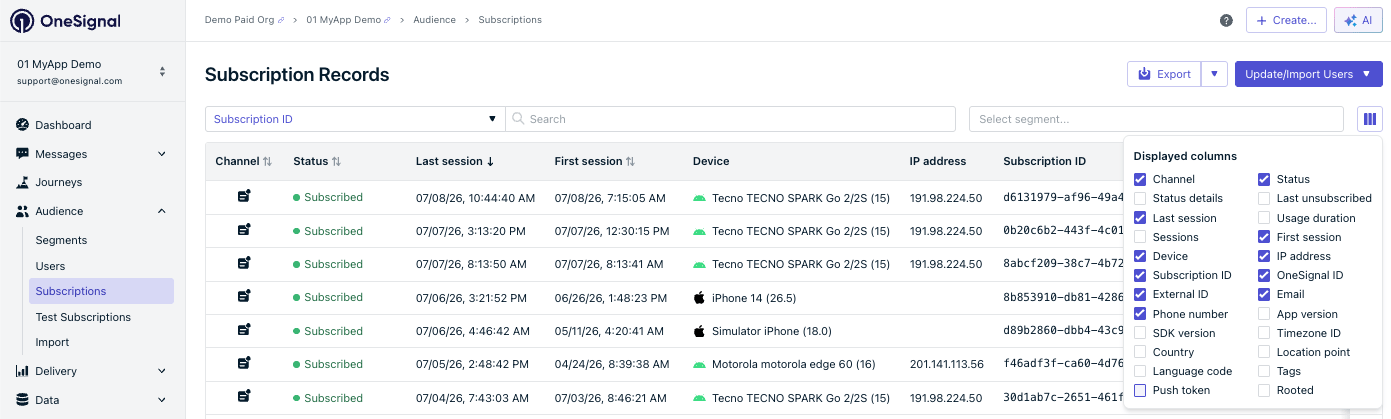
3. Go to **Audience > Users & subscriptions > Subscriptions** and sort by **Last session** to see the most recently active Subscriptions.
4. Open your app on the device, or visit your site in the browser, then wait a few seconds.
5. Refresh the Subscriptions list. Your Subscription matches your device and IP.
If you don't see the **Last session**, **Device**, or **IP address** columns, toggle them on with the **Columns** button.
Ask your app developer which identifiers your app passes to OneSignal, and have them set an [External ID](./users#external-id) if they aren't already. Email `support@onesignal.com` if you're still stuck.
***
## Mark a User as a test user
### From a Subscription
Use this flow when you have your device's Subscription ID or want to find your device by activity.
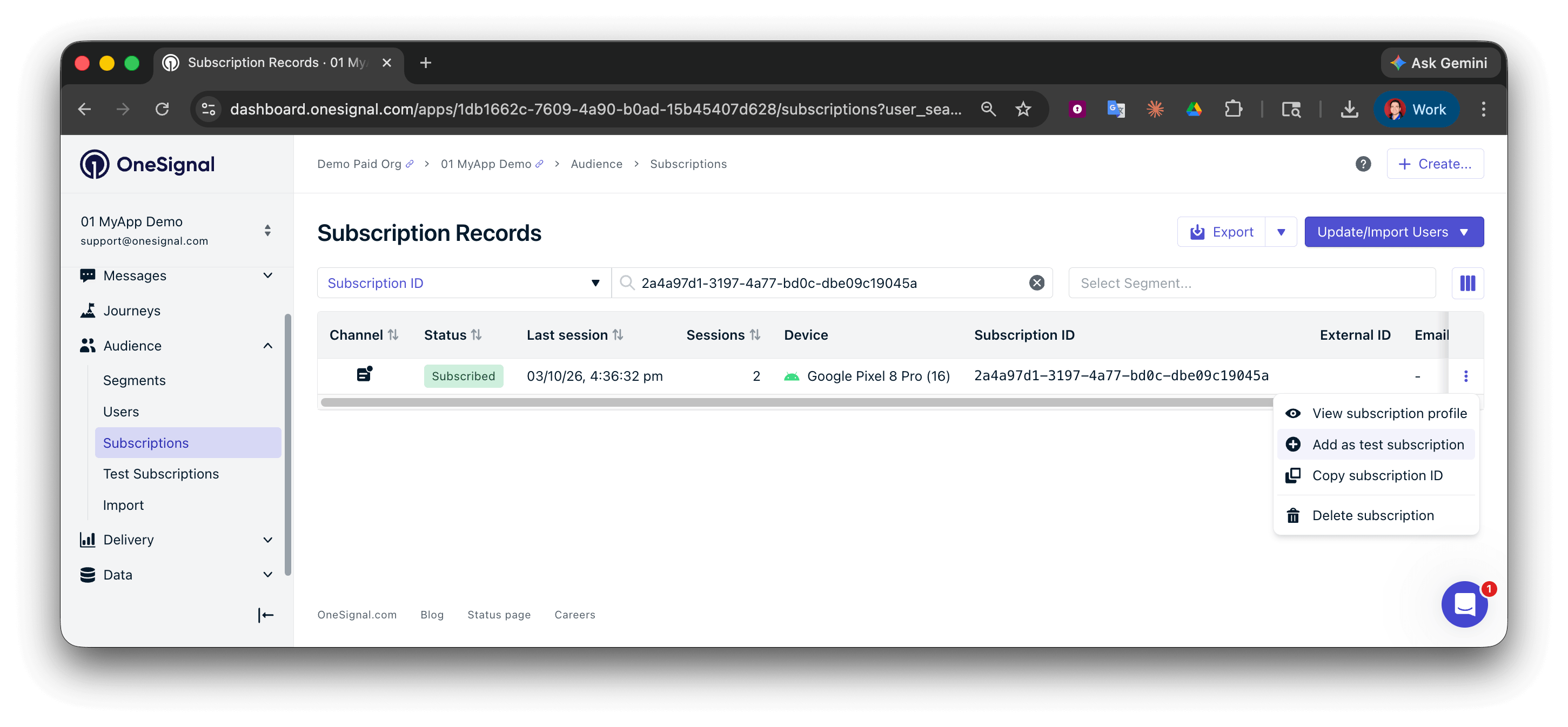
1. Go to **Audience > Users & subscriptions > Subscriptions** and [find the Subscription](#find-your-subscription) for the device you want to test with.
2. Next to the Subscription, select **Options > Add as test user**.
3. Enter a test user name.
### When manually creating a User
When adding a single User through the dashboard's **New User** form, check **Add as test user** and provide a name. All Subscriptions created for this User are marked as test users under that name.
### Via the API
Set the `test_user_name` property when creating or updating a User with the REST API:
```bash Create user theme={null}
curl -X POST https://api.onesignal.com/apps/YOUR_APP_ID/users \
-H "Content-Type: application/json" \
-H "Authorization: Key YOUR_APP_API_KEY" \
-d '{
"properties": {
"test_user_name": "QA Device - Jane"
}
}'
```
```bash Update user theme={null}
curl -X PATCH https://api.onesignal.com/apps/YOUR_APP_ID/users/by/{alias_label}/{alias_id} \
-H "Content-Type: application/json" \
-H "Authorization: Key YOUR_APP_API_KEY" \
-d '{
"properties": {
"test_user_name": "QA Device - Jane"
}
}'
```
In the update request, replace `{alias_label}` with the alias you're identifying the User by (for example, `external_id`) and `{alias_id}` with that alias's value. See [Aliases](./aliases).
To clear the test user name, set `test_user_name` to an empty string (`""`).
See [Create user](/reference/create-user) and [Update user](/reference/update-user) for the full API reference.
***
## Send to test users
Once a User is marked as a test user, you can send to them from:
* **The message composer**: open **Test & Preview**, check the test user you want, then select **Send Test Push**.
* **Journeys**: use the [Test users filter](./segmentation#filters) to scope an entry rule to test users. See [Journey settings](./journeys-settings).
* **Webhook tests**: validate Journey webhooks against test users before going live. See [Journey webhooks](./journeys-webhook).
***
## FAQ
### How do I remove a test user?
From the dashboard:
* **From the User profile:** Open the User and select **Actions > Remove as test user**.
* **From the Subscriptions list:** Go to **Audience > Users & subscriptions > Subscriptions**, find any Subscription belonging to the User, then select **Options > Remove as test user**.
Either action clears the test flag from the User and all of their Subscriptions. The User and Subscriptions remain in your app but are no longer marked as test users.
You can also clear the flag via the API by setting `test_user_name` to `""` on the User.
### What's the difference between a test user and a test subscription?
None. Test status is stored on the User, so marking any one Subscription as a test user marks the underlying User and applies the flag to all of that User's other Subscriptions.
### Why does the same person appear multiple times in the Test users filter?
Because OneSignal counts them as separate Users. A new Subscription is created every time someone:
* Reinstalls your mobile app.
* Clears their browser data, then returns to your site.
An [External ID](./users#external-id) is what ties a new Subscription back to the person's existing User. Without one, OneSignal can't tell that it's the same person, so it creates a new User to hold the new Subscription. Ask your developer to call `OneSignal.login` with the same External ID after each install or sign-in. The new Subscription then joins the existing User instead of becoming a duplicate.
### Can I send to test users from the API?
Yes. Use the [Create notification](/reference/create-message) API with `include_subscription_ids` to target specific test devices, or with `included_segments: ["Test Users"]` to target every test user in the app. Before you can use `included_segments`, create a segment named **Test Users** with the **Test users** filter. See [Segmentation](./segmentation#filters).
### Why didn't my mobile app copy a Subscription ID to the clipboard?
Check for these causes:
* The app didn't fully go to the background six times within 30 seconds. Opening the notification shade or Control Center may not count.
* The app runs an SDK older than iOS 5.6.2 or Android 5.10.1.
* Your developers turned the feature off with `OneSignal_disable_subscription_id_copy` or `com.onesignal.subscriptionIdCopyDisabled`.
* Your app requires privacy consent and the user has not granted it.
***
## Related pages
The OneSignal user model, aliases, and how Users relate to Subscriptions.
Manage Subscriptions and find a specific device for testing.
Build segments, including a Test Users segment, to scope sends.
Send notifications programmatically to specific Subscription IDs.
This documentation is built and hosted on [Mintlify](https://mintlify.com), a developer documentation platform.
 ### When manually creating a User
When adding a single User through the dashboard's **New User** form, check **Add as test user** and provide a name. All Subscriptions created for this User are marked as test users under that name.
### Via the API
Set the `test_user_name` property when creating or updating a User with the REST API:
### When manually creating a User
When adding a single User through the dashboard's **New User** form, check **Add as test user** and provide a name. All Subscriptions created for this User are marked as test users under that name.
### Via the API
Set the `test_user_name` property when creating or updating a User with the REST API: