> ## Documentation Index
> Fetch the complete documentation index at: https://documentation.onesignal.com/llms.txt
> Use this file to discover all available pages before exploring further.
# Web push setup
> Set up web push notifications with OneSignal to re-engage users on Chrome, Firefox, Safari, and Edge. Configure your site, prompts, and service worker.
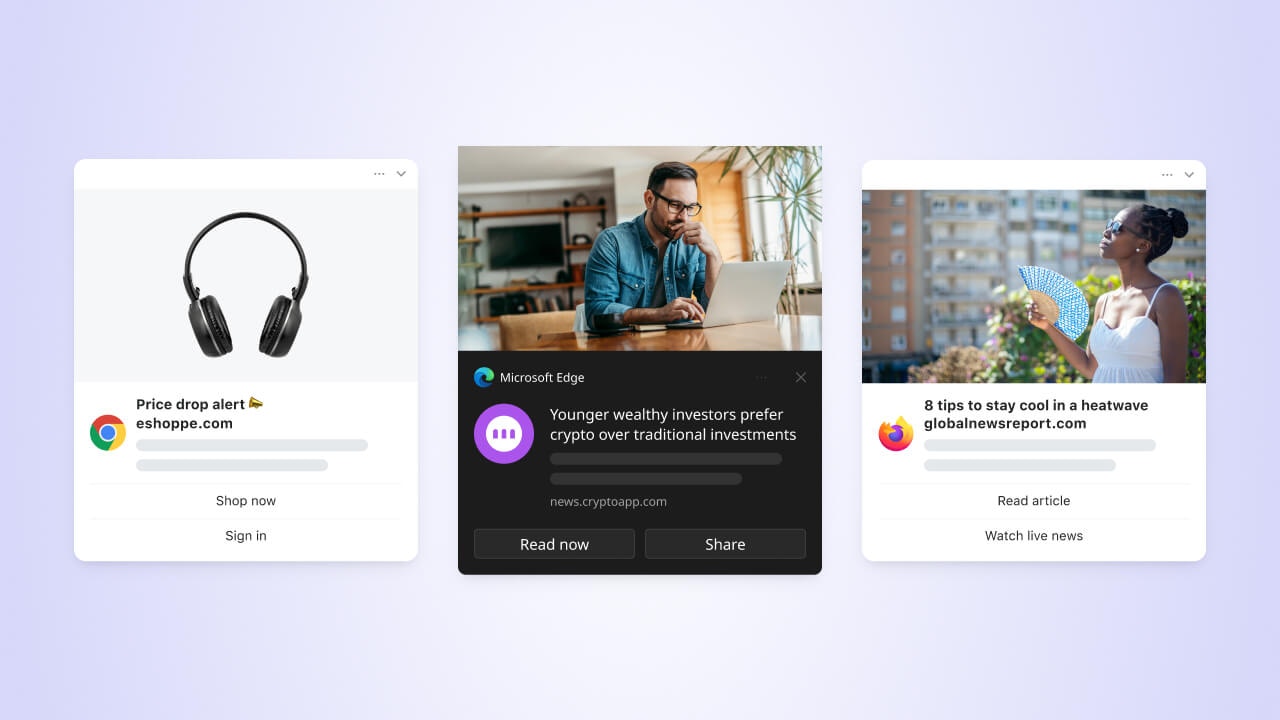
Follow this guide to enable web push so you can reach users with timely content when they are not on your site. Web push supports text, images, action buttons, and sounds.
 Web push requires:
* A secure HTTPS website with a valid SSL certificate
* The ability to add the [OneSignal service worker](./onesignal-service-worker) to your website
* A single origin that follows the [same-origin policy](https://developer.mozilla.org/en-US/docs/Web/Security/Same-origin_policy)
* User permission to receive notifications
* Supported browsers (Chrome, Firefox, Safari, Edge)
Users cannot subscribe in incognito or private browsing mode. iOS requires extra setup. See [Web push for iOS](./web-push-for-ios). Some browsers limit prompts or require a user gesture. See [Web push FAQ](./web-push-setup-faq).
***
## Choose your setup guide
Complete one of these site setup paths.
Not a developer? See [Manage team members](./manage-team-members) to invite a teammate with developer access to your OneSignal project.
Typical Site: configure the dashboard, upload the service worker, and add the JavaScript SDK.
Official OneSignal plugin. No JavaScript SDK or service worker upload required.
Connect Shopify through the Vendo integration. Vendo deploys the SDK on your storefront.
Move from another web push provider and retain your subscriptions.
If your site is built with [Angular](./angular-setup), [React](./react-js-setup), or [Vue](./vue-js-setup), use the matching framework guide. If you load the SDK with [Google Tag Manager](./google-tag-manager), finish dashboard and service worker setup in [Web SDK setup](./web-sdk-setup), then initialize in GTM.
iOS web push on iPhones and iPads works starting with iOS 16.4+. After you finish a site setup path, add a `manifest.json` and have users add your site to their Home Screen.
Extra Apple requirements after you finish a site setup path.
### Integration types
In the OneSignal dashboard, go to **Settings > Push & In-App > Web** and select the integration type that matches your site.
Web push requires:
* A secure HTTPS website with a valid SSL certificate
* The ability to add the [OneSignal service worker](./onesignal-service-worker) to your website
* A single origin that follows the [same-origin policy](https://developer.mozilla.org/en-US/docs/Web/Security/Same-origin_policy)
* User permission to receive notifications
* Supported browsers (Chrome, Firefox, Safari, Edge)
Users cannot subscribe in incognito or private browsing mode. iOS requires extra setup. See [Web push for iOS](./web-push-for-ios). Some browsers limit prompts or require a user gesture. See [Web push FAQ](./web-push-setup-faq).
***
## Choose your setup guide
Complete one of these site setup paths.
Not a developer? See [Manage team members](./manage-team-members) to invite a teammate with developer access to your OneSignal project.
Typical Site: configure the dashboard, upload the service worker, and add the JavaScript SDK.
Official OneSignal plugin. No JavaScript SDK or service worker upload required.
Connect Shopify through the Vendo integration. Vendo deploys the SDK on your storefront.
Move from another web push provider and retain your subscriptions.
If your site is built with [Angular](./angular-setup), [React](./react-js-setup), or [Vue](./vue-js-setup), use the matching framework guide. If you load the SDK with [Google Tag Manager](./google-tag-manager), finish dashboard and service worker setup in [Web SDK setup](./web-sdk-setup), then initialize in GTM.
iOS web push on iPhones and iPads works starting with iOS 16.4+. After you finish a site setup path, add a `manifest.json` and have users add your site to their Home Screen.
Extra Apple requirements after you finish a site setup path.
### Integration types
In the OneSignal dashboard, go to **Settings > Push & In-App > Web** and select the integration type that matches your site.
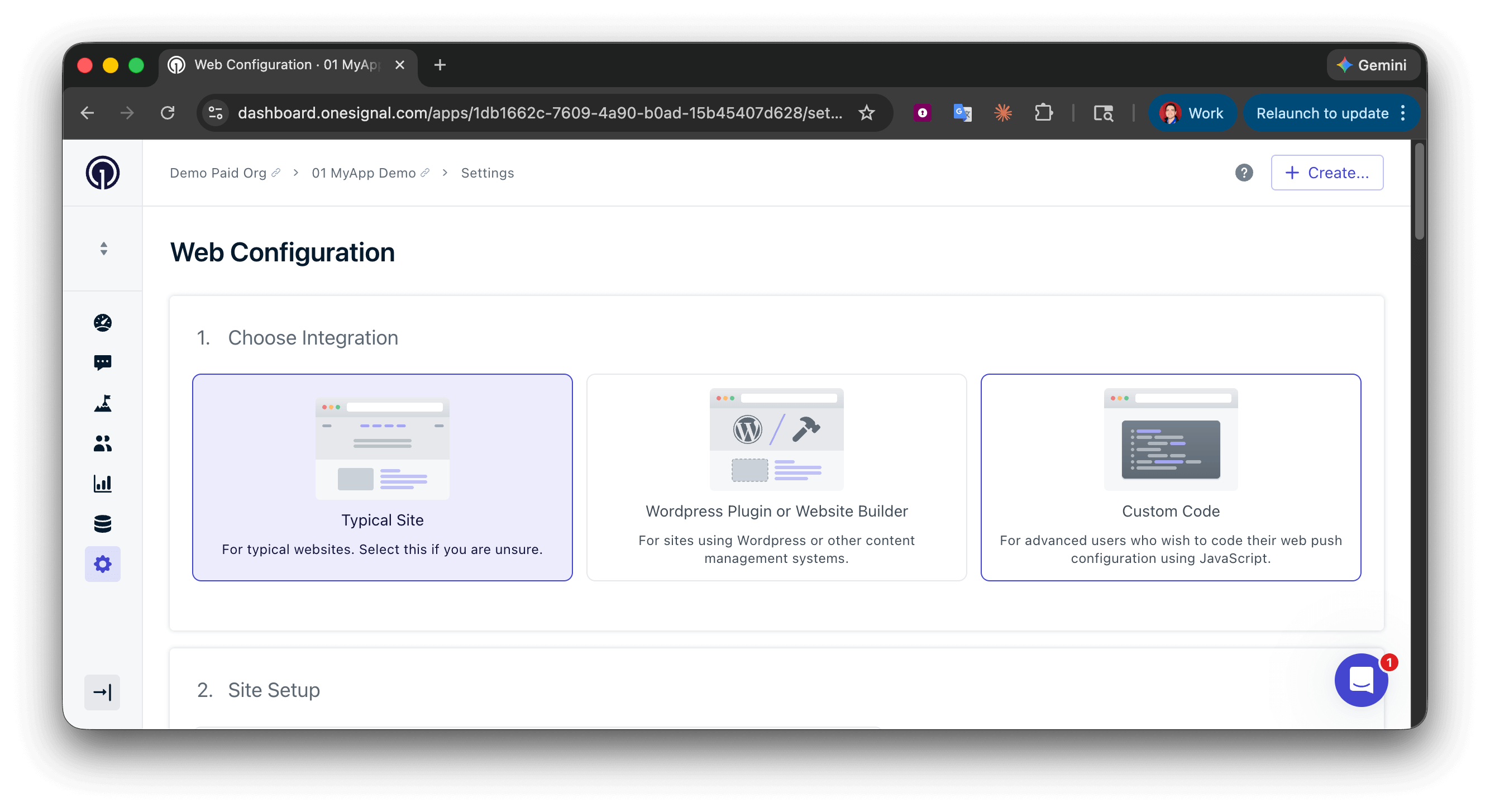 Recommended. Configure prompts, welcome notification, and service worker path in the dashboard.
Required if you use the official OneSignal WordPress plugin.
Full control over prompts and `init` options in code.
Shopify is not a dashboard radio button. Shopify stores must use **Custom Code**. Typical Site cannot set the Vendo service worker path, so subscriptions fail. See [Shopify setup](./shopify).
After you select an integration type, finish the matching setup guide. Typical Site field details are in [Web SDK setup](./web-sdk-setup#site-setup). Custom Code field details are in [Custom Code setup](./web-push-custom-code-setup#site-setup).
***
## Web permission prompts
Users must grant permission before they can receive web push. Browsers show a native system dialog for that grant. OneSignal recommends a customizable pre-prompt first so you can explain the value and avoid the browser blocking repeated native prompts.
Typical Site and WordPress: add, remove, and update prompts in the OneSignal dashboard anytime. Custom Code: control prompts in `OneSignal.init()`. See the [Web SDK reference](./web-sdk-reference).
Explain the benefit in the pre-prompt, show it after engagement (not on first page load), then open the native browser dialog only when the user accepts.
Compare slidedown, category, native, subscription bell, and other prompt types.
Show or hide prompts in code with the Web SDK.
iOS does not show the permission prompt until the user adds your site to their Home Screen. See [Web push for iOS](./web-push-for-ios).
***
## Users and subscriptions
When a user subscribes to push, OneSignal creates a subscription tied to that browser and device.
Web push subscriptions are created when users:
* Grant permission for push notifications on your website in a specific browser and device
* Return to your site after clearing browser data (if Auto Resubscribe is enabled)
* Subscribe from a new browser or device
Each browser and device combination creates a separate subscription. Incognito and private browsing cannot create subscriptions. Web push subscriptions stay anonymous until you assign an [External ID](./users#external-id).
Recommended. Configure prompts, welcome notification, and service worker path in the dashboard.
Required if you use the official OneSignal WordPress plugin.
Full control over prompts and `init` options in code.
Shopify is not a dashboard radio button. Shopify stores must use **Custom Code**. Typical Site cannot set the Vendo service worker path, so subscriptions fail. See [Shopify setup](./shopify).
After you select an integration type, finish the matching setup guide. Typical Site field details are in [Web SDK setup](./web-sdk-setup#site-setup). Custom Code field details are in [Custom Code setup](./web-push-custom-code-setup#site-setup).
***
## Web permission prompts
Users must grant permission before they can receive web push. Browsers show a native system dialog for that grant. OneSignal recommends a customizable pre-prompt first so you can explain the value and avoid the browser blocking repeated native prompts.
Typical Site and WordPress: add, remove, and update prompts in the OneSignal dashboard anytime. Custom Code: control prompts in `OneSignal.init()`. See the [Web SDK reference](./web-sdk-reference).
Explain the benefit in the pre-prompt, show it after engagement (not on first page load), then open the native browser dialog only when the user accepts.
Compare slidedown, category, native, subscription bell, and other prompt types.
Show or hide prompts in code with the Web SDK.
iOS does not show the permission prompt until the user adds your site to their Home Screen. See [Web push for iOS](./web-push-for-ios).
***
## Users and subscriptions
When a user subscribes to push, OneSignal creates a subscription tied to that browser and device.
Web push subscriptions are created when users:
* Grant permission for push notifications on your website in a specific browser and device
* Return to your site after clearing browser data (if Auto Resubscribe is enabled)
* Subscribe from a new browser or device
Each browser and device combination creates a separate subscription. Incognito and private browsing cannot create subscriptions. Web push subscriptions stay anonymous until you assign an [External ID](./users#external-id).
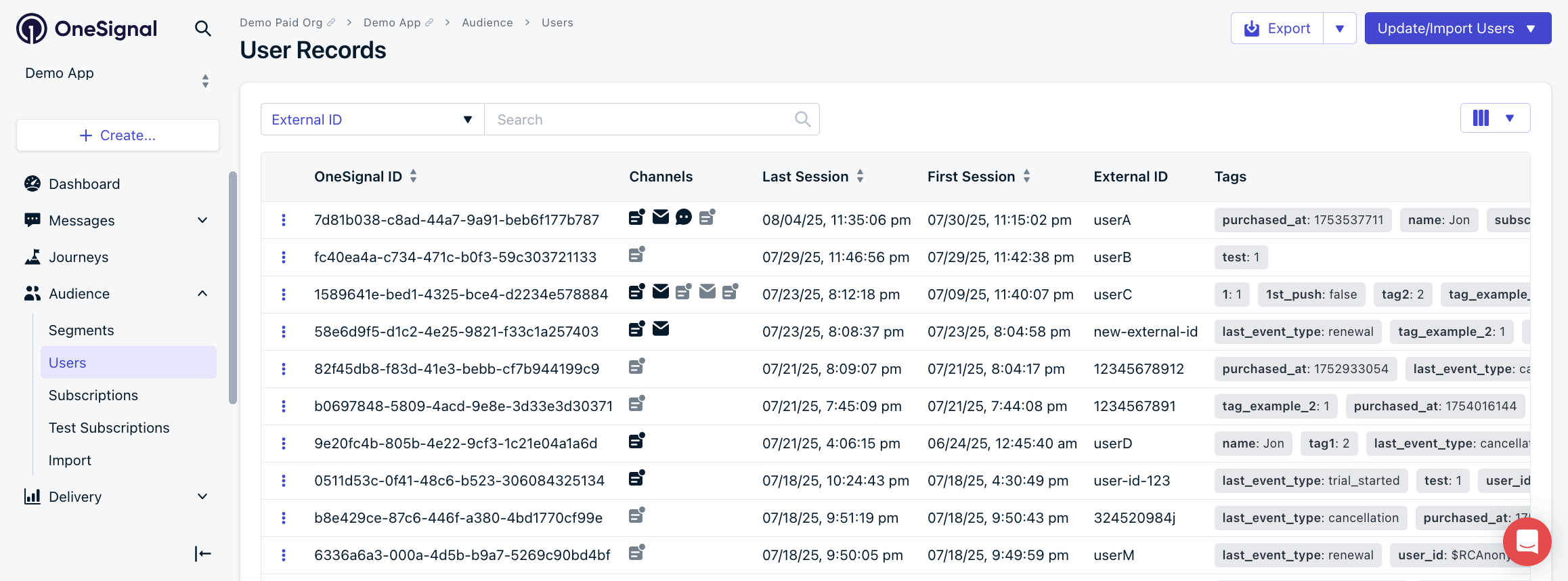 Manage users, assign External IDs, and track their activity.
How subscriptions work across browsers and devices.
Group users into segments to target based on behavior, device, and more.
***
## Design web push notifications
Web push notifications support titles, messages, icons, images, and action buttons. The diagram shows which elements you can customize (1–5) and which the browser controls (6–9).
Manage users, assign External IDs, and track their activity.
How subscriptions work across browsers and devices.
Group users into segments to target based on behavior, device, and more.
***
## Design web push notifications
Web push notifications support titles, messages, icons, images, and action buttons. The diagram shows which elements you can customize (1–5) and which the browser controls (6–9).
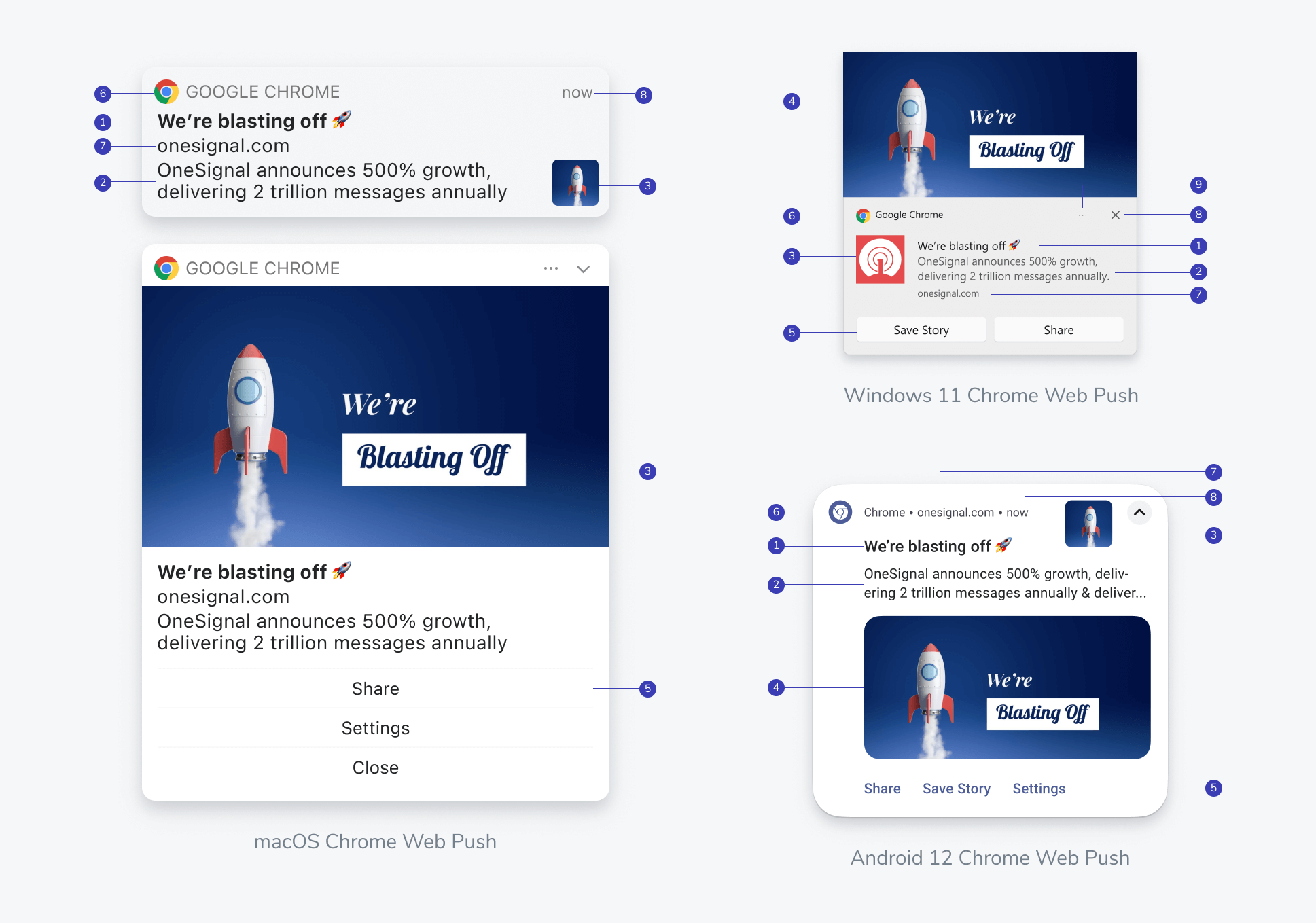 **Customizable elements:**
1. [Title](./push#title): Attention-grabbing headline (recommended: under 50 characters)
2. [Message](./push#message): Main notification content (recommended: under 120 characters)
3. [Icon](./notification-icons): Square brand icon (recommended: `256×256` PNG, JPG, or non-animated GIF)
4. [Large image](./push#image): Eye-catching visual content
5. [Action buttons](./action-buttons): Call-to-action buttons
**Browser-controlled elements (not customizable):**
6. Browser: The browser displaying the push
7. Domain: Your site origin, set by the browser
8. Timestamp and dismiss: Browser-added controls
9. More options: Browser-specific additional controls
Full overview of push notification creation, options, and delivery behavior.
Save time with reusable templates for consistent messaging.
### Personalization and localization
Customize push messages to match each user's preferences and language.
Insert dynamic variables like name or preferences to tailor messages.
Deliver messages in each user's preferred language.
***
## Configure web push behavior
Control when messages appear, how long they are stored, and what happens on click.
### Delivery, display, and dismiss settings
Control notification delivery speed.
Set limits to prevent over-sending notifications to the same user.
Define how long push services retain messages when the device is offline.
Use topics to group, replace, or suppress duplicate notifications.
Choose the launch URL and how a click focuses or navigates an open tab.
***
## Test your setup
Confirm the integration across browsers before you send to your full audience.
### Pre-launch checklist
* SDK is loaded with no console errors
* Permission prompt appears and functions correctly
* Test notification is sent and received
* Icons and images render correctly
* Service worker is registered and up to date
* HTTPS certificate is valid
### Analytics and troubleshooting
View delivery, open rate, and click-through metrics for each message.
Explore engagement and user behavior metrics across channels.
Troubleshooting checklist if messages aren't appearing.
Fix image rendering issues across different browsers.
***
## Next steps
Optimize messages with experiments to find what drives engagement.
Build automated, multi-step messaging flows triggered by user behavior.
Add custom properties to users for personalization and segmentation.
***
## FAQ
### Can users subscribe to web push on iOS?
Yes, starting with iOS 16.4+. Finish Typical Site, Custom Code, WordPress, or Shopify first, then add a `manifest.json` and have users add your site to their Home Screen. See [iOS web push setup](./web-push-for-ios).
### Why did a user stop receiving web push notifications?
The most common reasons are:
1. The user cleared their browser data. They will be automatically and silently resubscribed when they return to your site if you enabled the **Auto Resubscribe** option in your Web Push settings.
2. The user turned off push notifications in the operating system settings. They will need to manually re-subscribe to your site to receive push notifications again.
For more details on these and other reasons, see [Web Push Notifications Not Showing](./notifications-not-shown-web-push).
### Do web push notifications work in incognito or private browsing mode?
No. Users cannot subscribe to web push while in incognito or private browsing mode. Subscriptions created in a normal session are not accessible in private mode.
### What browsers support web push notifications?
Chrome, Firefox, Safari (macOS and iOS 16.4+), and Edge all support web push. Each browser may have different prompt behavior and notification display. See [Web push FAQ](./web-push-setup-faq) for browser-specific details.
### Can I use subdomains with web push?
Each subdomain (for example, `app.example.com` vs `shop.example.com`) is a separate origin. Browsers enforce the [same-origin policy](https://developer.mozilla.org/en-US/docs/Web/Security/Same-origin_policy) for web push, so each subdomain requires its own OneSignal app. The service worker must also be hosted on the same origin as the subscribing page. CDNs and other subdomains are not allowed. See [Multiple sites & subdomains](./web-push-setup-faq#multiple-sites--subdomains).
### How do I register more than one domain for web push?
You need a separate OneSignal app for each domain or subdomain. A single OneSignal app can only serve one origin. Redirect users to a single origin for subscription, or create one OneSignal app per origin. See [Multiple sites & subdomains](./web-push-setup-faq#multiple-sites--subdomains).
### Why is my web push prompt not showing?
Common causes include a site served over HTTP, a service worker that is not registered, the user already granted or denied permission, or incognito mode. Check the browser console and see [Web permission prompts](./permission-requests) and [Prompt display issues](./troubleshooting-web-push#prompt-display-issues).
This documentation is built and hosted on [Mintlify](https://mintlify.com), a developer documentation platform.
**Customizable elements:**
1. [Title](./push#title): Attention-grabbing headline (recommended: under 50 characters)
2. [Message](./push#message): Main notification content (recommended: under 120 characters)
3. [Icon](./notification-icons): Square brand icon (recommended: `256×256` PNG, JPG, or non-animated GIF)
4. [Large image](./push#image): Eye-catching visual content
5. [Action buttons](./action-buttons): Call-to-action buttons
**Browser-controlled elements (not customizable):**
6. Browser: The browser displaying the push
7. Domain: Your site origin, set by the browser
8. Timestamp and dismiss: Browser-added controls
9. More options: Browser-specific additional controls
Full overview of push notification creation, options, and delivery behavior.
Save time with reusable templates for consistent messaging.
### Personalization and localization
Customize push messages to match each user's preferences and language.
Insert dynamic variables like name or preferences to tailor messages.
Deliver messages in each user's preferred language.
***
## Configure web push behavior
Control when messages appear, how long they are stored, and what happens on click.
### Delivery, display, and dismiss settings
Control notification delivery speed.
Set limits to prevent over-sending notifications to the same user.
Define how long push services retain messages when the device is offline.
Use topics to group, replace, or suppress duplicate notifications.
Choose the launch URL and how a click focuses or navigates an open tab.
***
## Test your setup
Confirm the integration across browsers before you send to your full audience.
### Pre-launch checklist
* SDK is loaded with no console errors
* Permission prompt appears and functions correctly
* Test notification is sent and received
* Icons and images render correctly
* Service worker is registered and up to date
* HTTPS certificate is valid
### Analytics and troubleshooting
View delivery, open rate, and click-through metrics for each message.
Explore engagement and user behavior metrics across channels.
Troubleshooting checklist if messages aren't appearing.
Fix image rendering issues across different browsers.
***
## Next steps
Optimize messages with experiments to find what drives engagement.
Build automated, multi-step messaging flows triggered by user behavior.
Add custom properties to users for personalization and segmentation.
***
## FAQ
### Can users subscribe to web push on iOS?
Yes, starting with iOS 16.4+. Finish Typical Site, Custom Code, WordPress, or Shopify first, then add a `manifest.json` and have users add your site to their Home Screen. See [iOS web push setup](./web-push-for-ios).
### Why did a user stop receiving web push notifications?
The most common reasons are:
1. The user cleared their browser data. They will be automatically and silently resubscribed when they return to your site if you enabled the **Auto Resubscribe** option in your Web Push settings.
2. The user turned off push notifications in the operating system settings. They will need to manually re-subscribe to your site to receive push notifications again.
For more details on these and other reasons, see [Web Push Notifications Not Showing](./notifications-not-shown-web-push).
### Do web push notifications work in incognito or private browsing mode?
No. Users cannot subscribe to web push while in incognito or private browsing mode. Subscriptions created in a normal session are not accessible in private mode.
### What browsers support web push notifications?
Chrome, Firefox, Safari (macOS and iOS 16.4+), and Edge all support web push. Each browser may have different prompt behavior and notification display. See [Web push FAQ](./web-push-setup-faq) for browser-specific details.
### Can I use subdomains with web push?
Each subdomain (for example, `app.example.com` vs `shop.example.com`) is a separate origin. Browsers enforce the [same-origin policy](https://developer.mozilla.org/en-US/docs/Web/Security/Same-origin_policy) for web push, so each subdomain requires its own OneSignal app. The service worker must also be hosted on the same origin as the subscribing page. CDNs and other subdomains are not allowed. See [Multiple sites & subdomains](./web-push-setup-faq#multiple-sites--subdomains).
### How do I register more than one domain for web push?
You need a separate OneSignal app for each domain or subdomain. A single OneSignal app can only serve one origin. Redirect users to a single origin for subscription, or create one OneSignal app per origin. See [Multiple sites & subdomains](./web-push-setup-faq#multiple-sites--subdomains).
### Why is my web push prompt not showing?
Common causes include a site served over HTTP, a service worker that is not registered, the user already granted or denied permission, or incognito mode. Check the browser console and see [Web permission prompts](./permission-requests) and [Prompt display issues](./troubleshooting-web-push#prompt-display-issues).
This documentation is built and hosted on [Mintlify](https://mintlify.com), a developer documentation platform.