

Capabilities
OneSignal and Adobe Audience Manager integration supports:- Real-time segment sync: Automatically import segments from Adobe Audience Manager into OneSignal.
- Cross-channel targeting: Use imported segments to send push notifications, emails, SMS, and in-app messages via OneSignal.
- ECID-based user matching: Ensure users in OneSignal align with Adobe identities for accurate targeting.
What data syncs
Data moves one way, from Adobe Audience Manager into OneSignal. The integration does not import events or Tags, does not create users, and does not send message events to Adobe. See what data each integration syncs to compare integrations.
Requirements
- The Adobe Audience Manager add-on, available on Professional and Enterprise plans. Contact sales to add it.
- Users must be matched using Adobe’s Marketing Cloud ID (MID or ECID).
- Ensure the
external_idfield in OneSignal is set to the Adobe ECID. - If you prefer to use a different identifier, contact OneSignal Support.
- Ensure the
Setup
Connection parameters
You’ll need the Client ID to configure the Adobe Destination:- Go to your OneSignal Dashboard.
- Navigate to: Data > Integrations > Adobe.
- Copy the Client ID displayed there.
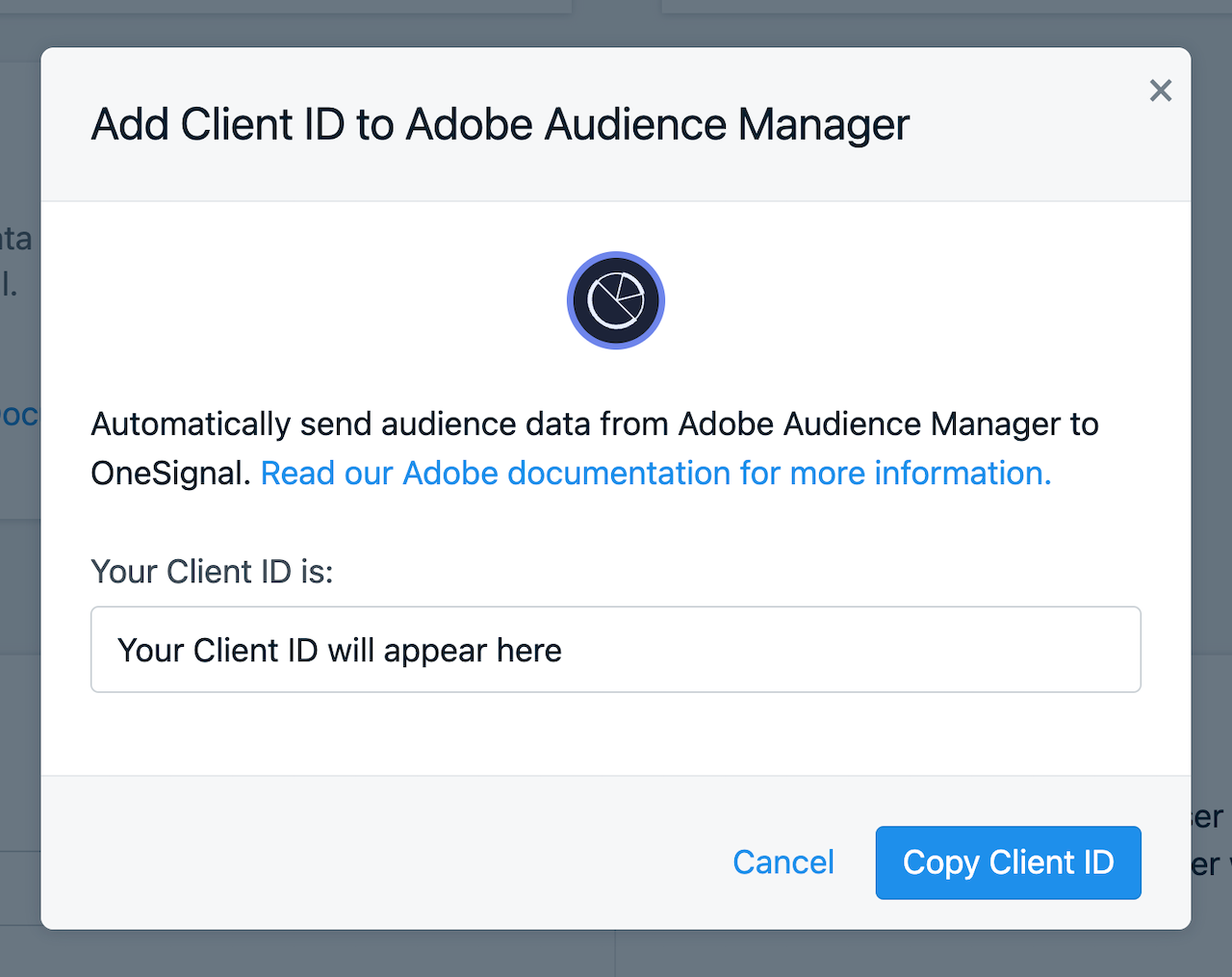
Navigate to your Organization
Set up with Adobe
Contact your Adobe representative (Adobe consultant or CustomerCare) who will review the integration request and will work with you to activate the OneSignal Destination. You’ll need to provide the following information to the Adobe representative:- the Client ID
Optional: Configure segment friendly names
By default, each segment synced between OneSignal and Adobe Audience Manager will be identified with a numeric Adobe Audience Manager Segment ID. If you’d like to instead use a “friendly” name to identify the Segment within the OneSignal Dashboard, please follow these steps:- Log in to Adobe Audience Manager
- Follow the path to Audience Data > Segments
- Select all the segments you wish to add to the OneSignal destination
- Click “Add To Destination”
- Select the Destination
- Click Add To Selected Destination
- Enter the friendly name for each Segment in the “Destination Value” fields
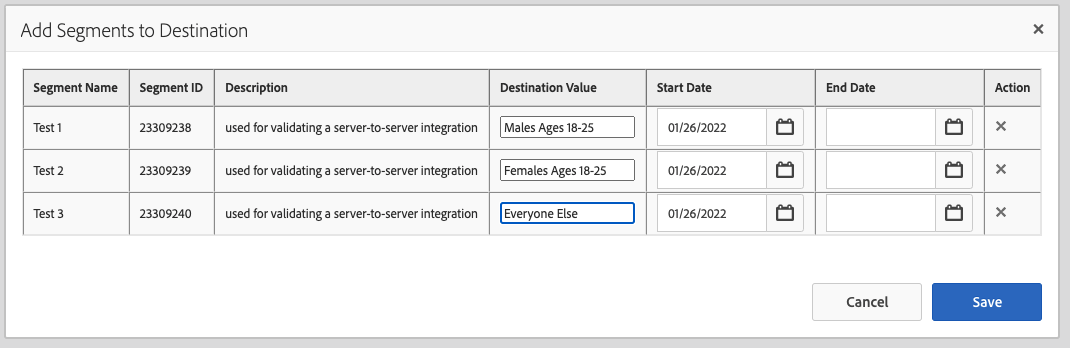
Map friendly names in Adobe Audience Manager
- Click Save
- The Segment “friendly” name has now been mapped to the Segment and the destination
Need help?Chat with our Support team or email
support@onesignal.comPlease include:- Details of the issue you’re experiencing and steps to reproduce if available
- Your OneSignal App ID
- The External ID or Subscription ID if applicable
- The URL to the message you tested in the OneSignal Dashboard if applicable
- Any relevant logs or error messages