

- Message events → Mixpanel: Track delivery, clicks, failures, and more for all channels.
- Cohorts → OneSignal: Sync behavior-based Mixpanel cohorts as targeting filters in OneSignal.
Requirements
- Mixpanel Account
- OneSignal Paid Plan
- OneSignal app with Users and External ID set.
Setup
Add Mixpanel to OneSignal (Outbound)
Sends OneSignal message events into your Mixpanel project.Open the integration in OneSignal
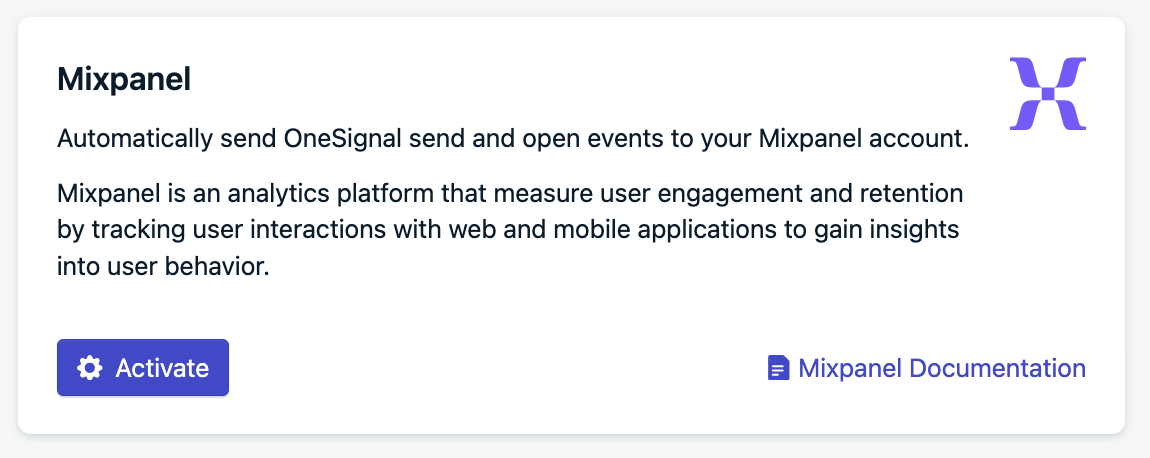
Enable Mixpanel integration in OneSignal
Add your Mixpanel project token
Set your data residency
Select message events and activate
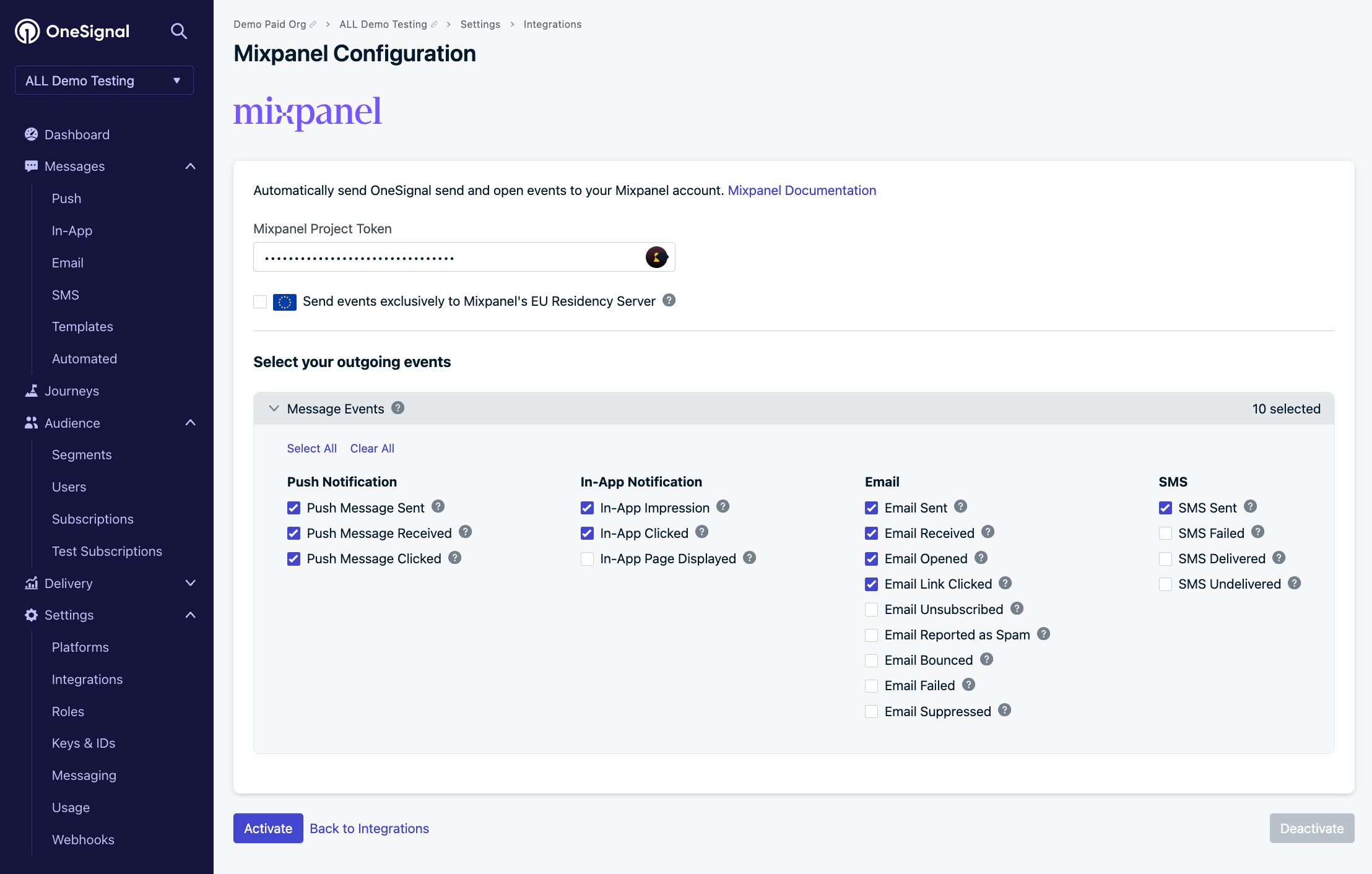
Mixpanel settings in OneSignal
Add OneSignal to Mixpanel (Inbound)
Sends Mixpanel cohorts into OneSignal as Segment filters.Add OneSignal in Mixpanel
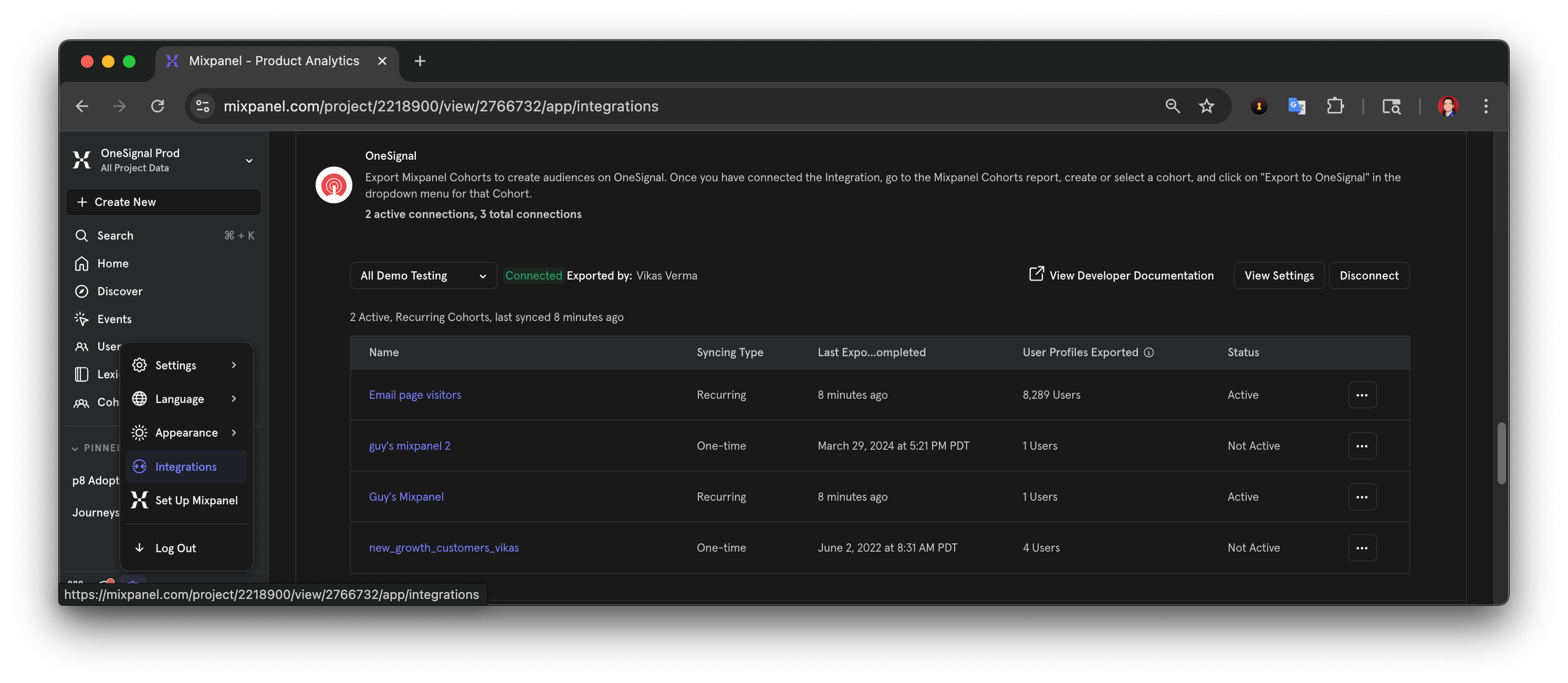
Add OneSignal integration in Mixpanel
Name the connector
OneSignal - APP_NAME, where APP_NAME is your OneSignal app name.Add your OneSignal credentials
User ID mapping
The OneSignal External ID must match the Mixpanel User ID Property you select (for example,user_id). Cohort syncing and message event tracking only work when this mapping is exact.
Select the User ID Property in Mixpanel
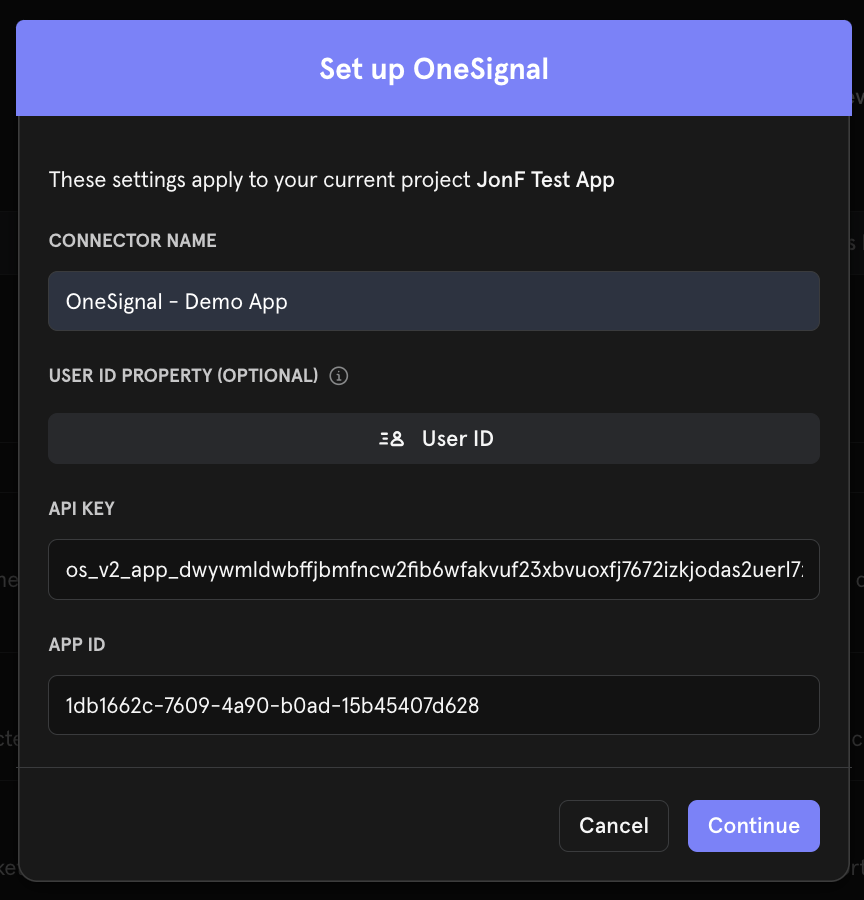
Mixpanel dashboard for setting the OneSignal properties
Confirm the property exists on Mixpanel user profiles
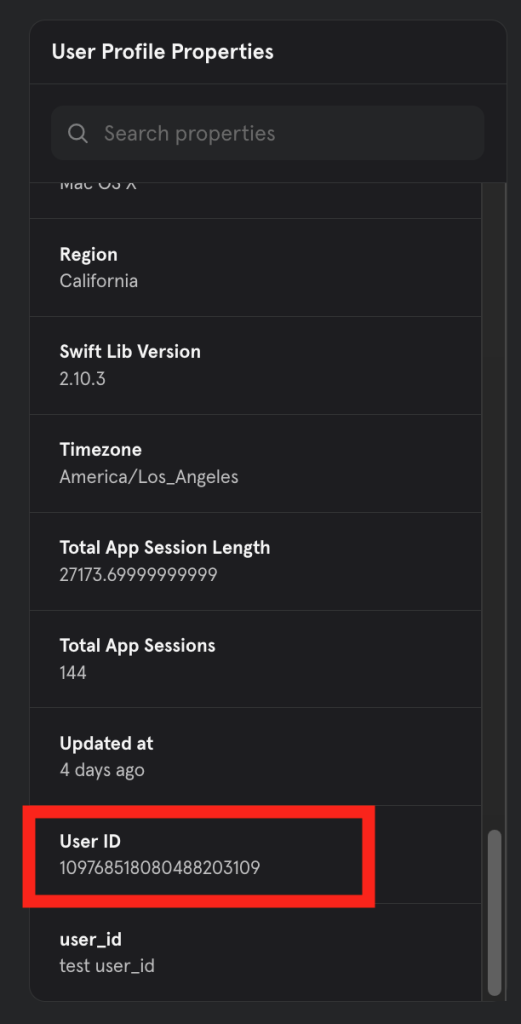
Mixpanel > Users > User Profile Properties
Confirm values match the OneSignal External ID
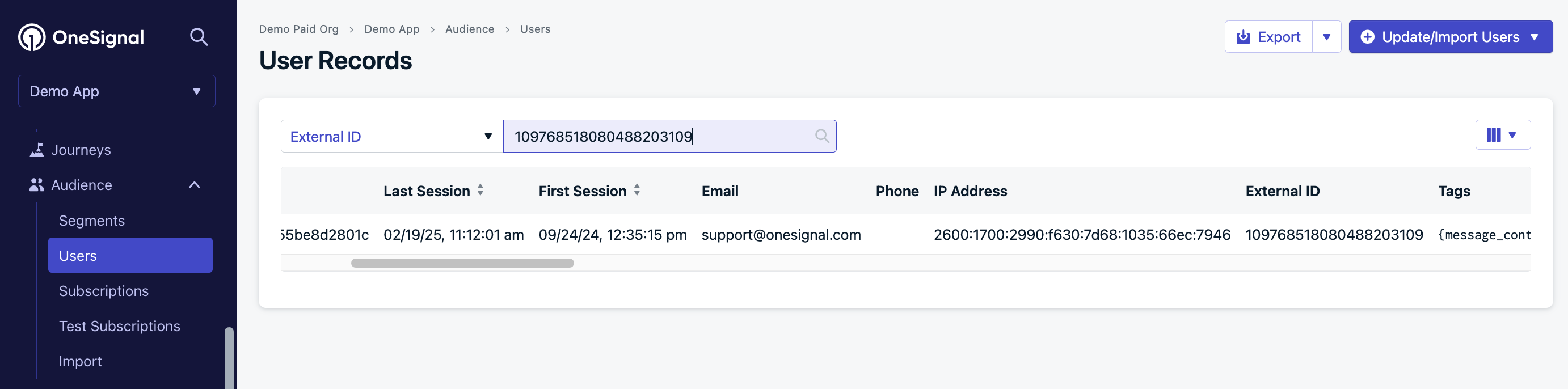
OneSignal > Audience > Users > External ID
$distinct_id to the OneSignal External ID, only the top value in the Distinct ID list matches.In the example below, only 890ea9b1-9024-4fb9-a92f-152ba67dd21a will match. The integration cannot match 109768518080488203109 or $device:1880c06821f1b3-052354675cde95-1d525634-1fa400-1880c06821f1b3.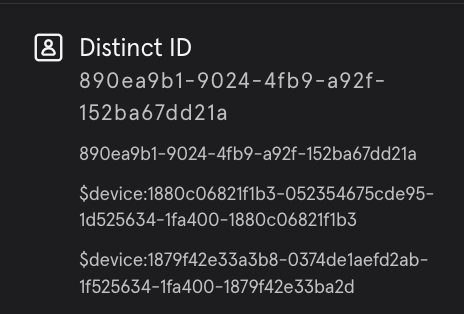
Use caution when setting Distinct ID if used for the User ID Property mapping
Export Mixpanel cohorts to OneSignal
Sync Mixpanel cohorts to OneSignal using the matching External ID configured above. Exporting does not create Users — each User must already exist in OneSignal.Create a cohort in Mixpanel
Export to OneSignal
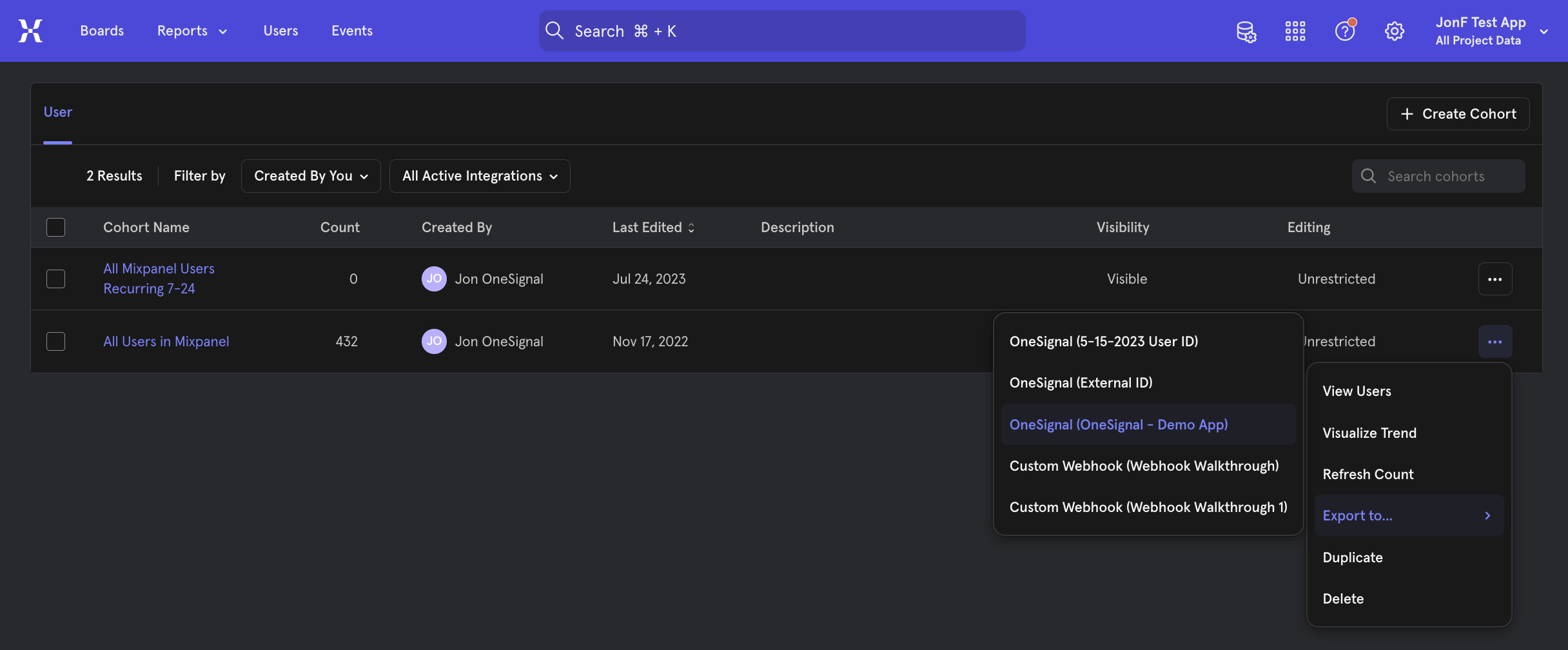
How to export a Mixpanel cohort to OneSignal
Choose a sync frequency
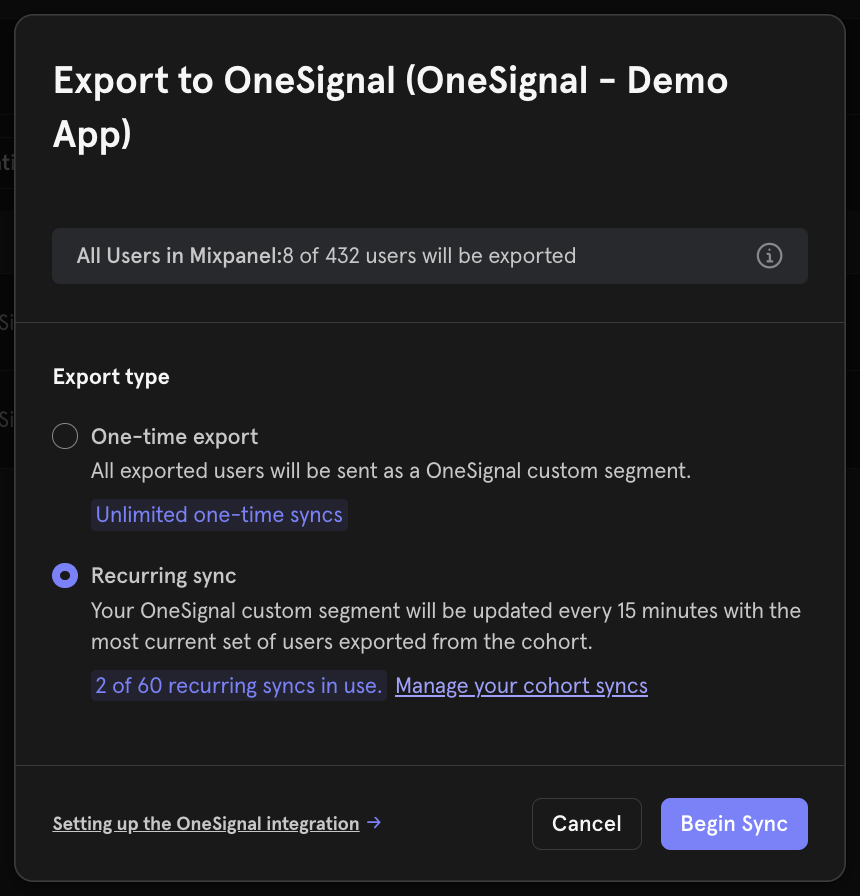
Mixpanel frequency options
OneSignal Segment creation
The synced cohort appears as a Mixpanel Segment filter. OneSignal automatically creates a Segment for the cohort if:- The Users in the Mixpanel cohort also exist in OneSignal with a matching External ID.
- You have not exceeded your Segment limit in OneSignal.
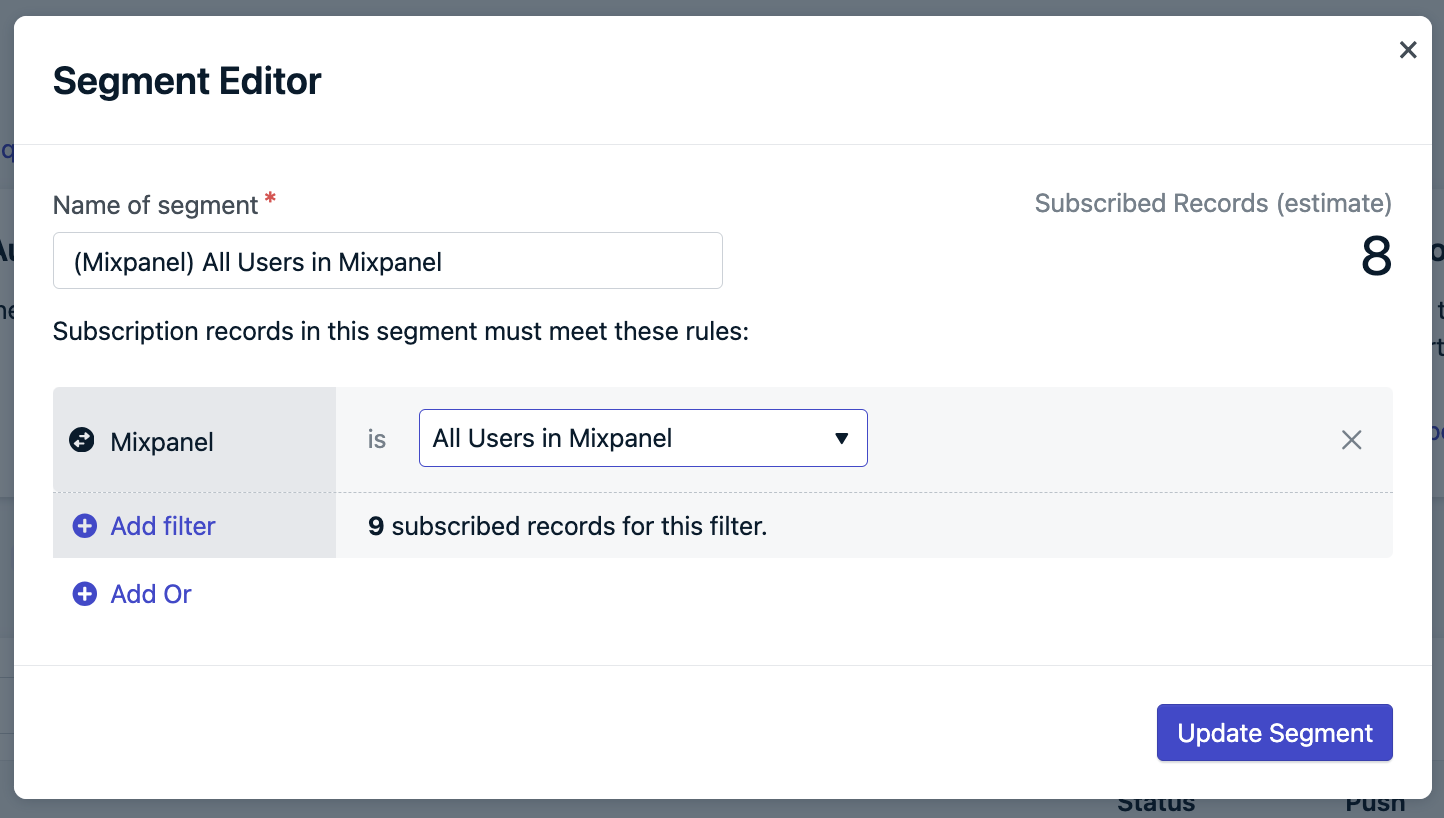
Creating a Segment from a Mixpanel cohort
Track message events in Mixpanel
OneSignal sends the following message events to Mixpanel in real time. Select which events to send in Data > Integrations > Mixpanel. To test, send yourself a message from OneSignal, then navigate to your user profile page in Mixpanel. Within the Activity Feed, you should see the events populate.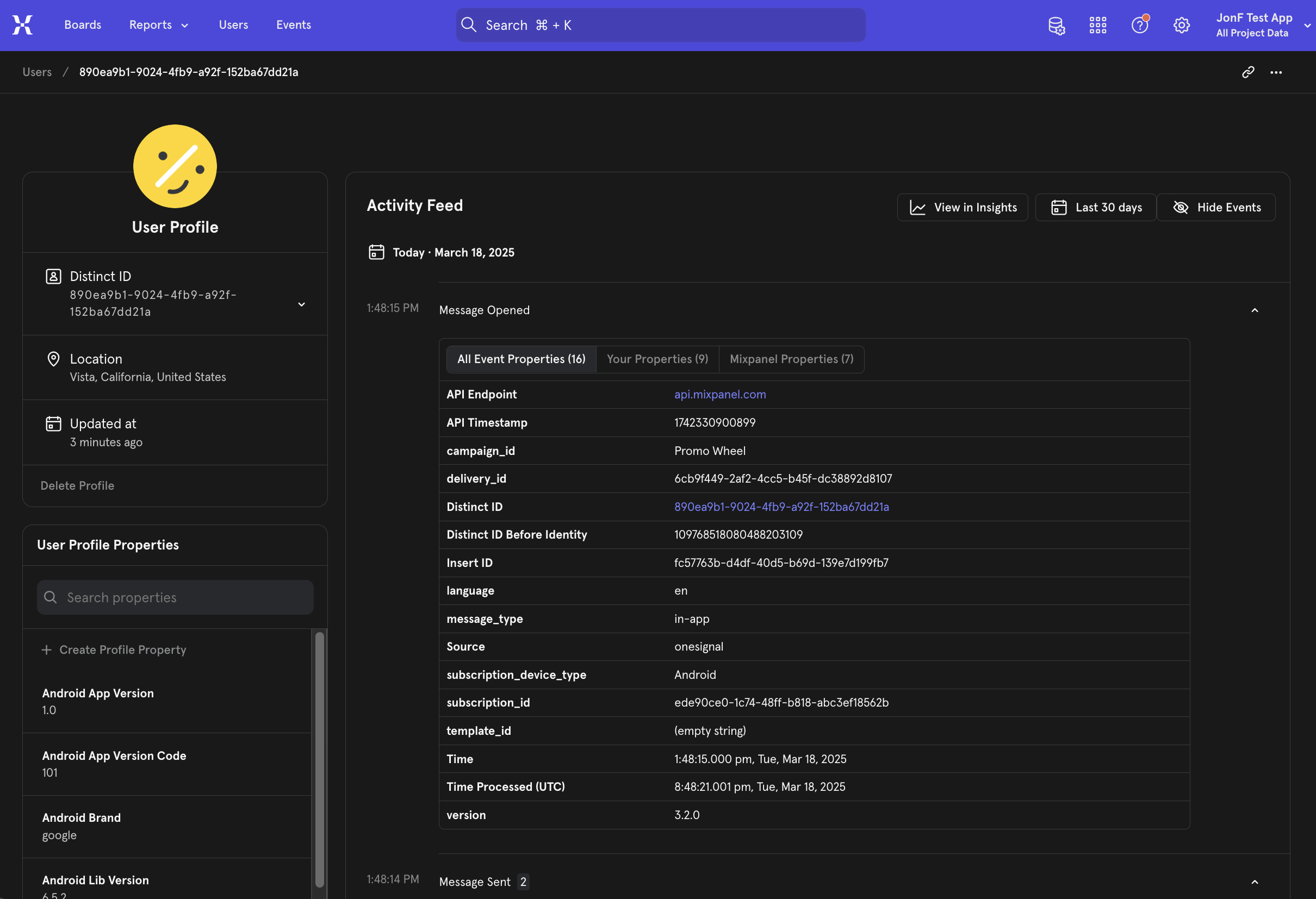
Mixpanel activity feed with OneSignal message events
Message events
Push
In-app
SMS
Event properties
Every event sent from OneSignal to Mixpanel includes these properties:FAQ
Why don’t my cohort and segment counts match?
- Missing or mismatched External IDs Only Users with a matching OneSignal External ID and Mixpanel User ID are included. This integration does not create Users or Subscriptions.
- Unsubscribed Users OneSignal Segments only display the count for subscribed Subscriptions. Unsubscribed Subscriptions are available for Journeys or In-App Messages.
- Not exist in OneSignal or have an incorrect External ID.
- Have unsubscribed Subscriptions.
Do unsubscribed Users sync from Mixpanel?
Yes, but they are excluded from the OneSignal Segment counts at this time. You can still message them via Journeys or In-App Messages if they have other Subscriptions or their Subscription type supports it.Why doesn’t delivery data match?
A single User may have multiple Subscriptions (push devices, email addresses, phone numbers). Each Subscription generates its own delivery event. For example:- 1 user = 2 Android + 1 iOS + 2 Web = 5 push Subscriptions
- 1 push message = up to 5 sent/received/clicked events
subscription_id in event properties to trace the exact source.
To troubleshoot missing events:
- Ensure
OneSignal.loginis called whenever a user is identified to set the External ID. - Verify that
OneSignal.logoutisn’t removing the External ID. - Check API requests or CSV uploads that may alter the External ID.
Can I send custom events from Mixpanel to OneSignal?
Not natively. The Mixpanel integration supports message events (OneSignal → Mixpanel) and cohort syncing (Mixpanel → OneSignal), but does not include a built-in custom event destination. Unlike Amplitude, Mixpanel has no native OneSignal events destination. To route Mixpanel behavioral events into OneSignal as custom events that trigger Journeys or Segments, use a third-party connector like Vendo.How can I send user/subscription events?
User and subscription-level events (e.g., permission granted, user login/logout) are not automatically sent. The OneSignal SDK has event listeners that can be used to track these events for you to send to Mixpanel:- User State Observer: Mobile SDK, Web SDK
- Permission Observer: Mobile SDK, Web SDK
Related pages
Analytics overview
Custom events
support@onesignal.comPlease include:- Details of the issue you’re experiencing and steps to reproduce if available
- Your OneSignal App ID
- The External ID or Subscription ID if applicable
- The URL to the message you tested in the OneSignal Dashboard if applicable
- Any relevant logs or error messages